22 - Using the Android OS
The Apps list
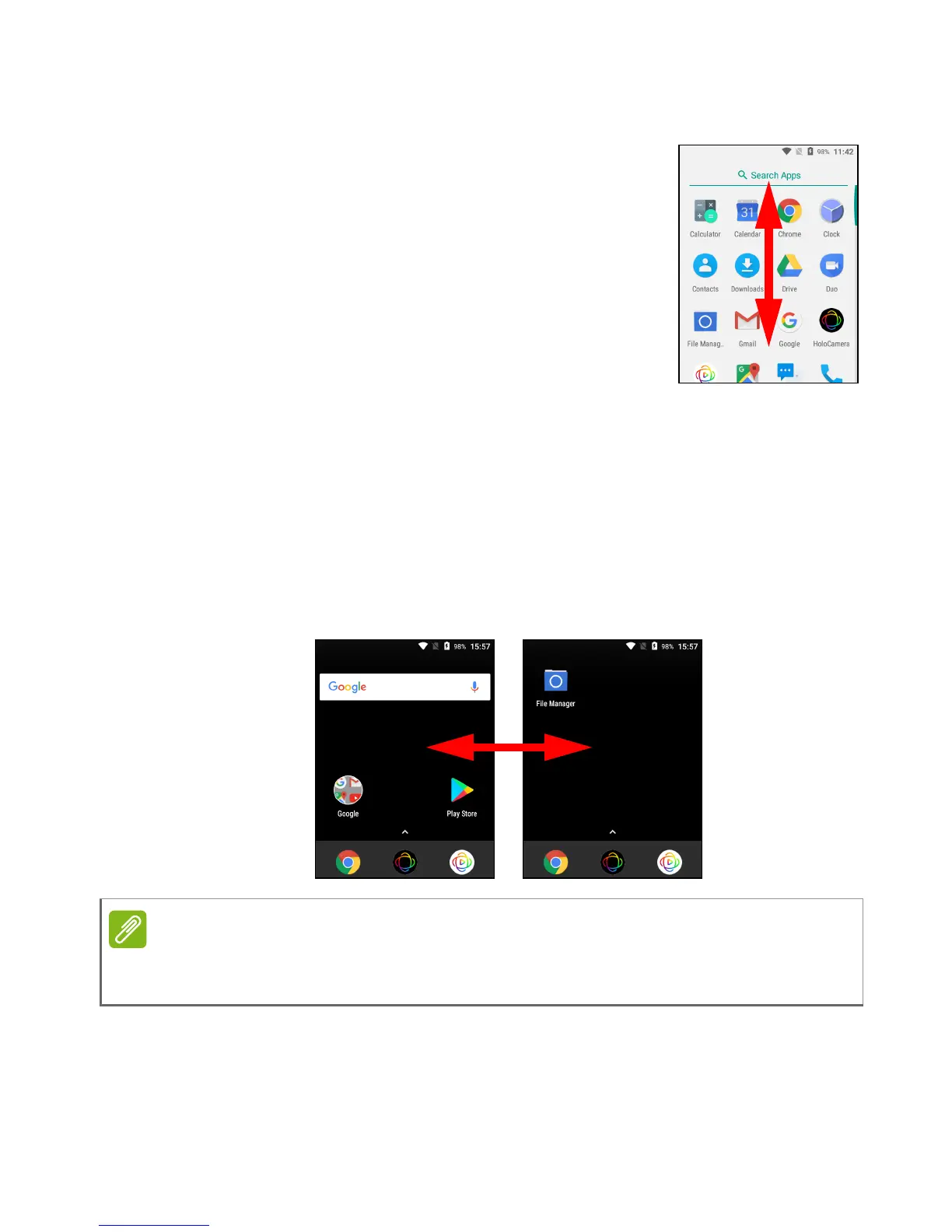
To access the Apps list, on the Home screen tap
the arrow above the center of the Favorites tray.
Apps are displayed in alphabetical order, with the
four most-recently used apps at the top of the
menu. Swipe up or down to see the complete list
of apps.
You can copy an icon and move it to a Home
screen for quick access. Tap and hold an app
then drag it up to a Home Screen. Release your
finger to place the app. See Moving an app or
folder on page 27.
Extended Home screens
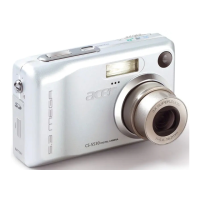
The Home screen can be extended to the right of the main Home
screen, giving you more room to add icons or widgets. To add a
screen, drag an icon or widget to the right edge of the screen. To view
the extended screen, swipe to the left.
Camera access
To activate the camera (see Using the Camera on page 13):
• swipe the camera icon up from the Lock screen,


 To Next Page