8 - Using your smart camera
USING YOUR SMART CAMERA
If you are familiar with the Android set up process, the you can jump
straight to Using the Camera on page 13.
Turning on for the first time
To turn on your camera, press and hold the
power button until you see the Acer logo.
Wait a moment for your camera to start.
You will then be asked some questions
before you can use your camera.
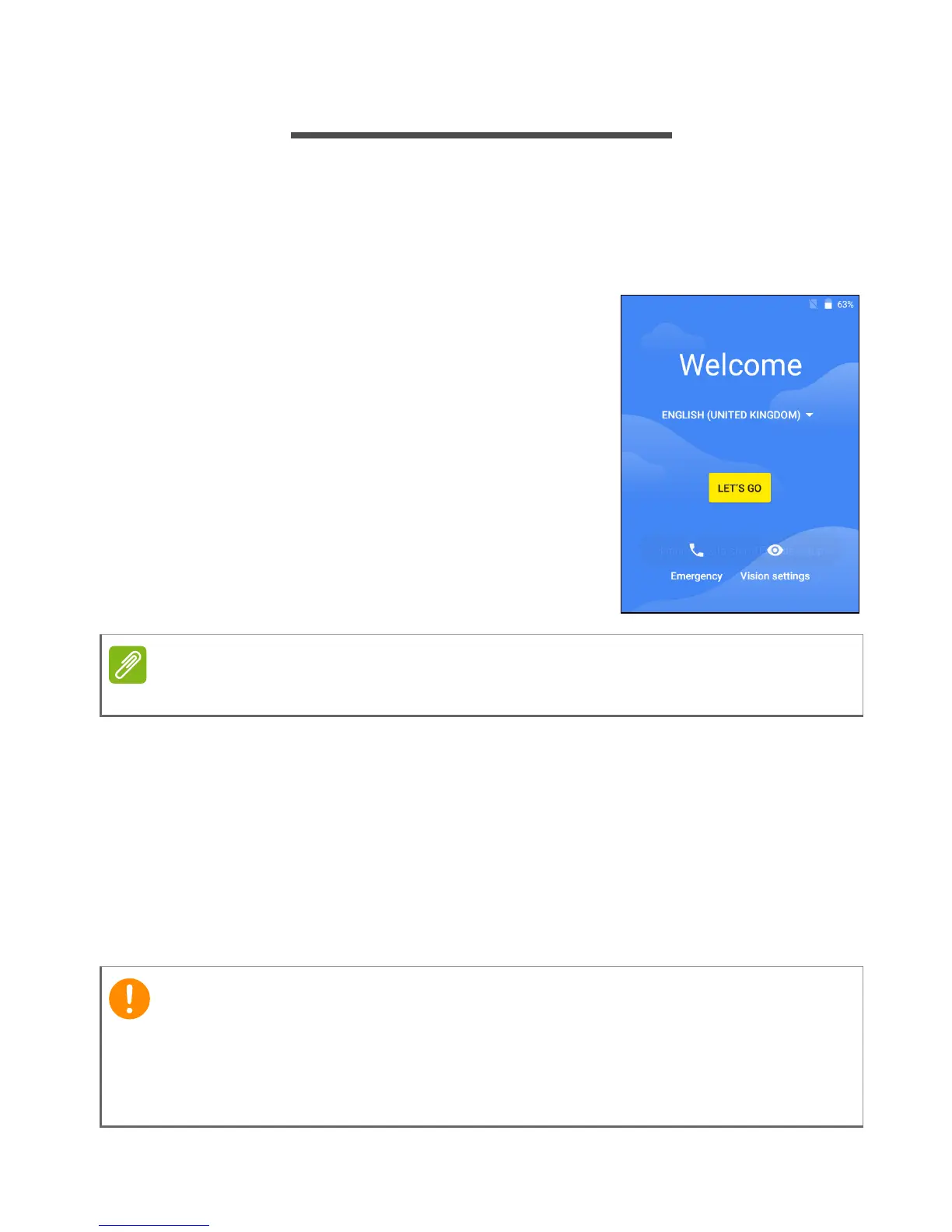
To start, tap to select your language then
tap Let’s go. Follow the rest of the
instructions as they are displayed.
If the camera screen turns off, it has entered
sleep mode. Briefly press the power button
to wake it up. For more information see
Waking your camera on page 10.
Sign in to or create a Google account
If you have Internet access, your camera allows you to synchronize
information with a Google account.
During the start-up process, you may create or sign in to an account,
which will be used to synchronize your contact list, email, calendar
and other information. If you do not yet have Internet access, or do not
want to use this feature, then tap Skip.
You must sign in to a Google Account to use Gmail, Google Calendar,
and some other Google apps; to download apps from Google Play; to
back up your settings to Google servers; and to take advantage of other
Google services on your camera.


 To Next Page