Using the Android OS - 27
The virtual keyboard
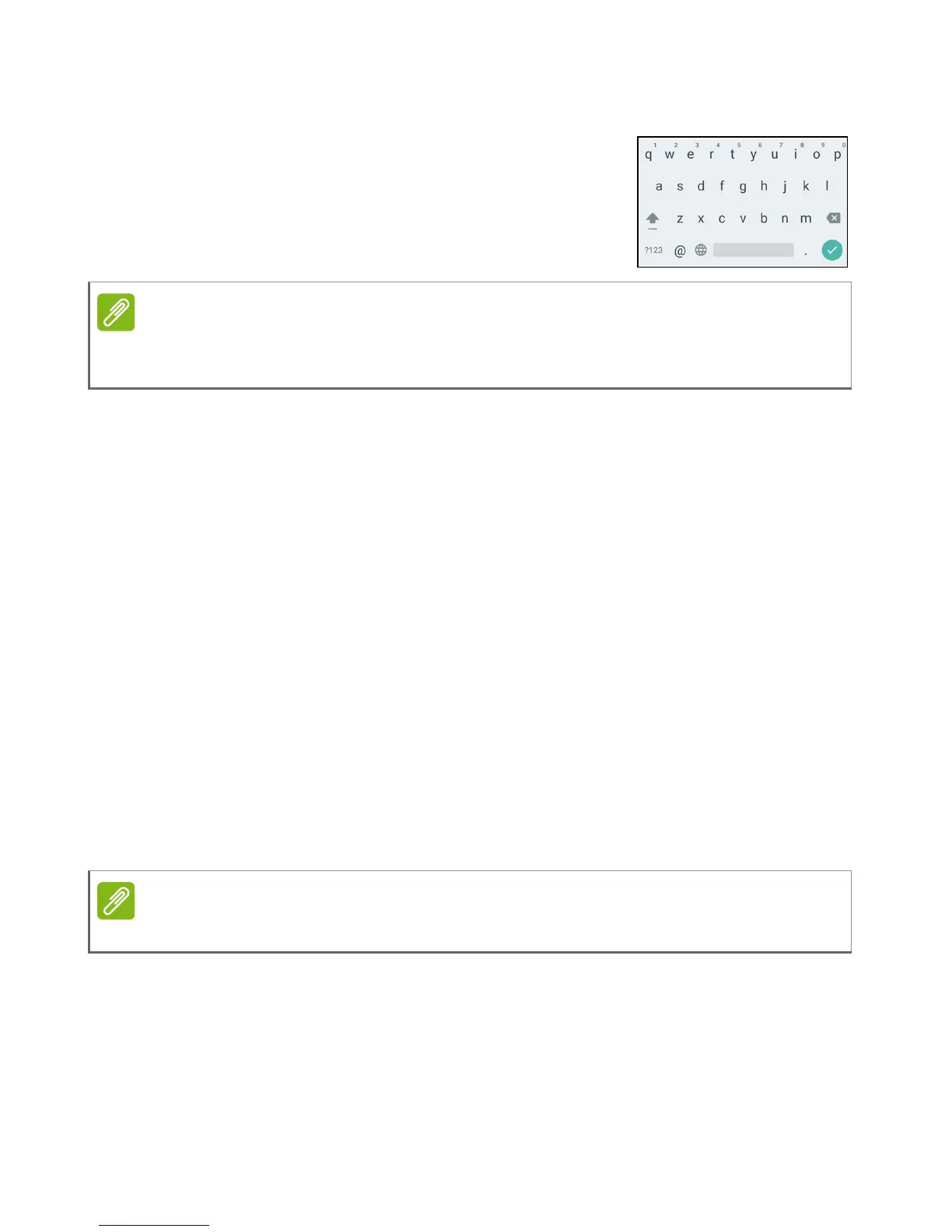
When you tap a text box to enter text, an virtual
keyboard will appear. Simply tap on keys to
enter text.
Tap the ?123 button to see numbers and special characters, and then
tap the =\< key to see more options. Tap and hold a key to select
alternative characters (if available for that key), such as letters with
accents or related symbols.
Personalizing the Home screen
You can personalize your Home screen by moving apps, adding or
removing widgets, creating folders and by changing the wallpaper.
Moving an app or folder
Tap and hold an app or folder you want to move. For certain apps, to
view information about the app, drag it to App info at the top of the
screen. Otherwise, drag the icon and release your finger to place the
app.
To place the app on an different Home screen, do the following:
1. Slide your finger to the right or left side of the screen.
2. Hold the app there until you are on the desired Home screen.
3. Release your finger to place the app.


 To Next Page