26 - Using the Android OS
Quick Settings tiles
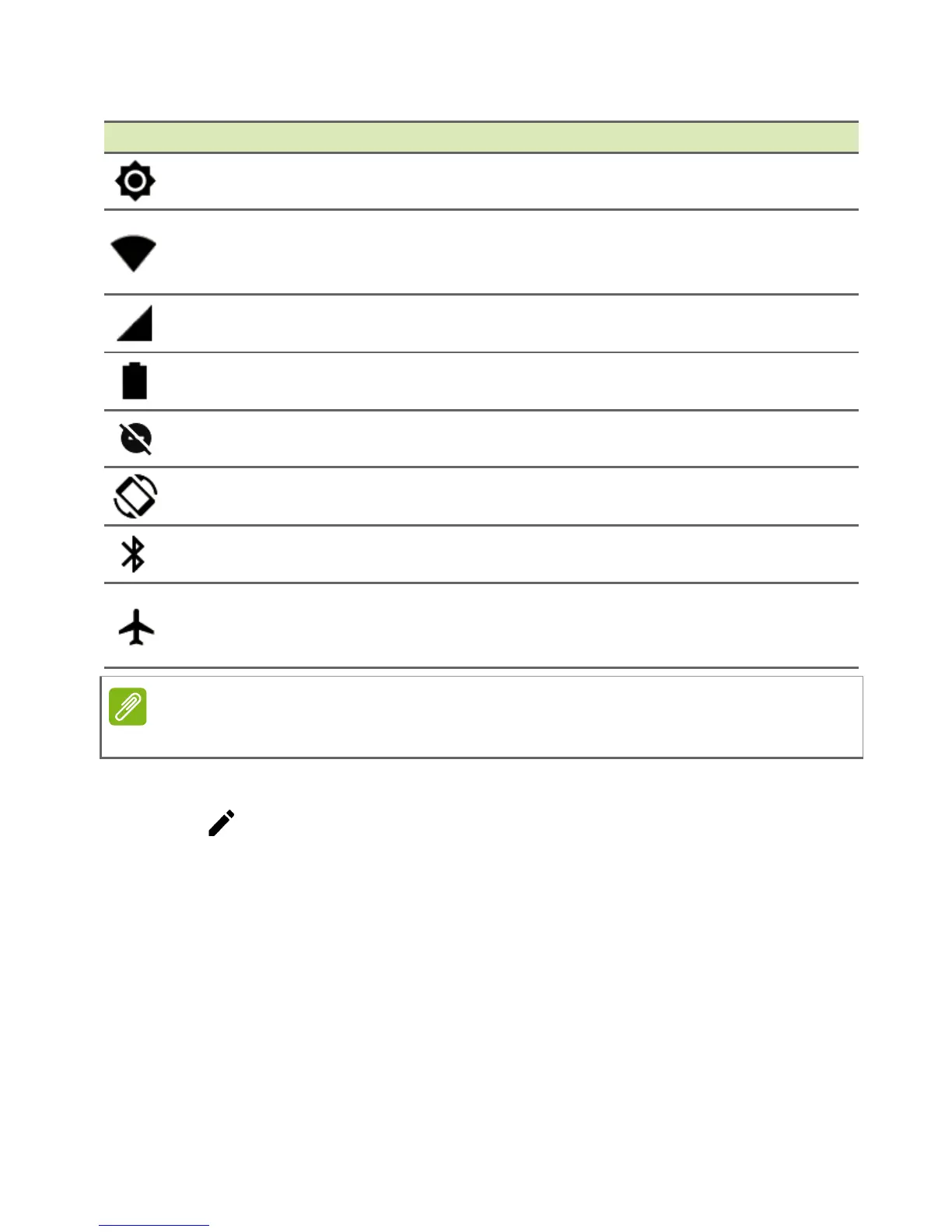
Icon Name Description
Brightness Slide to adjust the screen’s brightness.
Wi-Fi
Tap to toggle Wi-Fi and display Wi-Fi settings.
Small
"up" and "down" arrows mean information
is being transmitted.
SIM (LTE
models only)
Tap to toggle phone and data connections and
display SIM settings.
Battery usage
Tap to see battery charge levels and access
Batte
ry Saver settings.
Do not disturb Tap to silence some or all notifications or alarms.
Auto rotate
Tap to toggle automatic screen rotation on and
of
f.
Bluetooth
Tap to toggle Bluetooth on and open Bluetooth
settin
gs.
Airplane mode
Tap to toggle Airplane mode on and off. When
on
, wireless connectivity is turned off unless you
choose to turn a network on again.
Edit
Tap to see more Quick Settings tiles. Tap and hold a tile and drag
to add, remove or move it. The first five tiles are visible in the Quick
Settings shortcuts.
Notifications
Tap a notification to open the appropriate app; tap and hold a
notification to see additional controls.


 To Next Page