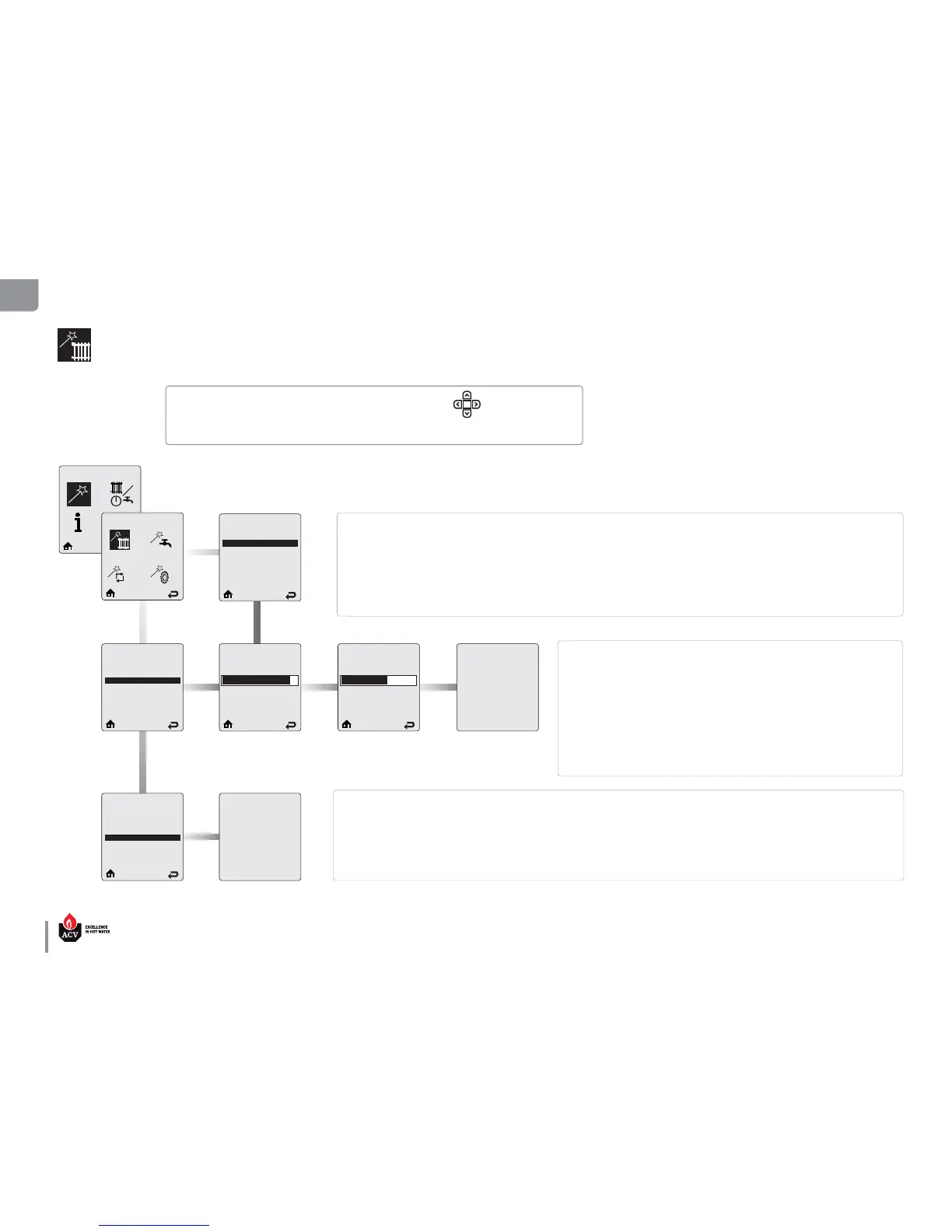
Select CH Demand
Thermostat & Setpoint
Constant & Setpoint
0 - 10 V Modulation Signal
CH1 Setpoint
82°C
20°C 87°C
CH2 Setpoint
60°C
20°C 87°C
EZ Setup Complete
Heating EZ setup is complete.
Additional changes can be made in
the Installer Menu if required.
Press OK to return to EZ Setup Menu
0 - 10V Modulation Signal - This option allows the HeatMaster ring rate to be controlled by an external control system.
Refer to the Installer’s Handbook, Volume 1, for more information.
CH1 Setpoint prompts to enter the xed setpoint for a CH1 heating call when a
Setpoint option is chosen in Select CH Demand. Press on LEFT or RIGHT button
to adjust the required temperature setpoint then press OK to store the setting.
The CH2 Setpoint screen appears.
CH2 Setpoint prompts to enter the xed setpoint for a CH2 heating call when a
Setpoint option is chosen in Select CH Demand. Press on LEFT or RIGHT button
to adjust the required temperature setpoint then press OK to store the setting
and complete the Heating setting.
CH1 Default: 82°C.
CH2 Default: 60°C
Select CH Demand prompts the installer to select how a CH Demand is generated. There are three Select CH Demand options,
among which the installer must make a selection.
Thermostat & Setpoint - This option is only displayed when no outdoor temperature sensor is connected. A central heating call from
a thermostat or zone panel will enable the HeatMaster and the setpoint will be xed for central heating calls. When Thermostat &
Setpoint is selected, the CH1 Setpoint screen appears.
Constant & Setpoint - The HeatMaster will maintain setpoint without an external CH call from a thermostat or zone panel. The set-
point will be xed for CH calls. When Constant & Setpoint is selected, the CH1 Setpoint screen appears.
EZ Setup
Heating Easy setup (no outdoor sensor connected)
Select CH Demand
Thermostat & Setpoint
Constant & Setpoint
0 - 10 V Modulation Signal
Select CH Demand
Thermostat & Setpoint
Constant & Setpoint
0 - 10 V Modulation Signal
EZ Setup Complete
Heating EZ setup is complete.
Additional changes can be made in
the Installer Menu if required.
Press OK to return to EZ Setup Menu
Heating EZ Setup
• To navigate on the screen, use the UP, DOWN, LEFT and RIGHT keys,
OK
• Use the OK key to validate a selection.
• To increase/decrease values, use the UP and DOWN keys, or LEFT and RIGHT, according to the situation.




 To Next Page