51
How to activate zoom on other measures
You can use the Zoom App on an image took from another measure by selecting the Zoom
function and loading the image.
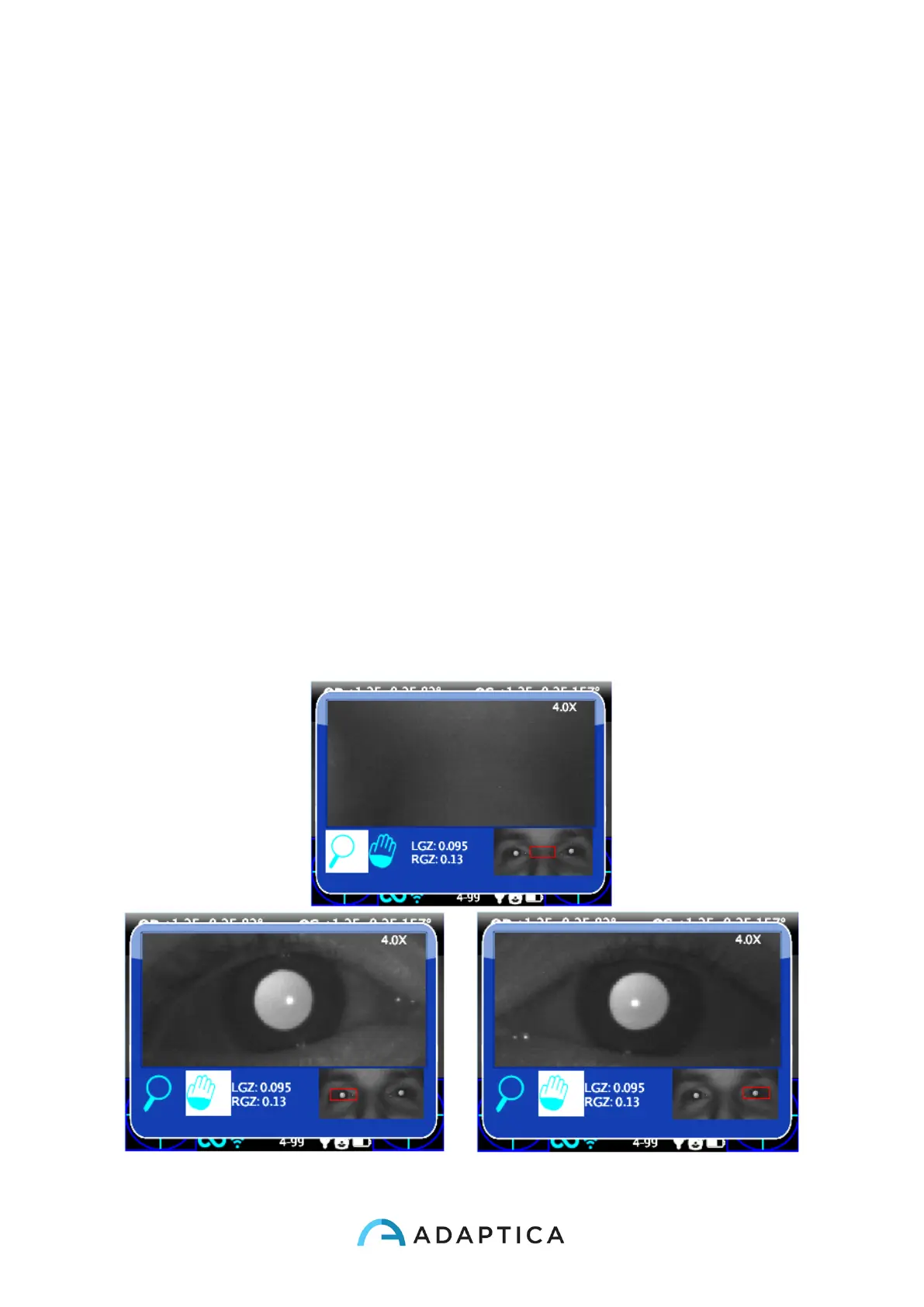
The Zoom App sometimes does not automatically identify the pupils.
Auto-research of pupils
In case of automatically identifying of the pupils, the situation will be the same as the nor-
mal situation shown earlier. You can try to change pupil to confirm that both pupils have
been identified. If it doesn’t work, the zoom window will automatically get in position on the
right pupil and that means it has identified only one of them. If the zoom will get in position
on the center of the image it means that no pupil has been identified in the image and you
have to go forward with the manual positioning.
Manual research of pupils
If the zoom opens on the center of the image it means the pupils haven’t been recognized
(or you used a 2WIN without Zoom App). In this case you can search for the pupils using
pan function and then save their positions by pressing the pupil button.


 To Next Page