Using Help | Contents | Index Back 100
Adobe Illustrator Help Working with Objects
Using Help | Contents | Index Back 100
Selecting filled objects
The Use Area Select option in the General Preferences dialog box determines whether you
can select a filled object in Preview view by clicking anywhere within the area or whether
you must click a path segment or anchor point. By default, the Use Area Select option is
on. In some cases, you may want to turn off the Use Area Select option—for example,
when you work with overlapping filled objects.
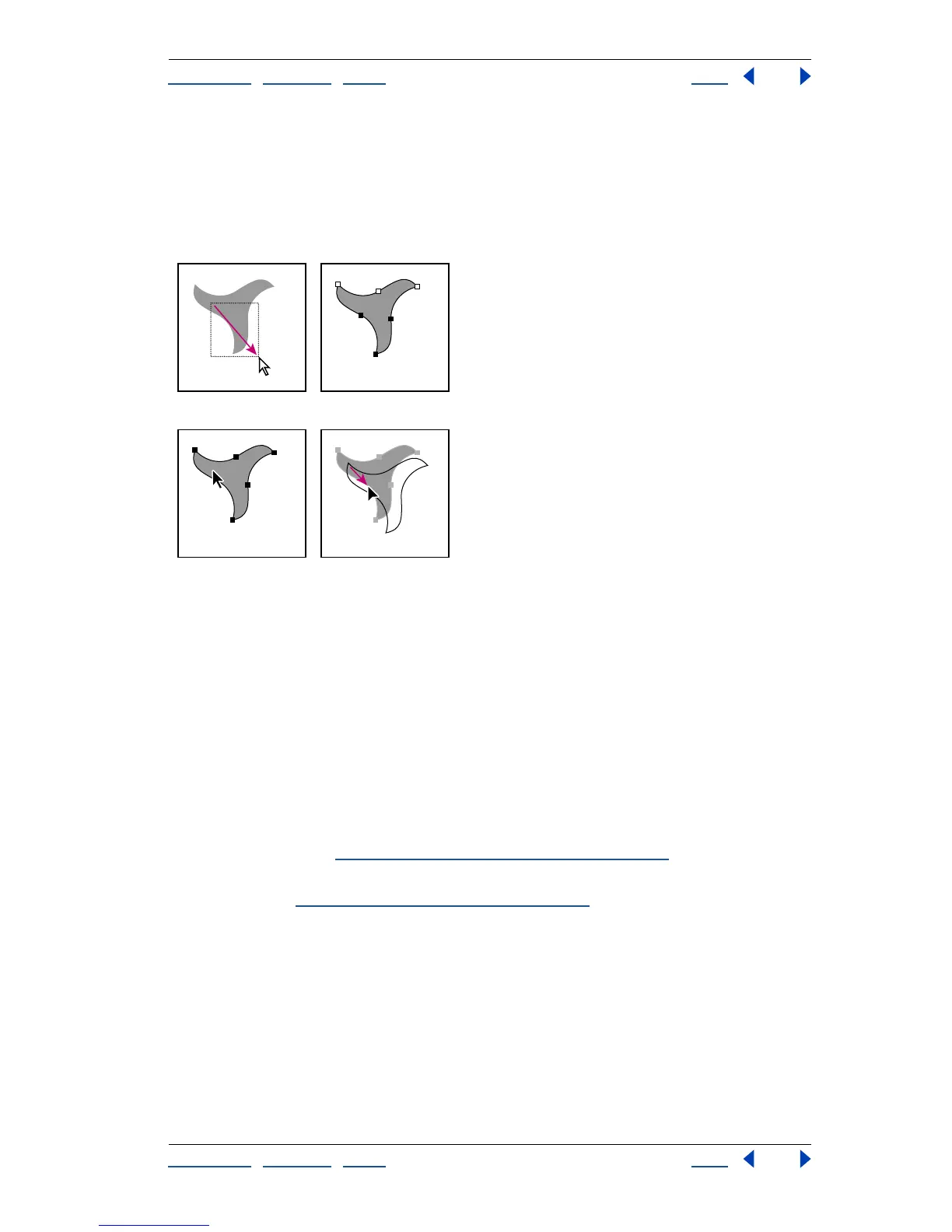
With Use Area Select option off, dragging selects points and segments within marquee.
With Use Area Select option on, dragging selects object.
To turn the Use Area Select option on or off:
1 Choose Edit > Preferences > General (Windows and Mac OS 9) or Illustrator >
Preferences > General (Mac OS X).
2 Select or deselect the Use Area Select option, and click OK.
Selecting and deselecting multiple objects
You can select several objects at a time and then move, paint, group, transform, or edit
them using any editing tool. You deselect objects when you no longer want to edit them.
You can deselect one object, several objects, or all objects in your artwork.
You can also select objects based on their paint style, stroke color, stroke weight, style,
blending mode, opacity, and whether they are masks, stray points, or brush strokes. For
more information, see “
Changing global colors and tints” on page 163.
Note: Objects that have been locked or hidden are not selected with the selection
commands. (See “
Locking and hiding objects” on page 112.)
To select multiple objects:
Do one of the following:
• With the selection tool, drag a marquee over all of the objects.
• With an object selected, Shift-drag a marquee over other objects to select.
• With the selection tool, select an object and then Shift-click to select additional objects.
To select all objects in a file:
Choose Select > All.



 To Next Page