Using Help | Contents | Index Back 146
Adobe Illustrator Help Transforming and Distorting Shapes
Using Help | Contents | Index Back 146
When you create a non-zero winding compound path, you can specify whether
overlapping paths appear with holes or filled by clicking a Reverse Path Direction button
in the Attributes palette.
Fill rules
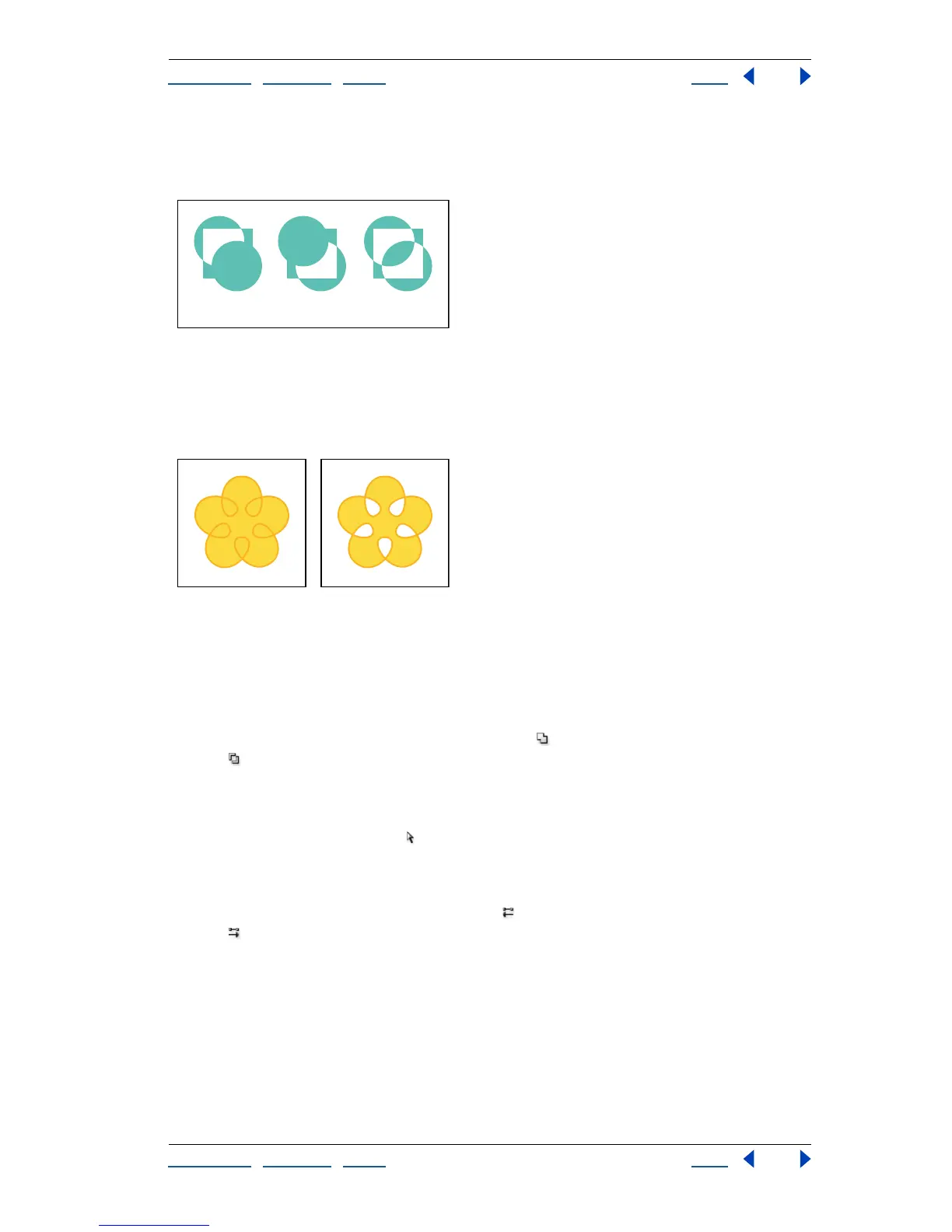
A. Non-zero winding compound path B. Non-zero winding compound path with Reverse Path
Direction on C. Even-odd compound path
Self-intersecting paths are paths that intersect themselves. You can choose to make these
paths either non-zero winding or even-odd, depending on how you want them to look.
Self-intersecting path
A. With Use Non-Zero Winding Fill Rule applied B. With Use Even-Odd Fill Rule applied
To specify a non-zero winding or even-odd compound path:
1 With the selection tool, select the compound path.
2 Choose Window > Attributes.
3 Click the Use Non-Zero Winding Fill Rule button or the Use Even-Odd Fill Rule
button .
To change which areas are filled or become holes in a non-zero winding
compound path:
1 With the direct-selection tool , select the part of the compound path to reverse.
Do not select the entire compound path.
2 Choose Window > Attributes.
3 Click the Reverse Path Direction Off button or the Reverse Path Direction On
button .
Returning a compound path to its original shape
To retrieve the individual paths that make up a compound path, use the Release
command.
To release a compound path:
1 With the selection tool, select the compound path to release.
2 Choose Object > Compound Path > Release.
AB C



 To Next Page