Using Help | Contents | Index Back 215
Adobe Illustrator Help Using Layers
Using Help | Contents | Index Back 215
Using Layers
About layers
When creating complex artwork, it’s a challenge to keep track of all the items on your
artboard. Small items get hidden under larger items, and selecting artwork becomes
difficult. Layers provide a way to manage all the elements that make up your artwork.
Think of layers as clear folders that contain artwork. If you reshuffle the folders, you
change the stacking order of the items in your artwork. You can move items between
folders and create subfolders within folders.
The structure of layers in your document can be as simple or complex as you want it to be.
By default, all items are organized in a single, parent layer. However, you can create new
layers and move items into them. The Layers palette provides an easy way to select, hide,
lock, and change the appearance attributes of artwork. You can even create template
layers, which you can use to trace artwork, and import layers from Photoshop.
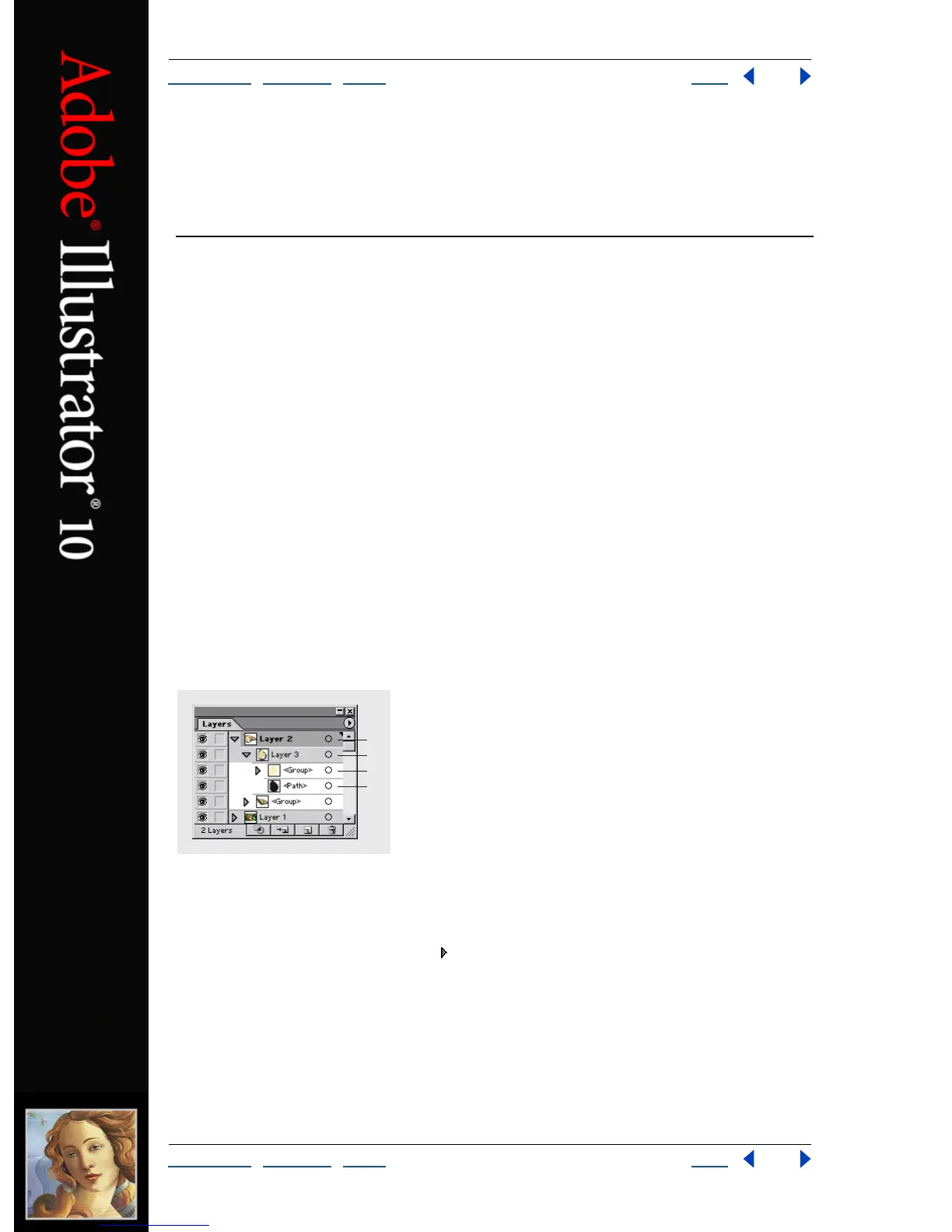
Using the Layers palette
The Layers palette lists all the layers in a document, starting with the frontmost layer. Each
layer can contain items such as paths, groups, envelopes, compound shapes, compound
paths, and sublayers. You can expand or collapse items in the Layers palette to display or
hide their contents.
Layers palette
A. Parent layer B. Sublayer C. Group D. Path
Displaying the Layers palette Choose Window > Layers.
Expanding layers Click the triangle to the left of the layer. If the layer is empty, no
triangle appears and there is nothing to expand. Click again to collapse the layer.
Selecting layers Click the name of the layer in the Layers palette. Alternatively, Ctrl-Alt-
click (Windows) or Option-Command-click (Mac OS) anywhere in the layer list, and type
the name or number of the layer you want to select. (For example, you can type 30 to go
to “Layer 30.”) Shift-click or Ctrl-click to select multiple contiguous or noncontiguous
layers.
A
B
C
D



 To Next Page