Using Help | Contents | Index Back 266
Adobe Illustrator Help Using Type
Using Help | Contents | Index Back 266
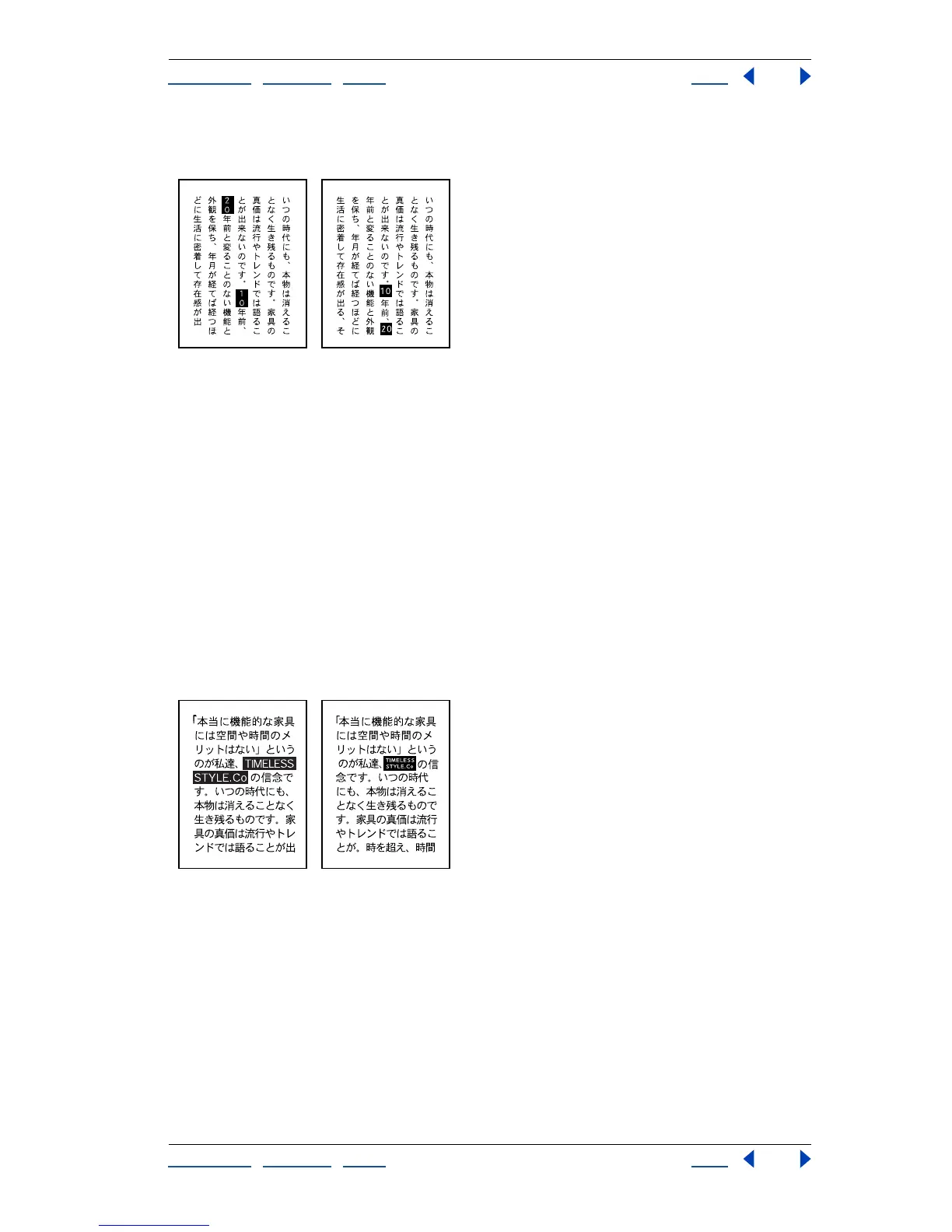
• Tate Chu Yoko rotates the selected block of text (1- or 2-byte characters) in the plane
opposite from the rest of the text.
Vertical text in Standard direction compared to vertical text with Tate Chu Yoko option applied.
Changing text orientation using the Text Orientation command
The Text Orientation command lets you change text from a horizontal orientation to a
vertical orientation, and vice versa.
To change a text block orientation from horizontal to vertical, and vice versa:
1 Select a text block with any selection tool.
2 Choose either Type > Type Orientation > Horizontal or Type > Type Orientation >
Vertical.
Using the Wari-Chu (divided note) option
The Wari-Chu option in the Character palette decreases the type size of selected text to a
percentage of the original and stacks the type—horizontally or vertically, according to the
orientation—on two lines.
Regardless of the point size of wari-chu text, the number of wari-chu lines is always two.
Text without Wari-Chu option compared to text with Wari-Chu option.
Note: The Wari-Chu option does not work with path type and does not affect type entered
on open or closed paths.
To create a divided note with the Wari-Chu option:
1 Using any type tool, select the type to be divided.
2 If the multilingual options are not visible in the Character palette, choose Show Multi-
lingual from the palette menu.
3 Select the Wari-Chu option.



 To Next Page