Using Help | Contents | Index Back 311
Adobe Illustrator Help Preparing Graphics for the Web
Using Help | Contents | Index Back 311
Read Only Select Read Only to prohibit users from modifying the exported SWF file.
Export As Select AI File to SWF File to export the artwork to a single frame. Select AI
Layers to SWF Frames to export the artwork on each layer to a separate SWF frame,
creating an animated SWF.
Note: Select AI File to SWF File to preserve layer clipping masks.
Curve Quality Specify the accuracy of the bezier curves. A low number decreases the
exported file size with a slight loss of curve quality. A higher number increases the
accuracy of the bezier curve reproduction, but results in a larger file size.
Frame Rate Specify the rate at which the animation will be played in a Macromedia Flash
viewer. (This option is only available for AI Layers to SWF Frames.)
Loop Select Loop to cause the animation to loop continuously, rather than play once and
then stop, when played in a Macromedia Flash viewer. (This option is only available for AI
Layers to SWF Frames.)
Optimization options for SVG format
SVG uses XML to save high-resolution vector graphics. SVG files can contain sophisticated
elements, such as gradients, animation, and filter effects. (See “
About graphic file formats”
on page 328.)
Increase the resolution in the Document Raster Effects Settings dialog box to improve
the appearance of raster effects in SVG files. (See “
Specifying raster effects settings” on
page 239.)
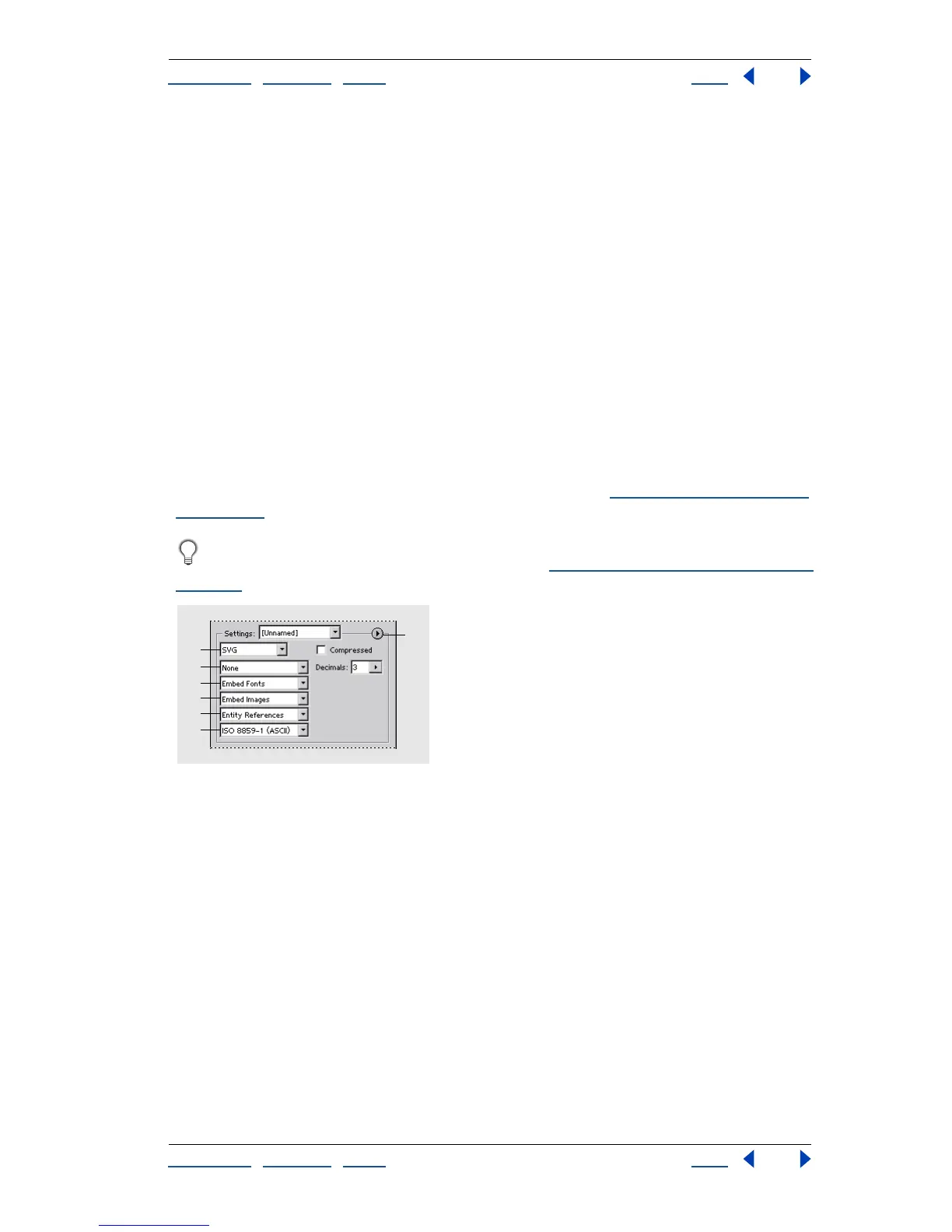
Optimization panel for SVG format
A. File Format menu B. Font Subsetting menu C. Font Location menu D. Image Location menu
E. CSS Properties menu F. Character Encoding G. Optimize menu
Compressed Select Compressed to create a Compressed SVG (SVGZ) file.
Font Subsetting Choose an option from the Font Subsetting menu to control which
fonts are embedded or linked from the SVG file. Choose None from the Subsetting menu if
you can rely on the necessary fonts being installed on end-user systems. Choose Only
Glyphs Used (only available when embedding fonts) to only include glyphs for text that
exists in the current artwork. The other values (Common English, Common English +
Glyphs Used, Common Roman, Common Roman + Glyphs Used, All Glyphs) are useful
when the textual content of the SVG file is dynamic (such as server-generated text or user-
interactive text).
Decimals Specify the precision of vector data in the SVG file. You can set a value of 1 to 7
decimal places. A high value results in a larger file size and increased image quality.
G
A
B
C
D
E
F



 To Next Page