Using Help | Contents | Index Back 179
Adobe Illustrator Help Producing Consistent Color
Using Help | Contents | Index Back 179
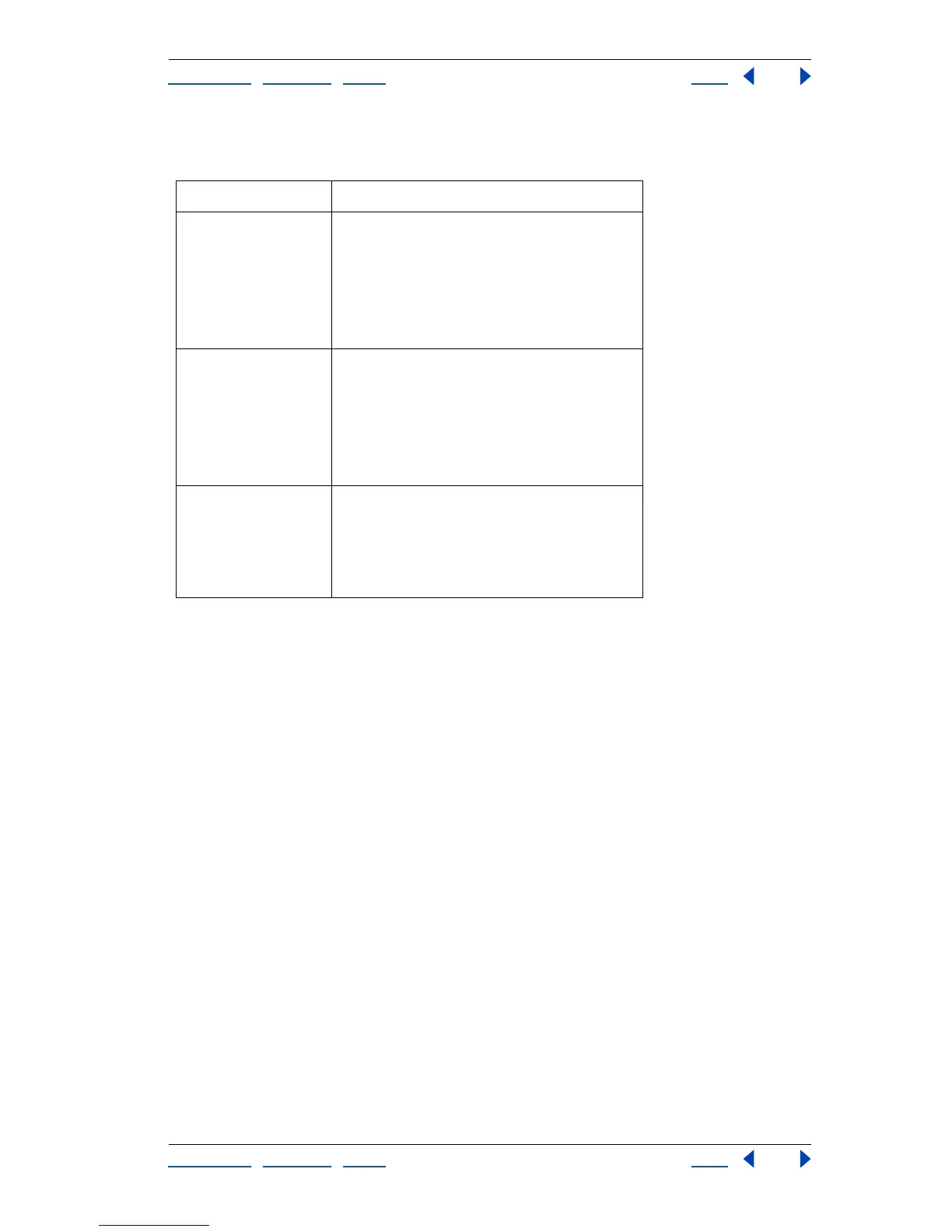
The following table provides a summary of the policy decisions you may be prompted to
consider when opening or importing mismatched color data:
The predefined color management workflows are set to display warning or option
messages when a default color management policy is about to be implemented.
Although you can disable the repeated display of some of the messages, it is highly
recommended that you continue to display all policy messages, to ensure the appropriate
color management of documents on a case-by-case basis. You should only turn off
message displays if you are very confident that you understand the default policy decision
and are willing to accept it for all documents that you open. You cannot undo the results
of a default policy decision once a document has been saved.
To turn off the display of a policy message:
In the message dialog box, select the Don’t Show Again option if it is available.
To reset the display of policy messages that have been disabled:
1 Choose Edit > Preferences > General (Windows and Mac OS 9) or Illustrator >
Preferences > General (Mac OS X).
2 Click Reset All Warning Dialogs, and click OK.
Customizing color management settings
Although the predefined settings should provide sufficient color management for most
publishing workflows, you may sometimes want to customize individual options in a
configuration. For example, you might want to change the CMYK working space to a
profile that matches the proofing system used by your service bureau.
Mismatch situation Policy options that may be available
Opening non-color-
managed document
without color profile
• Use working space for editing but not saving;
do not color-manage document.
• Use working space for editing, and save work-
ing space with document.
• Use another color profile for editing, and save
profile with document.
Opening document
with color profile that
does not match work-
ing space
• Use profile (instead of working space) for
editing, and save profile with document.
• Convert colors to working space, and save
working space with document.
• Discard profile, and do not color-manage
document.
Importing color data
into destination docu-
ment
• Import and convert numeric values of source
colors to color space of destination document
in order to preserve color appearances.
• Import and preserve numeric values of
source colors.



 To Next Page