Using Help | Contents | Index Back 310
Adobe Illustrator Help Preparing Graphics for the Web
Using Help | Contents | Index Back 310
Optimized Select Optimized to create an enhanced JPEG with a slightly smaller file size.
The Optimized JPEG format is recommended for maximum file compression; however,
some older browsers do not support this feature.
Progressive Select Progressive to create an image that displays progressively in a Web
browser. The image will display as a series of overlays, enabling viewers to see a low-
resolution version of the image before it downloads completely. The Progressive option
requires use of the Optimized JPEG format.
Note: Progressive JPEGs require more RAM for viewing, and are not supported by some
browsers.
Blur Specify the amount of blur to apply to the image. This option applies an effect
identical to that of the Gaussian Blur filter and allows the file to be compressed more,
resulting in a smaller file size. A setting of 0.1 to 0.5 is recommended.
ICC Profile Select ICC Profile to preserve the ICC profile of the artwork with the file.
ICC profiles are used by some browsers for color correction. This option is only available
after you’ve saved an image with an ICC profile—it is not available for unsaved images.
(See “
Setting up color management” on page 176).
Matte Specify a fill color for pixels that were transparent in the original image:
• Click the Matte color swatch and select a color in the color picker.
• Choose an option from the Matte menu: Eyedropper (to use the color in the eyedropper
sample box), White, Black, or Other (to use the color picker).
Pixels that were fully transparent in the original image are filled the selected color, pixels
the were partially transparent in the original image are blended with the selected color.
Optimization options for PNG-24 format
PNG-24 is suitable for compressing continuous-tone images; however, it produces much
larger files than JPEG format. (See “
About graphic file formats” on page 328.)
The advantage of using PNG-24 is that it can preserve up to 256 levels of transparency in
an image. To save an image with multilevel transparency, select Transparency and choose
None from the Matte menu. For more information on the Interlaced, Transparency, and
Matte options, see “
Optimization options for GIF and PNG-8 formats” on page 308.
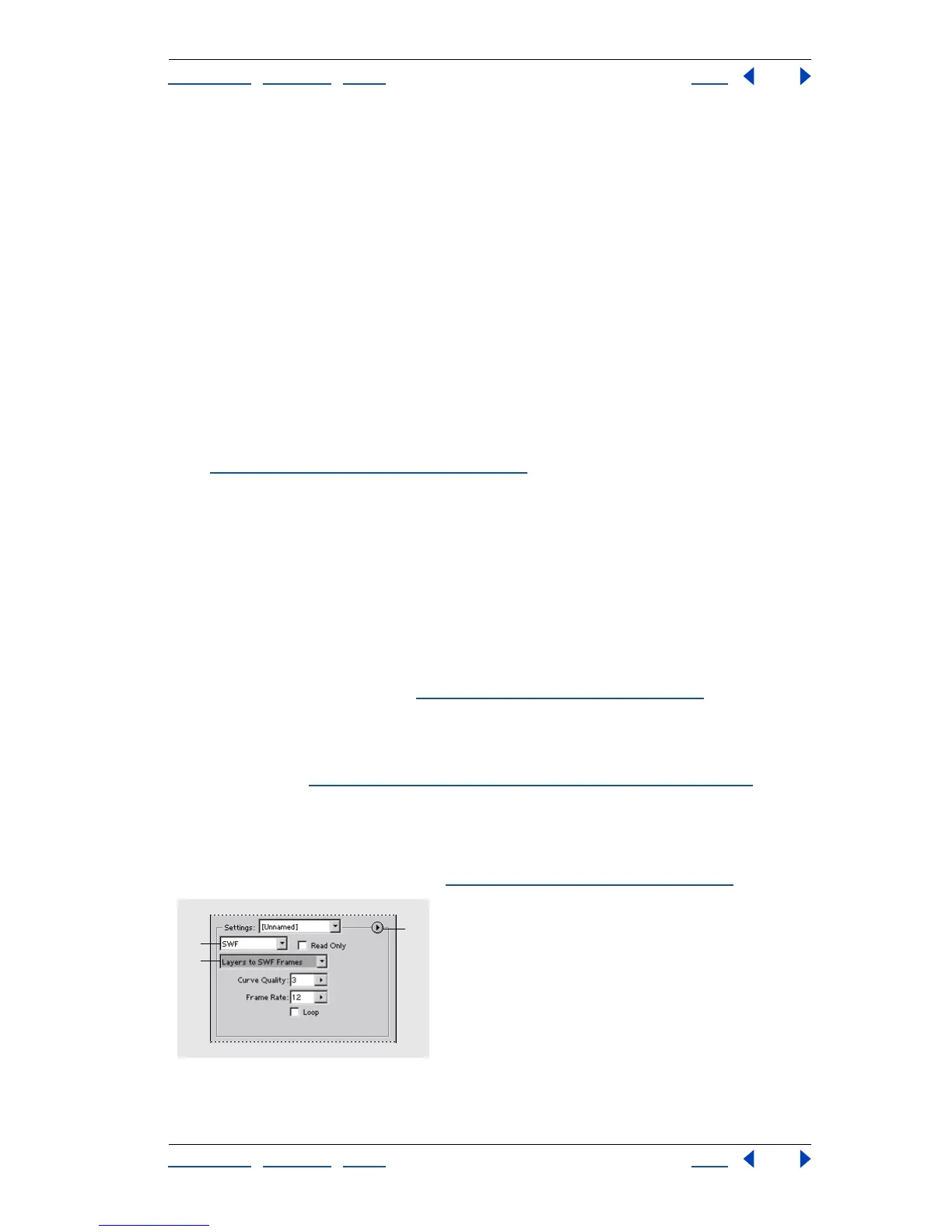
Optimization options for SWF format
SWF is a vector-based format that creates scalable, compact graphics. Because SWF is
vector-based, artwork maintains its image quality at different resolutions and is ideal for
the creation of animation frames.(See “
About graphic file formats” on page 328.)
Optimization panel for SWF format
A. File format menu B. Export As menu C. Optimize menu
C
A
B



 To Next Page