Using Help | Contents | Index Back 192
Adobe Illustrator Help Using Transparency, Gradients, and Patterns
Using Help | Contents | Index Back 192
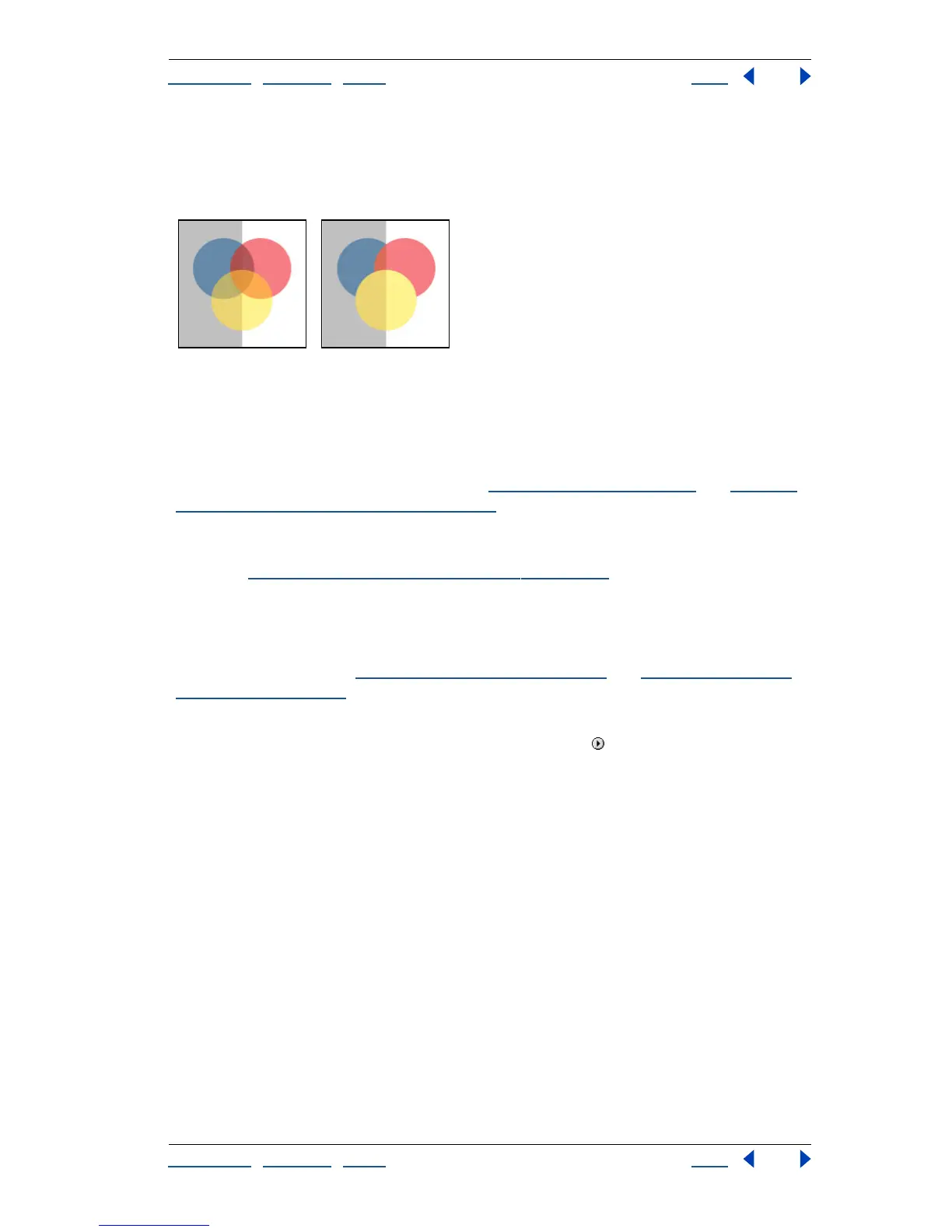
In contrast, if you target a group that has been created with the Group command and then
change the opacity, the group is treated as a single object by the Transparency palette and
the opacities within the group do not change. Only objects outside the group are made
transparent relative to the group.
Individual objects selected and set to 50% opacity (left). Group selected and set to 50% opacity
(right).
Printing and exporting files containing transparency effects
Before you print a file containing transparency effects, make sure to check the trans-
parency preferences first. Printing automatically flattens the artwork and may affect the
appearance of the transparency effects. See “
About printing” on page 332 and “Printing
and saving transparent artwork” on page 336.
When you share files between Illustrator and Adobe Photoshop, transparency is
preserved. Opacity masks in Illustrator convert to layers masks in Photoshop, and vice
versa. See “
Opening Photoshop files in Illustrator” on page 34.
Using the Transparency palette
Use the Transparency palette to specify the opacity and blending mode of objects, to
create opacity masks, or to knock out a portion of one object with the overlying portion of
a transparent object (see “
About opacity masks” on page 194 and “About transparency
knockouts” on page 198).
Displaying the Transparency palette Choose Window > Transparency.
Using the Transparency palette menu Click the triangle in the upper right corner of
the palette to access commands for working with transparency.
Displaying transparency options Choose Show Options from the Transparency palette
menu.
Using the Transparency Grid
You can display a checkered background grid that lets you more easily view the areas of
the artwork that are transparent when you are working on the artwork.
Viewing the Transparency Grid Choose View > Show Transparency Grid, or View > Hide
Transparency Grid.
Specifying transparency
By default, the entire object (both the stroke and the fill) is affected by transparency
commands. To change the transparency of only the fill or only the stroke, you can select
the fill or stroke in the Appearance palette. You can then apply transparency effects to the
selected fill or stroke using the Transparency palette.



 To Next Page