Using Help | Contents | Index Back 287
Adobe Illustrator Help Creating Templates for Data-Driven Graphics
Using Help | Contents | Index Back 287
All objects Use the Visibility variable to make an object’s visibility dynamic. You can also
make the visibility of groups and layers dynamic.
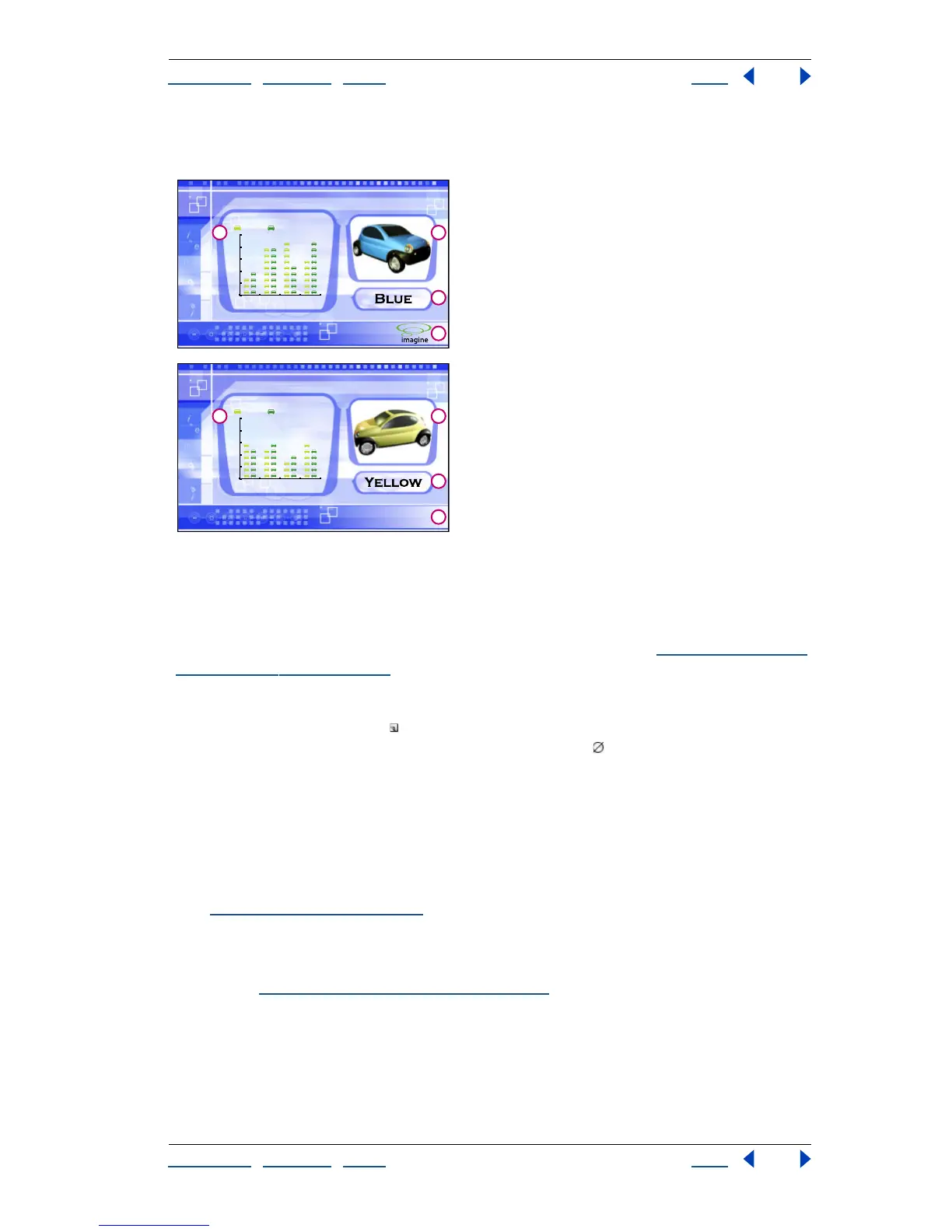
Two versions of a Web page based on the same template
A. Graph Data variable B. Linked File variable C. Text String variable D. Visibility variable
Creating unbound variables
You can create a new variable without binding it to an object attribute. You can also let
Illustrator create a variable when you make an object dynamic. (See “
Binding variables to
object attributes” on page 287.)
To create an unbound variable:
Click the New Variable button in the Variables palette, or choose New Variable from the
Variables palette menu. An unbound variable with no type appears in the Variables
palette.
Binding variables to object attributes
Binding a variable to an object attribute makes the object dynamic. The type of object and
type of variable determines what attributes of the object can change. You can bind a
Visibility variable to any object to make the object’s state of visibility dynamic. If the object
is text, a linked image, or a graph, you can also make the object’s content dynamic.
(See “
About variables” on page 286.)
To make the visibility of objects dynamic:
1 Select one or more objects. Use the Layers palette to select all the objects in a layer or
group. (See “
Selecting artwork in layers” on page 221.)
2 Do one of the following:
• If you want to create a new variable, make sure that no variable is selected in the
Variables palette.
• If you want to bind the object to an existing variable, select that Visibility variable in the
Variables palette.
A B
C
D
0
2
4
6
8
10
Model BModel A
2000199919981997
A B
C
D
0
2
4
6
8
10
Model BModel A
2000199919981997



 To Next Page