Using Help | Contents | Index Back 286
Adobe Illustrator Help Creating Templates for Data-Driven Graphics
Using Help | Contents | Index Back 286
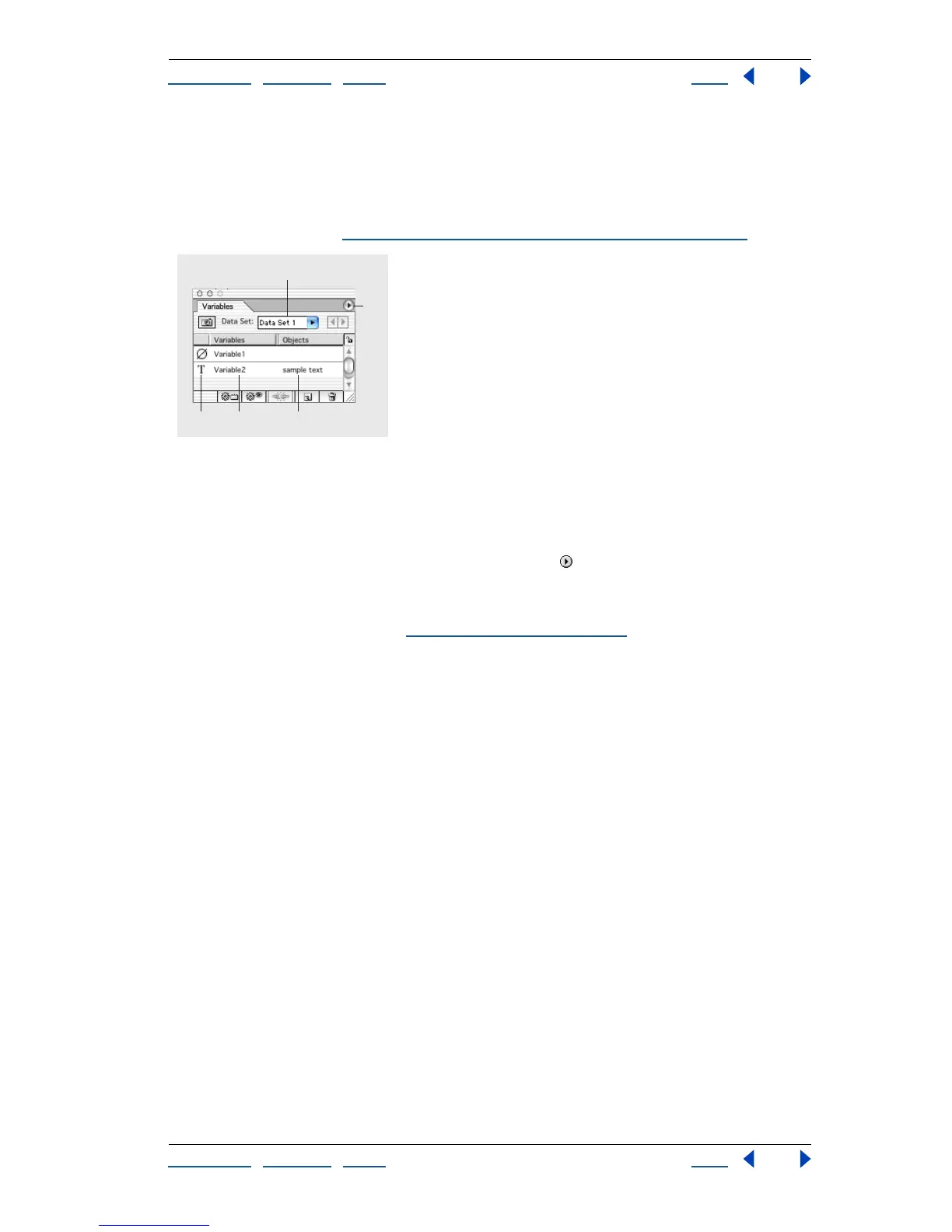
Using the Variables palette
You use the Variables palette to work with variables and data sets. The type and name of
each variable in the document are listed in the palette. If the variable is bound to an
object, then the Objects column displays the name of the bound object as it appears in
the Layers palette. (See “
Identifying dynamic objects using XML IDs” on page 289.)
Variables palette
A. Data set B. Palette menu C. Variable type D. Variable name E. Name of bound object
Displaying the Variables palette Choose Window > Variables.
Selecting a variable Click a row in the Variables palette.
Using the Variables palette menu Click the triangle in the top right corner of the
palette to display the commands used with variables.
Displaying variable options Double-click a variable, or choose Variable Options from
the Variables palette menu. (See “
Editing variables” on page 288.)
Sorting rows in the Variables palette Click the Variables header to sort the rows by
variable name. Click the Objects header to sort the rows by object name. Click the blank
header above the Variable Type column to sort the rows by variable type.
Wo r king with variables
In order to create a template for data-driven graphics, you need to define which objects on
the artboard are dynamic (changeable). You use variables to define the attributes of
dynamic objects.
About variables
You can create four types of variables in Illustrator: Graph Data, Linked File, Text String, and
Visibility. A variable’s type indicates which object attributes are changeable. For example,
you can use a Visibility variable to show or hide any object in your template. You can apply
variables to the following types of objects:
Text Use the Text String variable to make text dynamic.
Linked image Use the Linked File variable to make a linked image dynamic.
Graph Use the Graph Data variable to make graph data dynamic.
B
A
CD E



 To Next Page