Using Help | Contents | Index Back 111
Adobe Illustrator Help Working with Objects
Using Help | Contents | Index Back 111
The direct-selection tool and direct-lasso tool let you select a single path or object that is
part of one group or several groups. If you have groups of objects within other groups,
you can select the next group in the grouping hierarchy by using the group-selection tool.
Each successive click adds another subset of grouped objects to the selection.
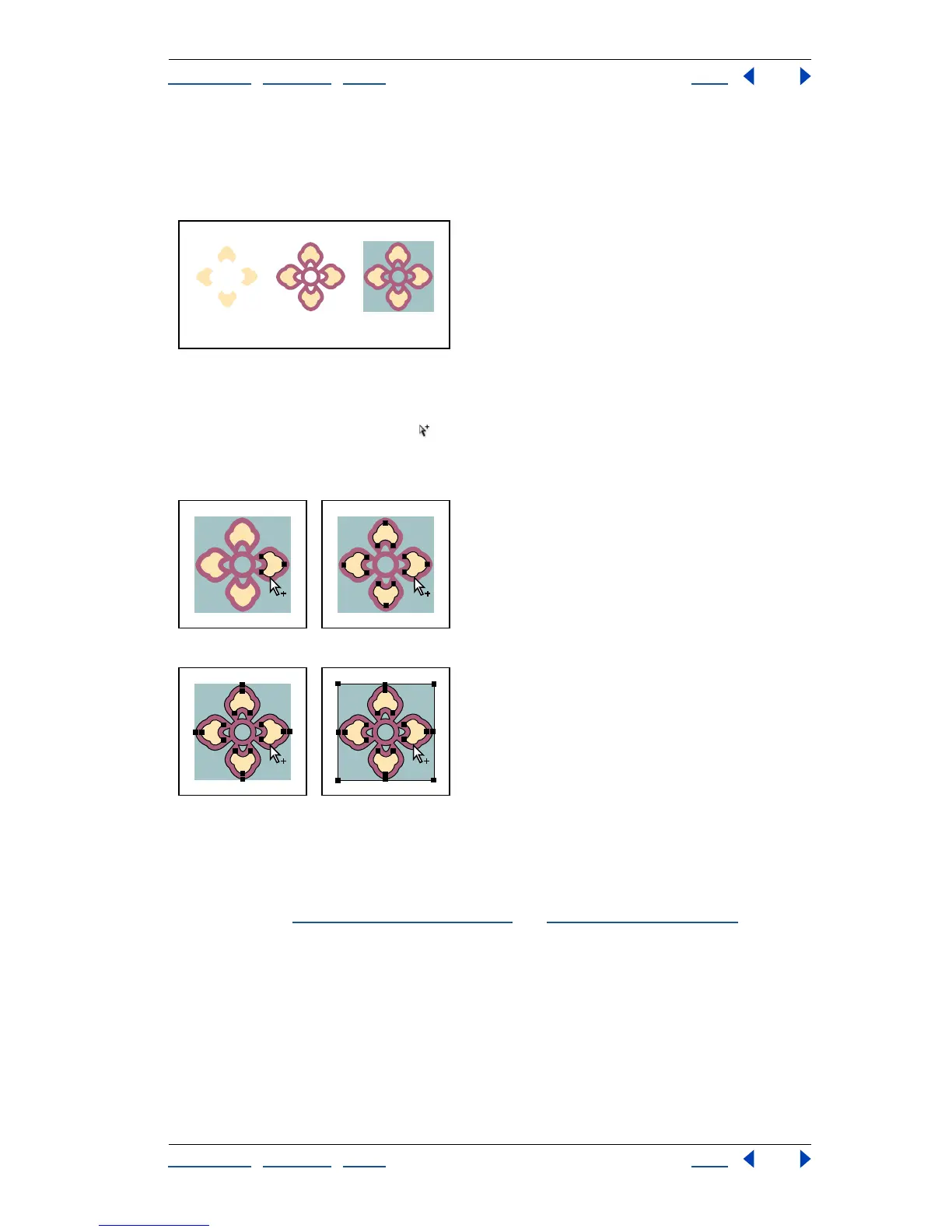
Three groups: Group A is part of group B, which in turn is part of group C.
To select grouped objects with the group-selection tool:
1 Select the group-selection tool , and click the path you want to select.
2 Click the same place again to select successive groups until you have selected every-
thing you want to include in your selection.
First click selects an object (left). Second click selects group A (right).
Third click selects next group, which is group B (left). Fourth click selects group C (right).
Grouping stacked objects
Grouped objects must be stacked in succession on the same layer of the artwork;
therefore, grouping may change the layering of objects and their stacking order on a
given layer. (See “
Stacking objects” on page 109 and “About layers” on page 215.)
Grouped objects are stacked together behind the frontmost object in the group. If you
group two objects that are separated by a nongrouped object in the stacking order,
the nongrouped object is moved behind the grouped objects.
ABC



 To Next Page