Using Help | Contents | Index Back 115
Adobe Illustrator Help Transforming and Distorting Shapes
Using Help | Contents | Index Back 115
• To change the point of origin, select the rotate tool, and click where you want the new
point of origin.
3 Enter the rotation angle, in degrees, in the Angle text box. Enter a negative angle to
rotate the object clockwise; enter a positive angle to rotate the object counterclockwise.
4 To preview the effect before you apply it, select Preview.
5 Do one of the following:
• To rotate the object, click OK.
• To rotate a copy of the object, click Copy.
Note: To place multiple copies of the object in a circular pattern around a point of origin,
move the point of origin away from the center of the object, click Copy, and then
repeatedly choose Object > Transform > Transform Again.
To rotate each object individually in a selection:
1 Select the object or objects to rotate. Then choose Object > Transform >
Transform Each.
2 In the Angle text box, enter the angle by which to rotate the selected objects, between
–360 degrees and 360 degrees.
3 To preview the effect before you apply it, select Preview, and then click OK.
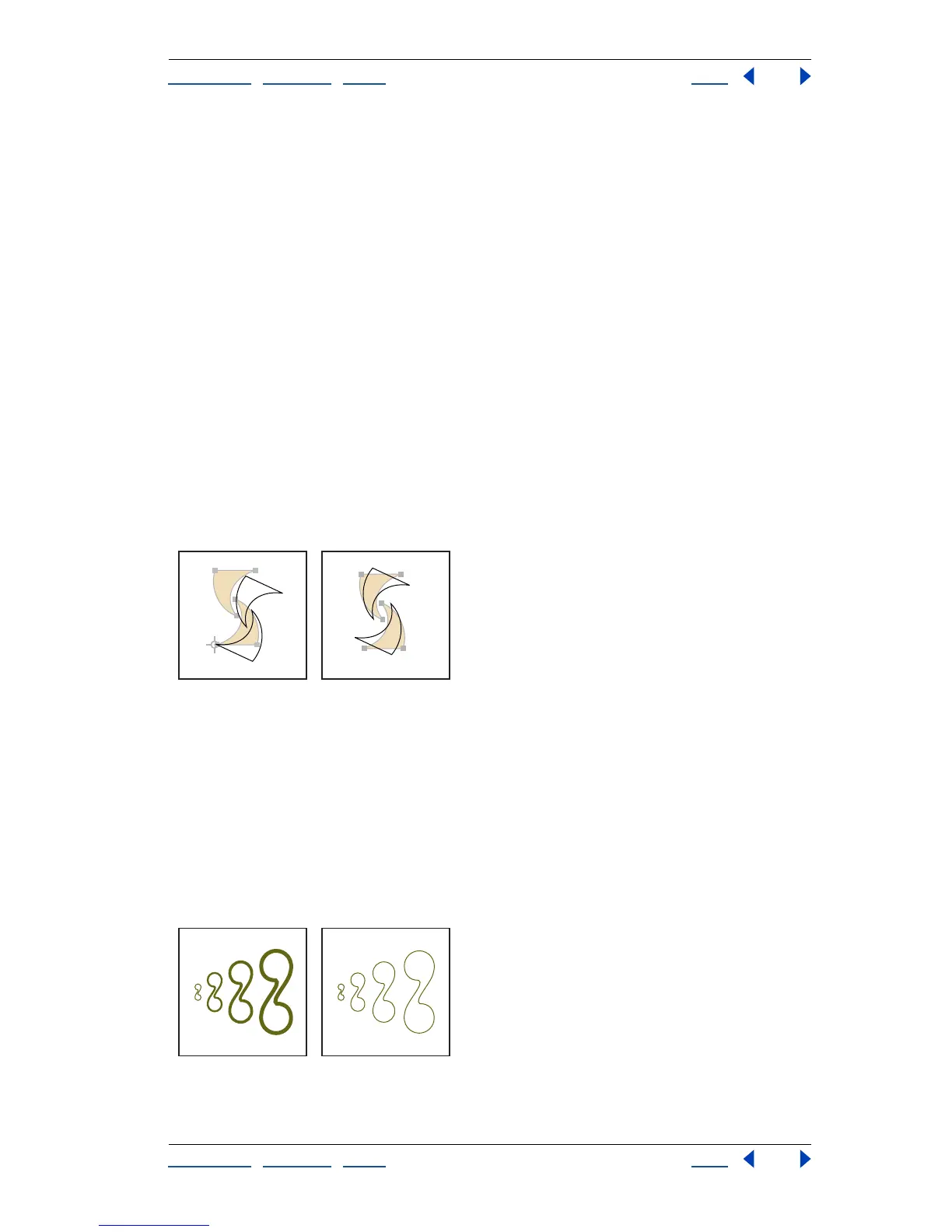
Rotate tool (left) and Transform Each command (right)
Scaling
Scaling an object enlarges or reduces it horizontally (along the x axis), vertically (along the
y axis), or both horizontally and vertically, relative to the point of origin you designate.
The default point of origin is the object’s center point.
To scale stroke weights and effects when you scale objects by dragging the bounding box
or the free transform tool, select Scale Strokes & Effects in the General Preferences dialog
box. When scaling objects by setting scale values in the Scale Options dialog box, you can
turn the Scale Strokes & Effects option on or off (this option overrides the General
Preferences option).
Scale Strokes & Effects option on (left) and off (right)



 To Next Page