Using Help | Contents | Index Back 137
Adobe Illustrator Help Transforming and Distorting Shapes
Using Help | Contents | Index Back 137
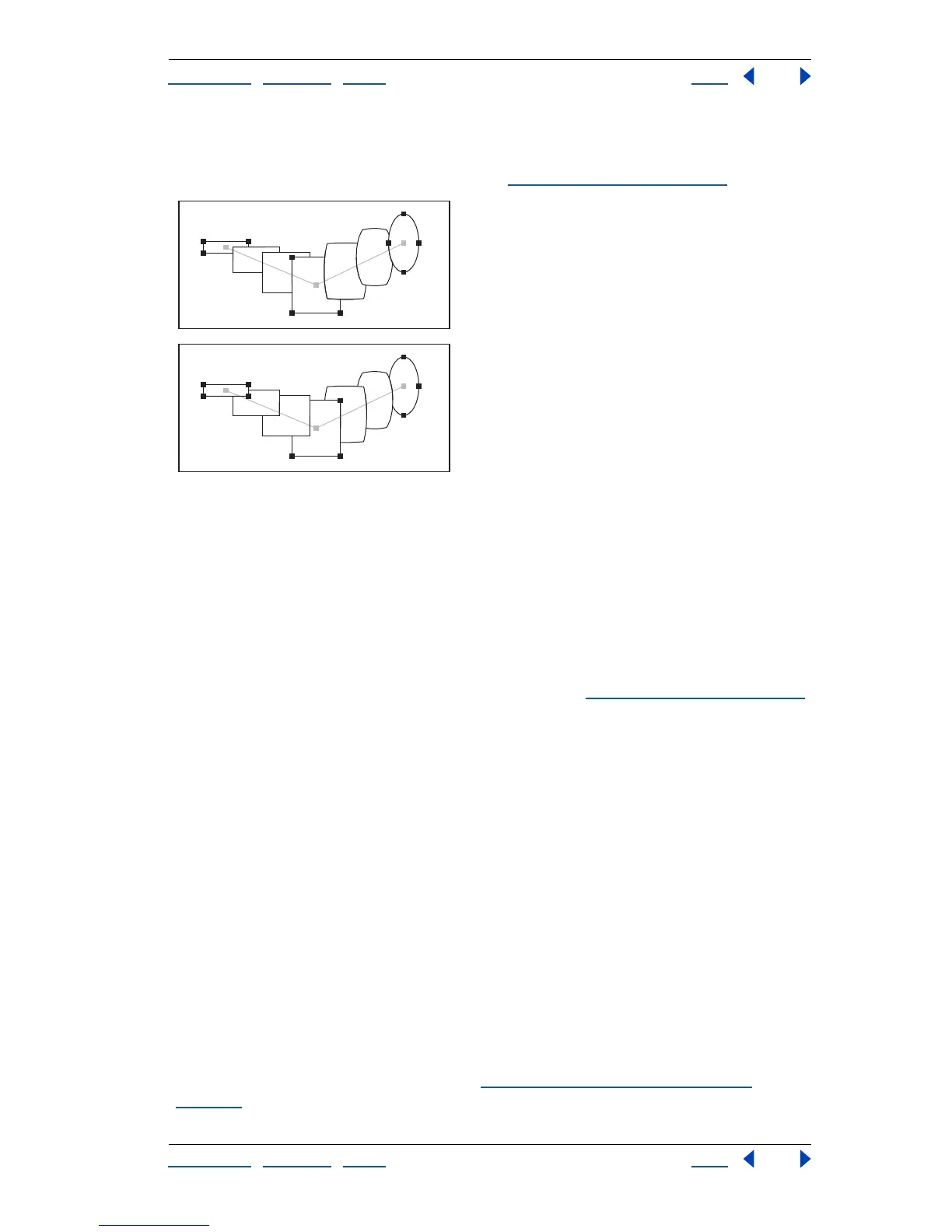
2 Choose Object > Blend > Reverse Front to Back. The objects are reversed in the stacking
order on the path, so that those objects on the frontmost stacking order are moved to the
back of the stacking order, and vice-versa. (See “
Stacking objects” on page 109.)
Original (top) and with Reverse Front to Back command applied (bottom)
Editing blends
You can move, delete, transform, edit anchor points and Bezier curves, or change colors on
blends, using any of the editing tools available in the Adobe Illustrator program. When you
edit a blend path, the changes take place interactively while you work.
Blending colors between filled objects
The Blend filters create a series of intermediate colors from a group of three or more filled
objects, based on the objects’ vertical or horizontal orientation, or on their stacking order.
The filters do not affect strokes or unpainted objects. (See “
Stacking objects” on page 109.)
To blend colors and opacities between filled objects:
1 Select three or more filled objects to blend.
2 Do one of the following:
• To fill the intermediate objects with gradated blends between the frontmost and
backmost filled objects, choose Filter > Colors > Blend Front to Back.
• To fill the intermediate objects with gradated blends between the leftmost and
rightmost filled objects, choose Filter > Colors > Blend Horizontally.
• To fill the intermediate objects with gradated blends between the topmost and
bottommost filled objects, choose Filter > Colors > Blend Vertically.
Using the Pen & Ink filters
The Pen & Ink > Hatch Effects filter creates textured gradations, such as cross-hatching,
and irregular random textures, such as wood grains, that you can apply to artwork to
simulate the look of an ink pen drawing. A similar tool, called the Photo Crosshatch filter,
can convert a bitmap photographic image into a series of hatched layers, so that it
appears to be sketched by an ink pen. (See “
Using the Photo Crosshatch filter” on
page 248.)



 To Next Page