Using Help | Contents | Index Back 139
Adobe Illustrator Help Transforming and Distorting Shapes
Using Help | Contents | Index Back 139
• Symmetric varies the effect proportionately and evenly, for example, if applying
hatches to round or cylindrical shapes.
• Random applies the effect irregularly.
• Fade specifies whether the hatch fades across the object. Choose the fade properties
from the Fade pop-up menu: None for no fade, To White to fade the hatch to white,
To Black to fade the hatch to black, or Use Gradient if the object is filled with a gradient
and you want that gradient to define the fade’s direction and colors.
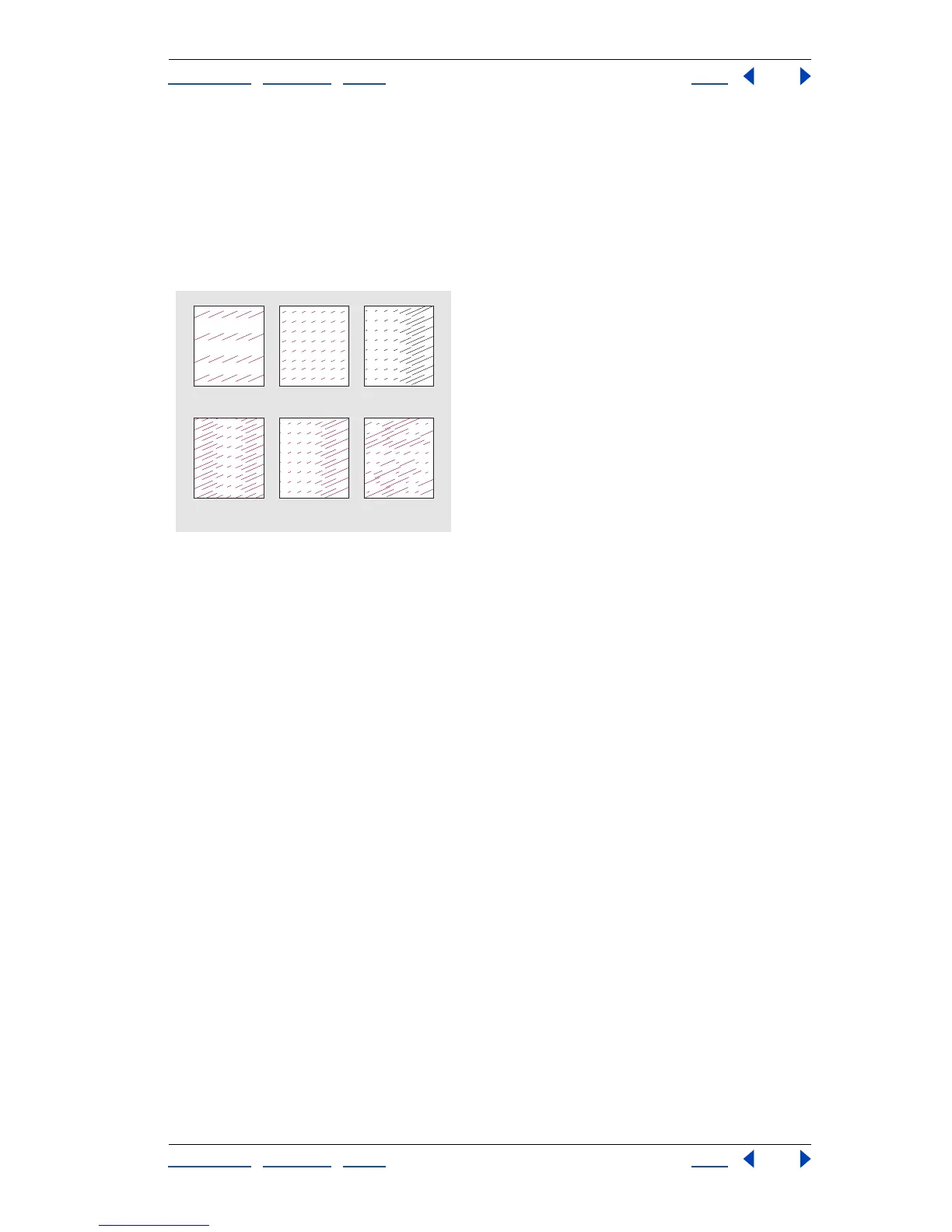
Hatch options results
A. Original hatch B. Constant C. Linear D. Reflect E. Symmetric F. Random
8 Select from the following color options for the hatch:
• Match Object’s Color changes the hatch fill to the selection’s fill.
• Keep Object’s Fill Color applies the hatch in its original color on top of the object’s fill
color.
9 When you finish adjusting the hatch options, click OK.
Creating and saving hatches
You can create and save your own hatches or modify existing hatches and save them for
reuse. To save hatches, you use either the New Hatch or the Hatch Effects dialog box.
To create a hatch:
1 Draw the objects you want to convert to a hatch design for the ink pen effect.
2 Select the artwork.
3 Choose Filter > Pen & Ink > New Hatch.
4 Click New. Enter a name for the new hatch and click OK.
5 To improve the program’s performance, deselect Preview to turn off the preview of the
hatch and click OK.
To modify an existing hatch:
1 Make sure that nothing is selected in the artwork.
2 Choose Filter > Pen & Ink > New Hatch.
3 Choose a hatch from the Hatch pop-up menu.
4 Click Paste and then click OK.
DE F
ABC



 To Next Page