Using Help | Contents | Index Back 149
Adobe Illustrator Help Transforming and Distorting Shapes
Using Help | Contents | Index Back 149
• To apply the command as an effect, select an object or group in the artwork. Then
choose Effect > Path > Outline Stroke.
The outline replaces the original artwork and is selected.
Cutting objects
The Divide Objects Below command in the Object menu and the knife tool in the toolbox
cut objects in a designated shape. The Divide Objects Below command lets you use a
selected object as a cookie cutter or stencil to cut through other objects. It discards the
original selection.
The knife tool cuts objects along a freehand path you draw with the tool, dividing objects
into their component filled faces (a face is an area undivided by a line segment).
To cut objects by using the Divide Objects Below command:
1 Select the object to use as a cutter, and position it so that it touches the object to cut.
(To retain the original selection, save a copy elsewhere in your document.) The object cuts
any filled object that it’s touching.
2 To cut the object, choose Object > Path > Divide Objects Below. The shapes that result
are ungrouped and selected.
To cut objects by using the knife tool:
1 Select the knife tool .
2 Do one of the following:
• To cut in a curved path, drag the pointer over the object.
• To cut in a straight path, hold down Alt (Windows) or Option (Mac OS) as you click on
the artboard with the knife tool. Then drag.
Wo r king with clipping masks
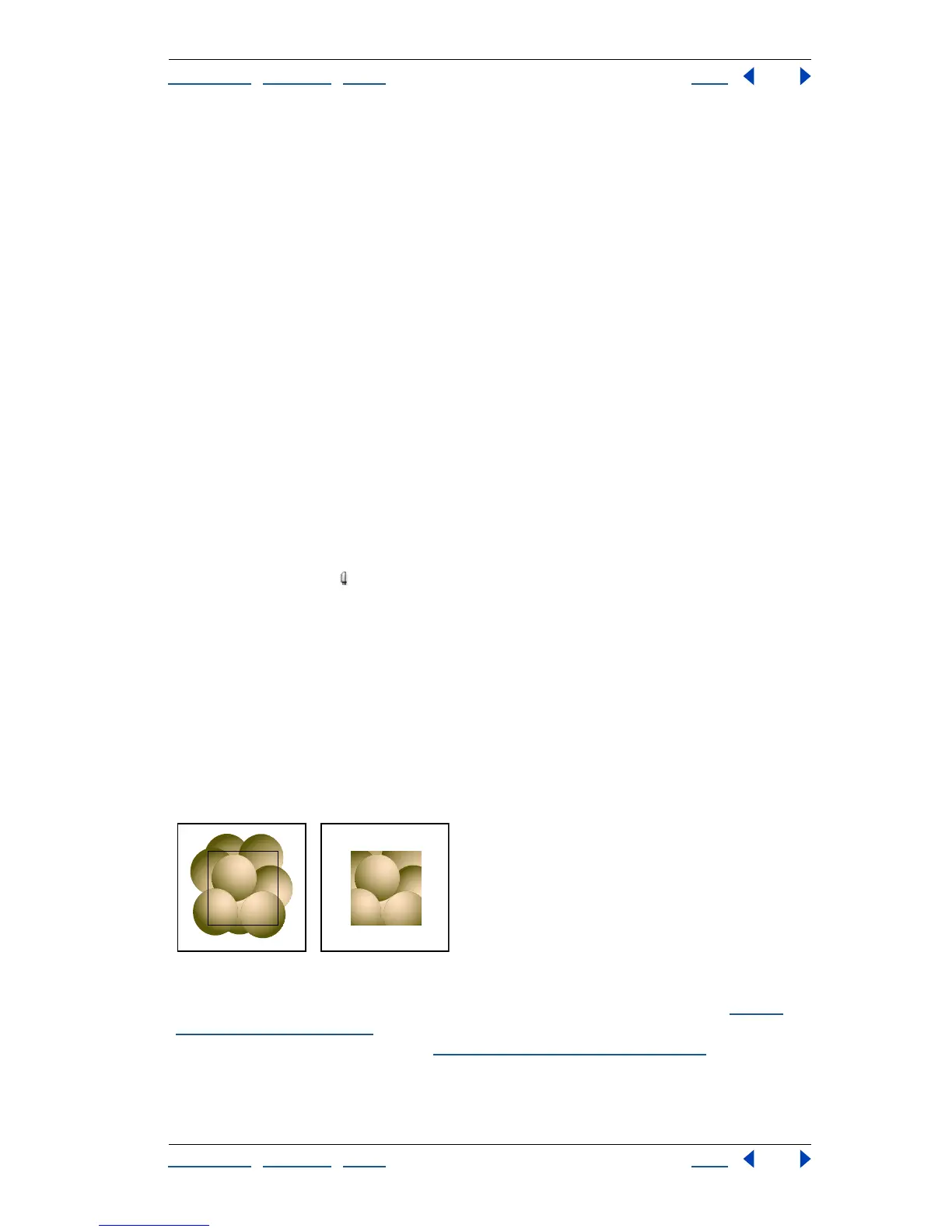
Clipping masks crop part of the artwork so that only a portion of the artwork appears
through the shape or shapes you create. In Adobe Illustrator, you mask objects by using
the Clipping Mask > Make command.
Masking object placed on top of artwork (left) and Clipping Mask > Make command applied (right)
You can also make semitransparent masks with the Transparency palette. (See “About
opacity masks” on page 194.) And you can create clipping mask sets that mask multiple
objects with the Layers palette. (See “
Creating clipping masks” on page 226.)
To see whether an object is a mask:
1 Select the object.



 To Next Page