Using Help | Contents | Index Back 160
Adobe Illustrator Help Applying Color
Using Help | Contents | Index Back 160
• Round Join for stroked lines with rounded corners.
• Bevel Join for stroked lines with squared corners.
• Dashed Line for a dashed line; then specify a dash sequence by entering the lengths of
dashes and the gaps between them in the Dash Pattern text boxes. As with the stroke
weight, you can enter a value in inches (in), millimeters (mm), centimeters (cm), or picas
and Illustrator converts it to an equal value in points.
The numbers entered are repeated in sequence so that once you have established the
pattern, you don’t need to fill in all the text boxes. Dash patterns are specified in points.
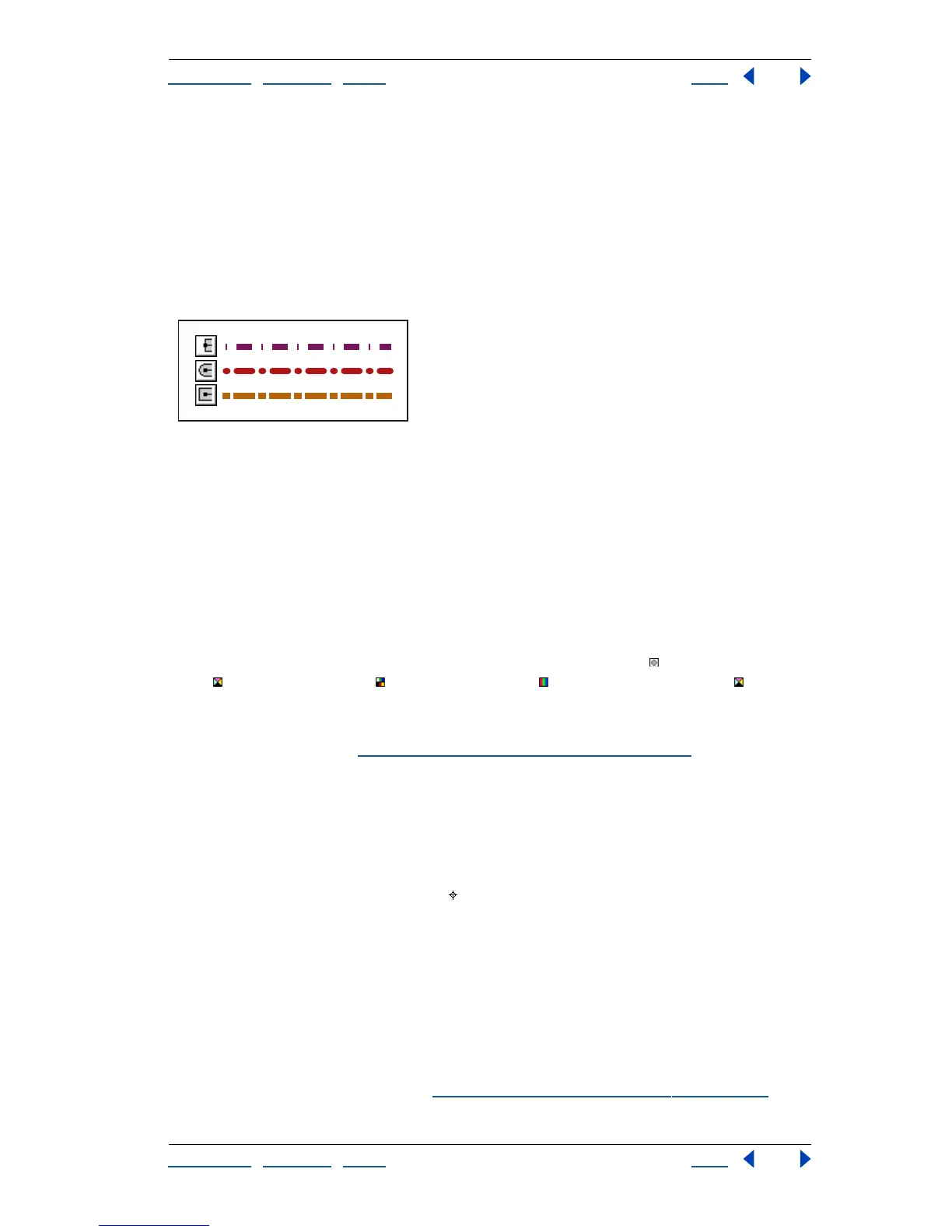
Effects of line cap styles on dashed lines with dash gap of 1, 6, 10, 6
Using the Swatches palette
You can control all document colors and gradients from the Swatches palette alone. Use it
to create, name, and store colors and gradients for instant access. When a selected object’s
fill or stroke contains a color or gradient applied from the Swatches palette, the applied
swatch is highlighted in the Swatches palette.
About swatch types
The Swatches palette stores the following types of swatches:
Colors Icons on the Swatches palette identify the spot color type , the process color
type , the HSB color mode , the RGB color mode , or the CMYK color mode . If the
RGB or CMYK color is a spot color, a dot appears in the corner of the icon.
Tints A percentage value next to a swatch in the Swatches palette indicates a tint of a
spot or process color. See “
Changing global colors and tints” on page 163.
Gradients An icon on the Swatches palette indicates a gradient.
Patterns An icon on the Swatches palette filled with a pattern indicates the specific
pattern type.
None The None swatch removes the stroke or fill from an object. You can’t edit or remove
this swatch.
Registration The registration swatch is a built-in swatch that causes objects filled or
stroked with it to print on every separation from a PostScript printer. For example, regis-
tration marks use the Registration color so that printing plates can be aligned precisely on
a press. You can edit the Registration color by double-clicking it in the Swatches palette.
You can’t remove this swatch.
Note: If you use the Registration color for registration marks and for type, and then you
separate the file and print it, the type may not register properly and the black ink may
appear muddy. To avoid this, use black ink instead for type.
You can also add any colors from any swatch library to the Swatches palette so that they
are saved with your document. (See “
Applying color using the toolbox” on page 157.)



 To Next Page