Using Help | Contents | Index Back 253
Adobe Illustrator Help Using Type
Using Help | Contents | Index Back 253
To enter vertical type along a path:
1 Select the vertical type tool or the vertical-path-type tool .
2 If the multilingual options are not visible in the Character palette, choose Show Multi-
lingual from the palette menu.
3 Choose Standard from the Direction pop-up menu.
4 Position the pointer on the path, and click. An insertion point appears on the path.
5 Enter the type you want. Type appears along the path, parallel to the baseline.
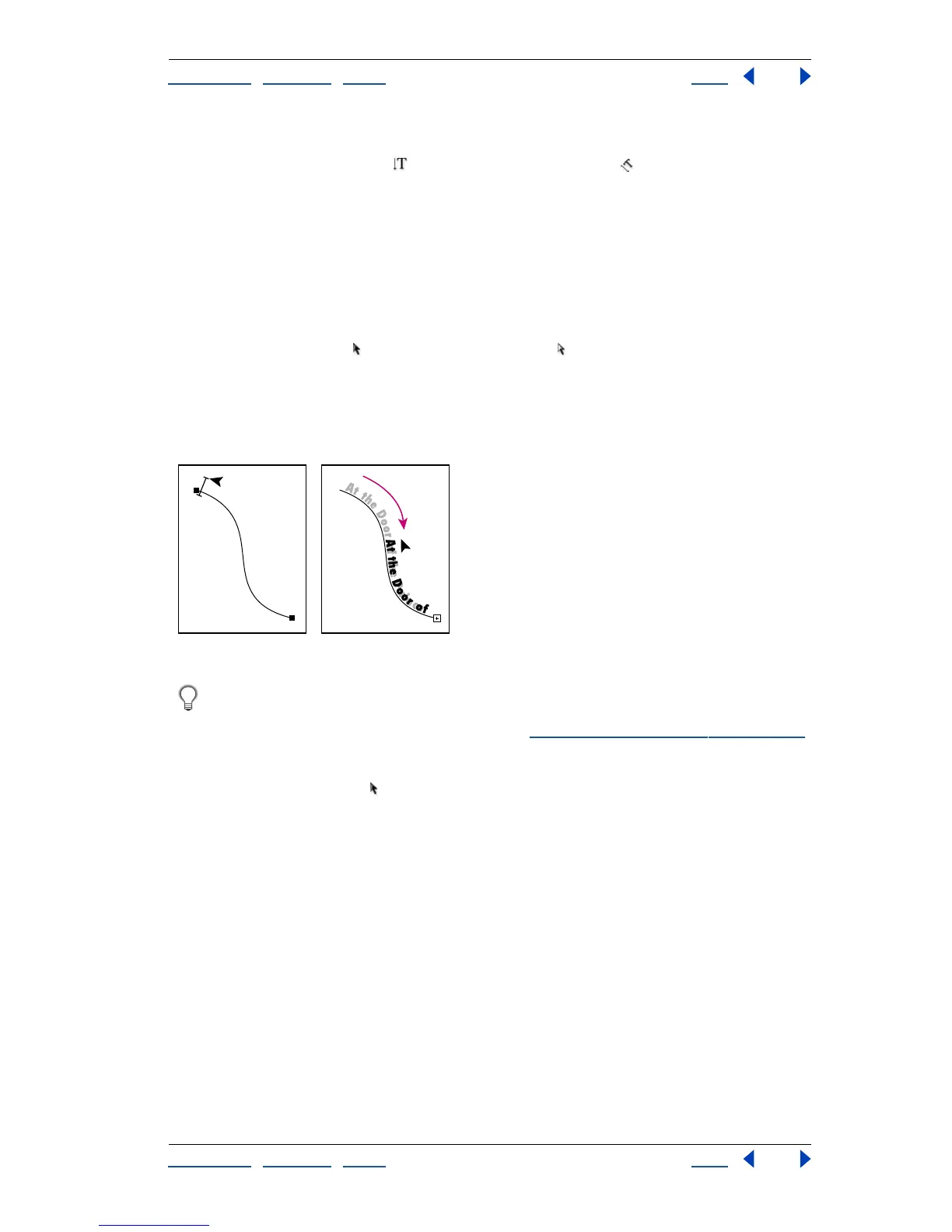
To move type along a path:
1 Use the selection tool or the direct-selection tool to select the type path if it is not
already selected.
2 Position the pointer on the I-beam in the type.
3 Use the selection tool to move the selected type along the path. Be careful not to drag
across the path.
Example of moving type along a path.
To align horizontal type evenly along a path, enter a negative baseline shift value in
the Character palette so that the type runs along the center of the path. This method
creates an even flow of type along the curve. (See “
Specifying baseline shift” on page 261.)
To flip the direction of the type along a path:
1 Select the selection tool .
2 Position the pointer precisely on the I-beam.
3 Do one of the following:
• Drag the I-beam across the path.
A
t
t
h
e
D
o
o
r
o
f
t
h
e
P
a
l
a
A
t
t
h
e
D
o
o
r
o
f
t
h
e
P
a
l
a
c
e



 To Next Page