Using Help | Contents | Index Back 260
Adobe Illustrator Help Using Type
Using Help | Contents | Index Back 260
3 Press Enter, Return, or Tab.
Note: You can specify leading before a paragraph with area type only.
Specifying kerning and tracking
Kerning controls the spacing between two characters. You can control kerning manually,
or you can turn on the kerning built into a font by the font designer. (See “
Spacing
characters with auto-kerning” on page 261.) Tracking inserts uniform spacing between
more than two characters in selected type. Use tracking to adjust the spacing of a word or
an entire block of type.
Positive kerning or tracking values move characters apart; negative kerning or tracking
values move characters closer together. Kerning and tracking values are measured in units
that are 1/1000 of an em space. The width of an em space is relative to the current type
size. In a 1-point font, 1 em corresponds to 1 point; in a 10-point font, 1 em corresponds to
10 points. Because kerning units are 1/1000 em, 100 kerning units in a 10-point font are
equivalent to 1 point.
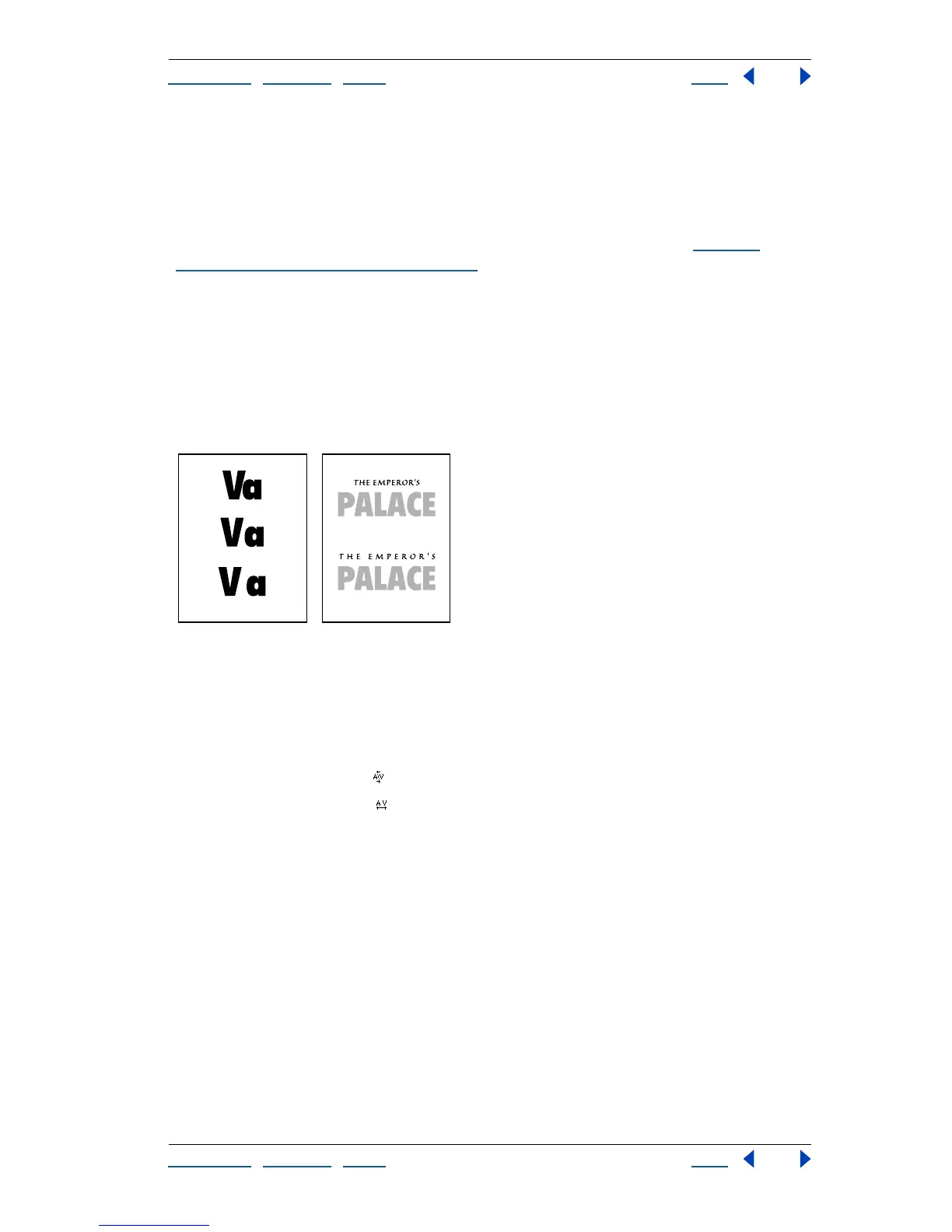
Examples of kerning values and tracking values (“The Emperor’s”).
To change the kerning or tracking value using the Character palette:
1 Set an insertion point between two characters for kerning or select type for tracking
using the type tools.
2 In the Character palette, do one of the following:
• Click the Kerning button and enter a value in the Kerning text box.
• Click the Tracking button and enter a value in the Tracking text box.
3 Press Enter, Return, or Tab.
To view the kerning value between two characters:
1 Set an insertion point between two characters whose kerning value you want to view,
using the type tools.
2 Choose Window > Info.
The Info palette displays the total spacing value for the two characters. For example, if the
Info palette displays 109 = 100 + 9/1000 em, the characters have 9/1000 em kerning and
the word has 100/1000 em tracking.
–100/1000
0/1000
100/1000
0/1000
200/1000



 To Next Page