Using Help | Contents | Index Back 277
Adobe Illustrator Help Using Type
Using Help | Contents | Index Back 277
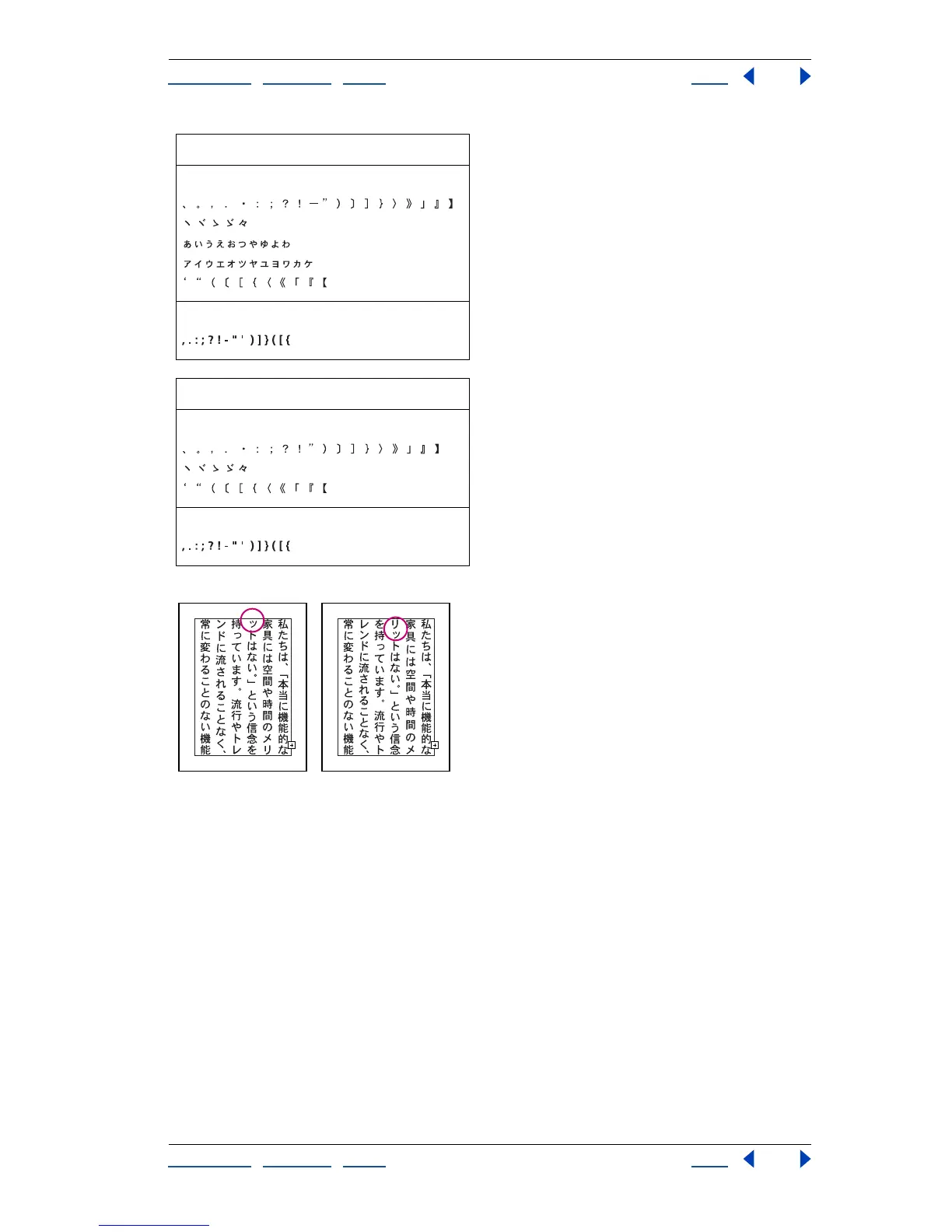
Characters included in Kinsoku Shori Hard set and Kinsoku Shori Soft set.
Text with Kinsoku Shori Soft set compared to text with Kinsoku Shori Hard set.
Note: With the addition of single-byte characters, the Soft set is consistent with the set
included in the Kinsoku Shori option of Adobe Illustrator 5.5J; the Hard set is consistent
with the set of Adobe Illustrator 7.x.
To set line breaking options:
1 If the paragraph options aren’t visible in the Paragraph palette, choose Show Options
from the palette menu.
2 Choose Kinsoku Shori from the Paragraph palette menu.
3 Select options to apply to the character set selected in the Kinsoku Shori option in the
Paragraph palette:
• Oikomi Maximum Spacing includes the character on the same line and condenses all
characters evenly to fit on the line (when text is justified). In the text box, enter a
maximum value by which to condense text. When the option is unselected, the
Hard Set
2-byte characters
1-byte characters
Soft Set
2-byte characters
1-byte characters



 To Next Page