Using Help | Contents | Index Back 349
Adobe Illustrator Help Producing Color Separations
Using Help | Contents | Index Back 349
You can use a separate, dedicated trapping program to create traps automatically, or you
can use Illustrator to create traps manually.
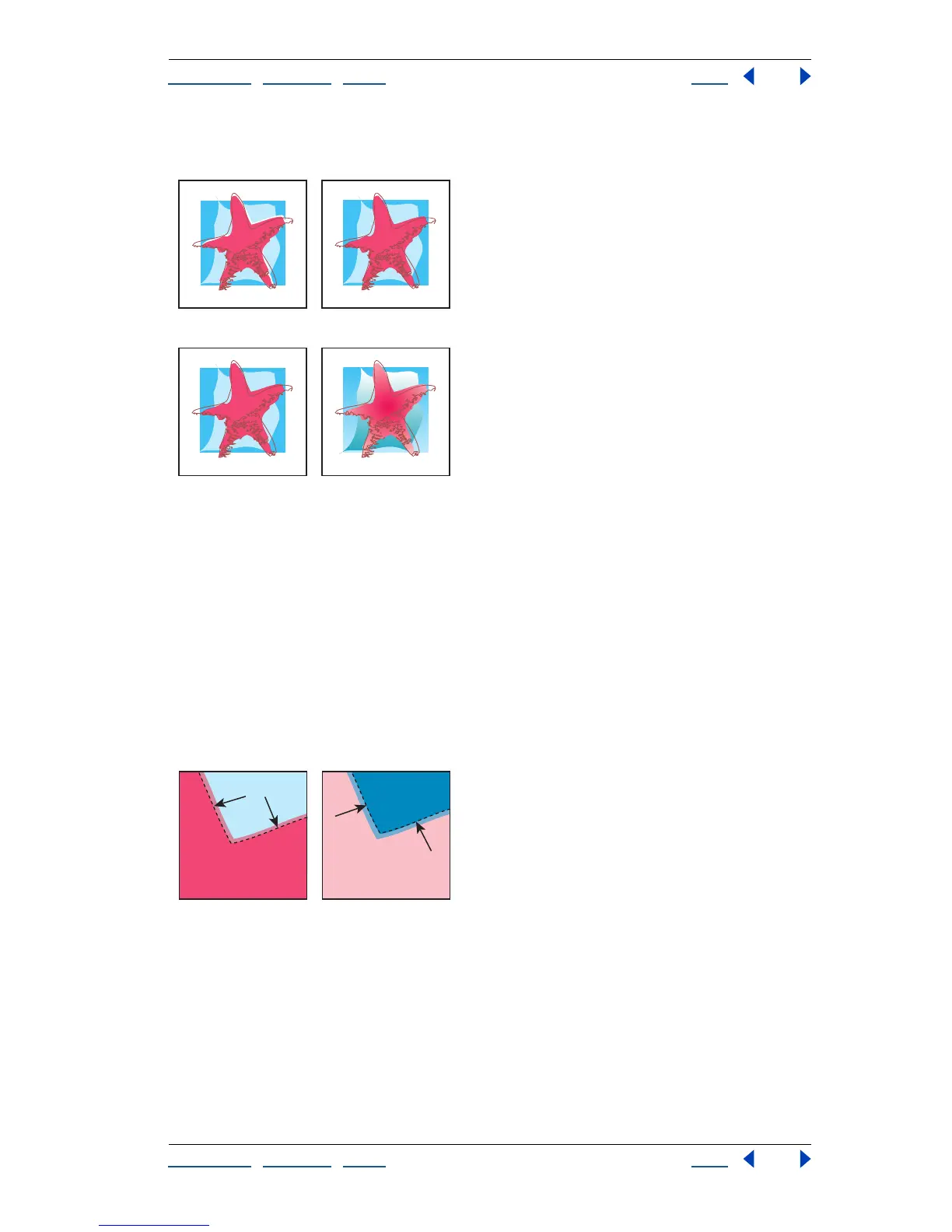
Artwork without trap and with trap
Appropriate and inappropriate artwork for Trap command
About traps
When overlapping painted objects share a common color, trapping may be unnecessary if
the color that is common to both objects creates an automatic trap. For example, if two
overlapping objects contain cyan as part of their CMYK values, any gap between them is
covered by the cyan content of the object underneath.
Note: When artwork does contain common ink colors, overprinting does not occur on the
shared plate.
There are two types of trap: a spread, in which a lighter object overlaps a darker
background and seems to expand into the background; and a choke, in which a lighter
background overlaps a darker object that falls within the background and seems to
squeeze or reduce the object.
Spread: Object overlaps background. Choke: Background overlaps object.
You can create both spreads and chokes in the Adobe Illustrator program.
It is generally best to scale your graphic to its final size before adding a trap. Once you
create a trap for an object, the amount of trapping increases or decreases if you scale the
object. For example, if you create a graphic that has a 0.5-point trap and scale it to five
times its original size, the result is a 2.5-point trap for the enlarged graphic.
S T A R F I S H
S T A R F I S H
S T A R F I S H S T A R F I S H



 To Next Page