Using Help | Contents | Index Back 58
Adobe Illustrator Help Drawing
Using Help | Contents | Index Back 58
To convert between smooth points and corner points using the convert-anchor-
point tool:
1 Using the direct-selection tool, select the path you want to modify.
To switch to the convert-anchor-point tool while the pen tool is selected, hold down
Alt (Windows) or Option (Mac OS).
2 Select the convert-anchor-point tool.
3 Position the convert-anchor-point tool over the anchor point you want to convert, and
do one of the following:
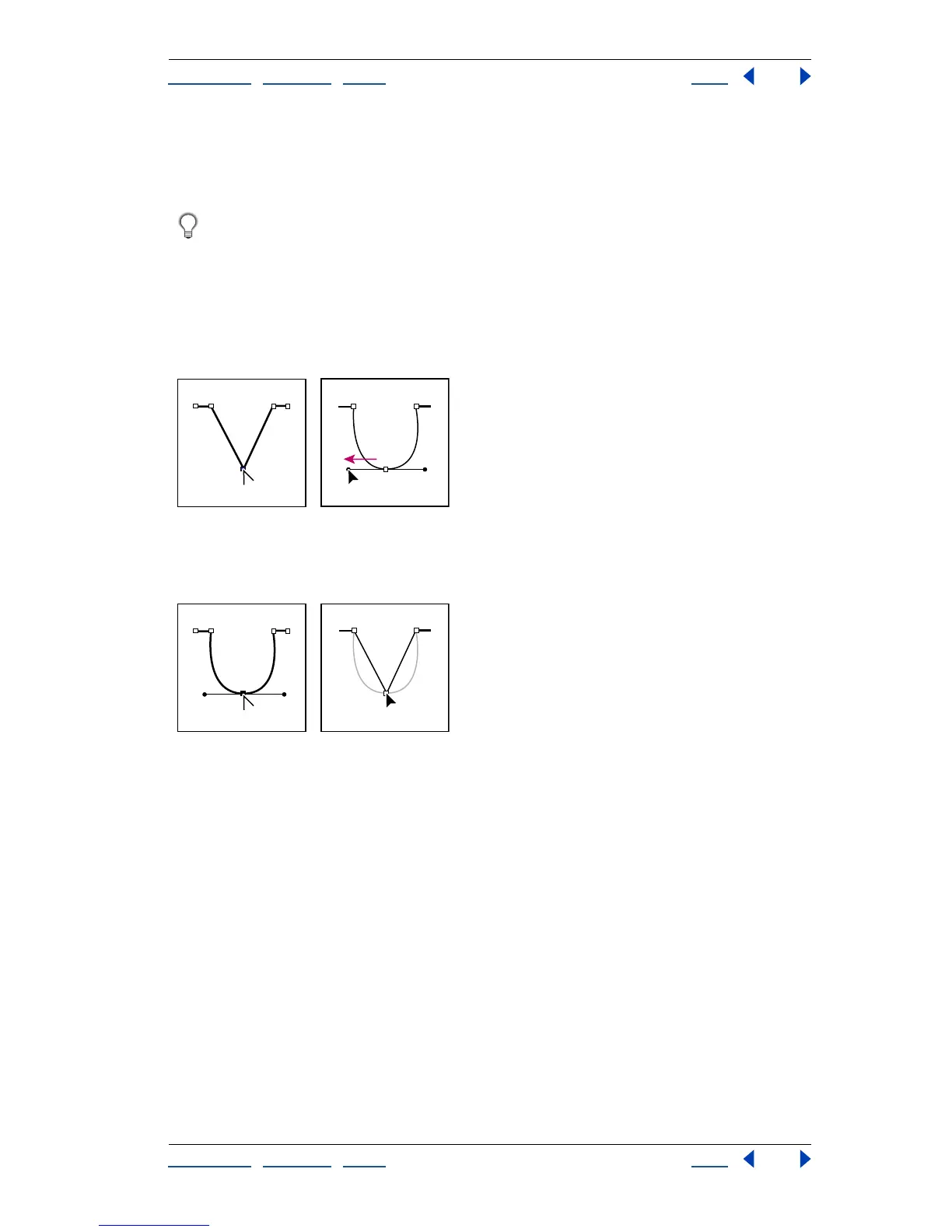
• To convert a corner point to a smooth point, drag a direction point out of the corner
point.
Dragging direction point out of a corner point to create a smooth point
• To convert a smooth point to a corner point without direction lines, click a smooth
point.
Clicking a smooth point to create a corner point
• To convert a corner point without direction lines to a corner point with independent
direction lines, first drag a direction point out of a corner point (making it a smooth
point with direction lines). Release the mouse button only (don’t release any keys you
may have pressed to activate the convert-anchor-point tool), and then drag either
direction point.



 To Next Page