48
Job Save and Recipe Management
From the Main Menu touch <Technical Assist> and enter the Level 1 Pass Code. Touch the <Bagger Factory>
button to access the Bagger Factory screen. From there touch the <Bag Registration> button located along the
right-hand side of the screen. Once in the Bag Registration screen, locate the Job Save toggle button along the
bottom of the screen, see Figure 3 - 41. If the toggle button reads “PLC” the machine will save all jobs internally
on the PLC. If the button reads “USB” all jobs will be saved externally to a USB memory stick. Press the button
to toggle between the two. Once you have made your selection exit back to the Main Menu by pressing the
<Tech Assist> button and press <Exit> when the numeric keypad is accessed.
Note: There must be a USB Flash Drive / Memory Stick inserted into the machine for the External Memory
function to operate. If there is no memory stick inserted, ensure the Job Save is in PLC mode in order to save
job recipes.
Note: All units with a 7” Touch Screen should support Recipe Management; a Bagger without a Touch Screen
will have only PLC Storage.
There are benefits to using either memory option. The PLC Internal option, referred to as “Job Save”, allows the
user to save up to 24 jobs to the PLC without any extra hardware required. The USB External option has the
additional functionality of Recipe Management, and allows the user to save an unlimited number of jobs to the
USB memory stick as well as performance data. A file will be automatically created on the memory stick that
contains Recipes, Alarm data, and Production data from the machine. These files can be viewed when the
memory stick is inserted into a PC. Please refer to 3.42 “Memory Files and Data Structures” for more
information regarding the files and directory structure.
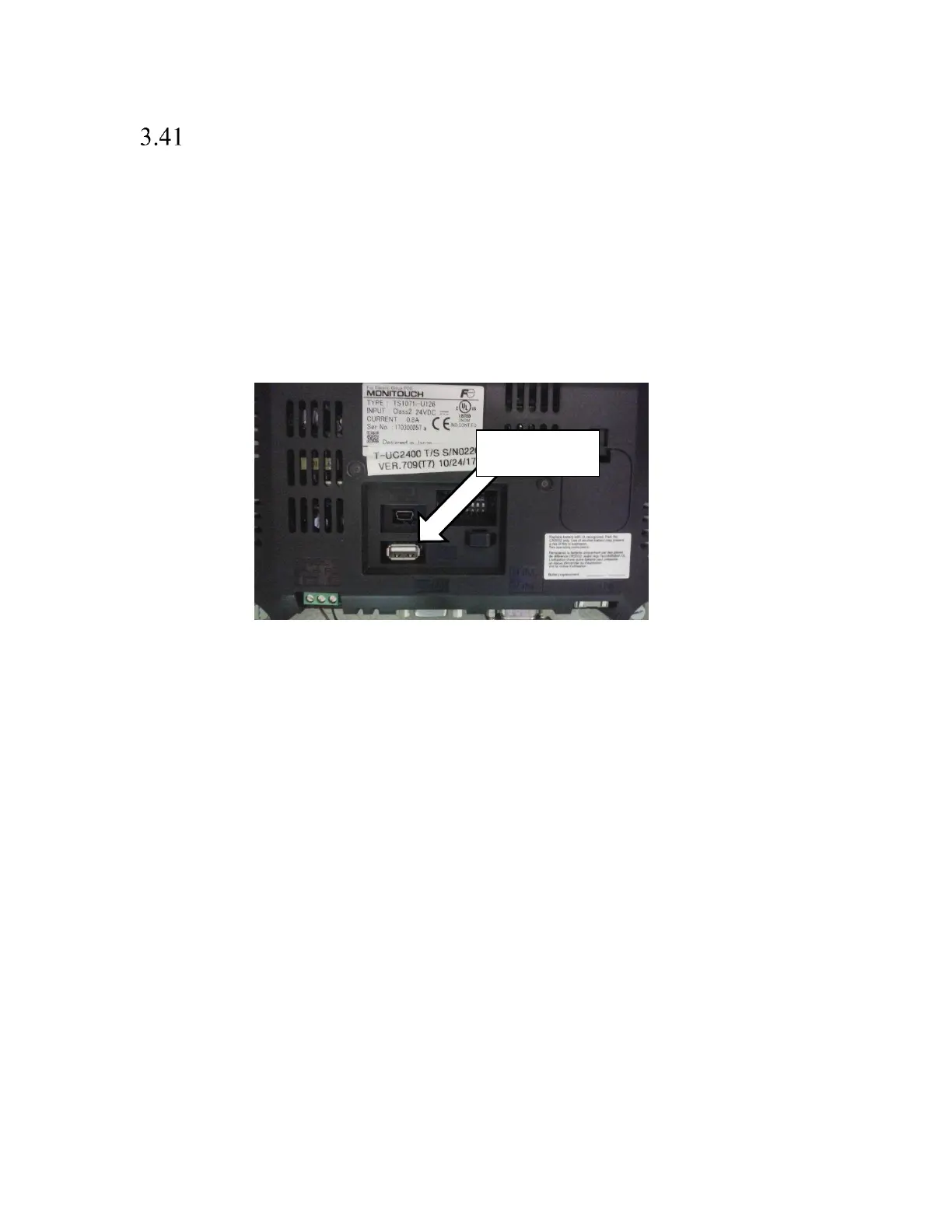
Note: Remove the back cover of the touch screen housing to locate the USB port and insert a memory stick
(not included). See Figure 3 - 42.
Note: These instructions are for saving Bagger settings only. Labels are saved using printer software (such as
LabelView).


 To Next Page