49
A. Internal Memory (PLC)
Saving a job to Internal Memory: Select <PLC> in the
Bag Registration screen (as described above) and exit to
the Main Menu. Go to Settings and set the specifications
for your job. Once the job is set, touch <Job Save> on the
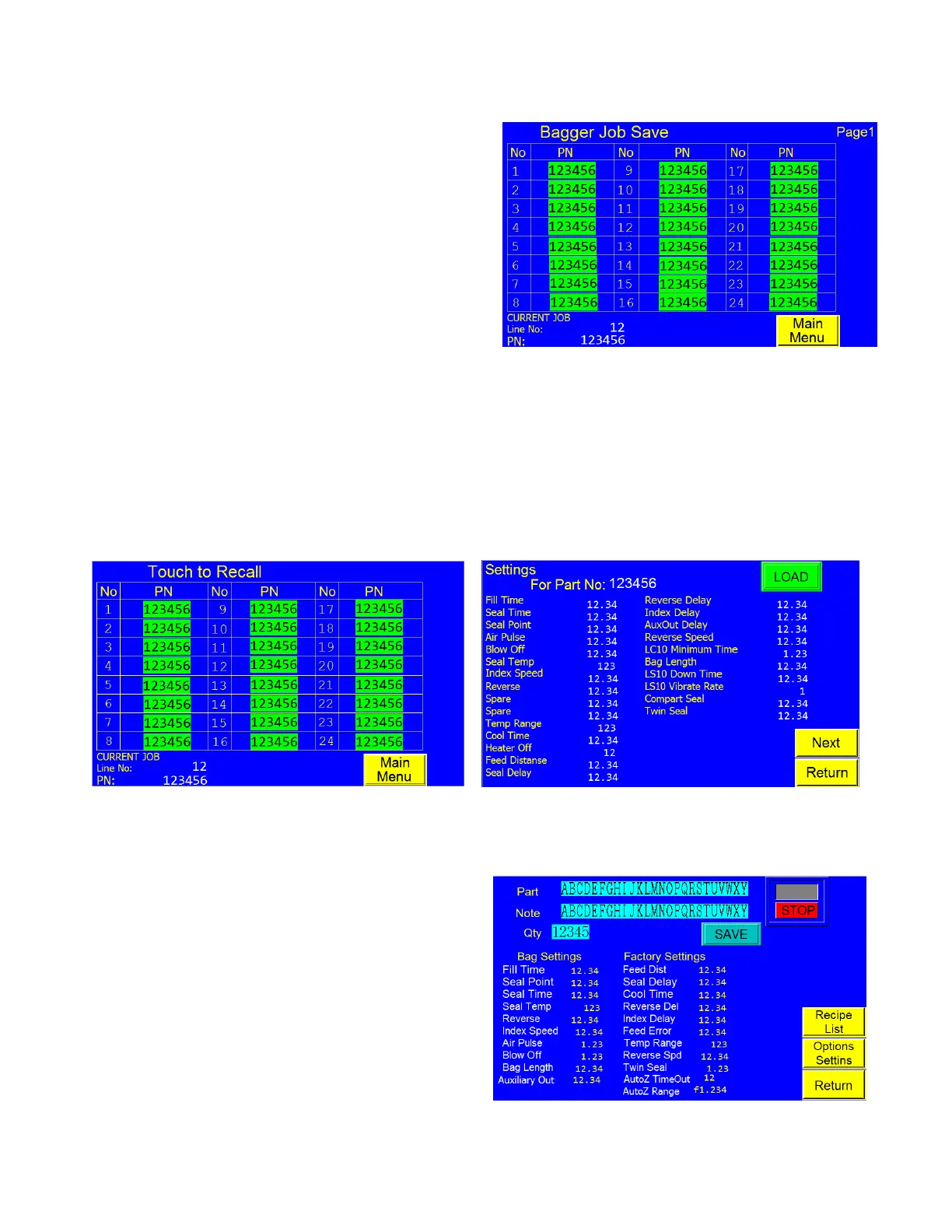
right side of the screen to access the Bagger Job Save
screen, see Figure 3 - 43. Select the designation under PN
where you would like to save the job (#1-24), which will
access a green numeric key pad. Enter a numeric name for
your job and touch <Ent>. A warning screen will ask if
you would like to overwrite the job. The PN of the current
job at that location will be displayed in a box to the side.
This box will display “0” if it is not being used. Select
<Yes> to overwrite and continue. Your job is now saved to the Internal Memory on the PLC.
To recall a job from Internal Memory: Touch <Job Search> on the Main Menu to access the Touch to Recall
screen, see Figure 3 - 44. The jobs that are saved to the PLC will be displayed in this table. Touch the job you
would like to recall. This will take you to the Job Load screen that displays the settings for this job, see Figure 3 -
45. Ensure this is the correct job and touch <Load>. This will take you to the Bagger Settings screen with all the
settings loaded and ready to start the job.
B. External Memory (USB)
To save a job to the External Memory: Select <USB>
in the Perf Registration screen (as described in 3.40) and
exit to Main Menu. Go to Settings and set the
specifications for your job. Once the job is set, touch
<Job Save> which will take you to the Job Save screen,
see Figure 3 - 46. Press the box that reads “Part” which
will access a keypad. In the USB Mode, Jobs can be
saved by either numbers or letters. Enter the name or
number you wish to save the job as and press enter. To
enter a note, press the box that says Note, and enter the
information using the keypad that is displayed. Touch


 To Next Page