Test Set Operation
Subject to Export Control, see Cover Page for details.
3-49
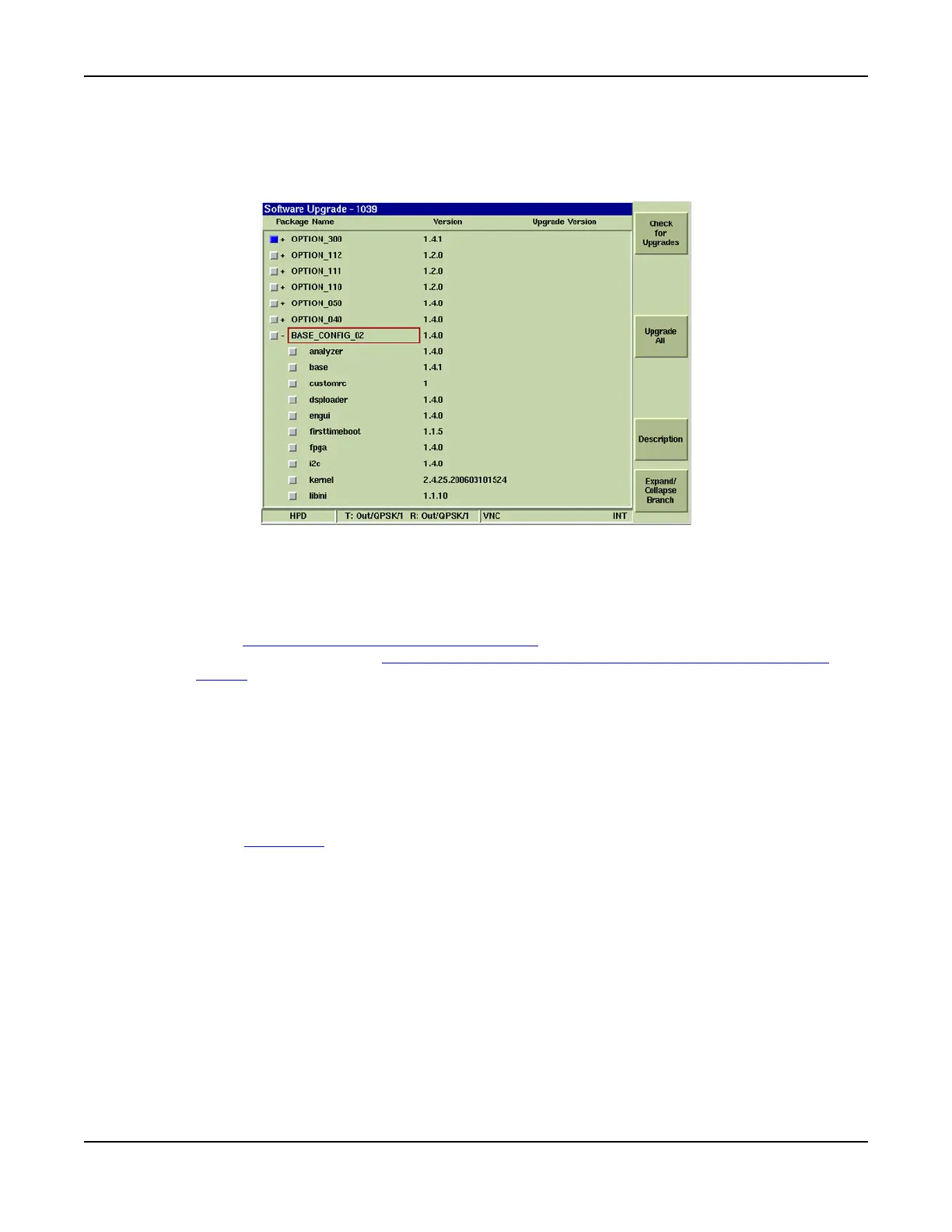
[Expand/Collapse] Soft Key
Selecting [Expand] opens a sub-level of components for the selected software branch.
[Collapse] closes and expanded sub-level. Fig. 3-48 shows an example with the Base Config
branch expanded.
Fig. 3-48 Expanded Software Branch
Upgrade Procedures
USB Upgrade Procedure
To perform USB upgrade:
1. Go to http://www.aeroflex.com/tetra/3900.cfm
and select 3900 Radio Test Set from the
products listed, or go to http://www.aeroflex.com/products/commtest/pmrparametric/
rts.cfm and select 3900 TETRA Test.
2. Select the Software link on the right hand side of the screen.
3. Click on the desired file to download file to a USB memory stick.
4. Uncompress file to USB memory stick. Uncompressed files are placed in root directory
named Aeroflex, subdirectory named 3900. Do not place the Aeroflex directory in a
subdirectory or the software upgrade fails.
5. Power on Test Set and Restore Factory Defaults, All Systems.
6. Connect the USB memory stick to USB Connector on Test Set.
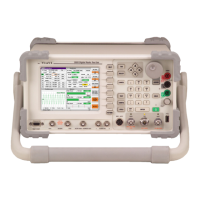
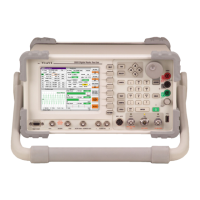
7. Press UTILS Key
twice to access Utilities floating menu.
8. Select Software Settings, Software Upgrade from the Utilities floating menu.



 To Next Page