Test Set Operation
Subject to Export Control, see Cover Page for details.
3-51
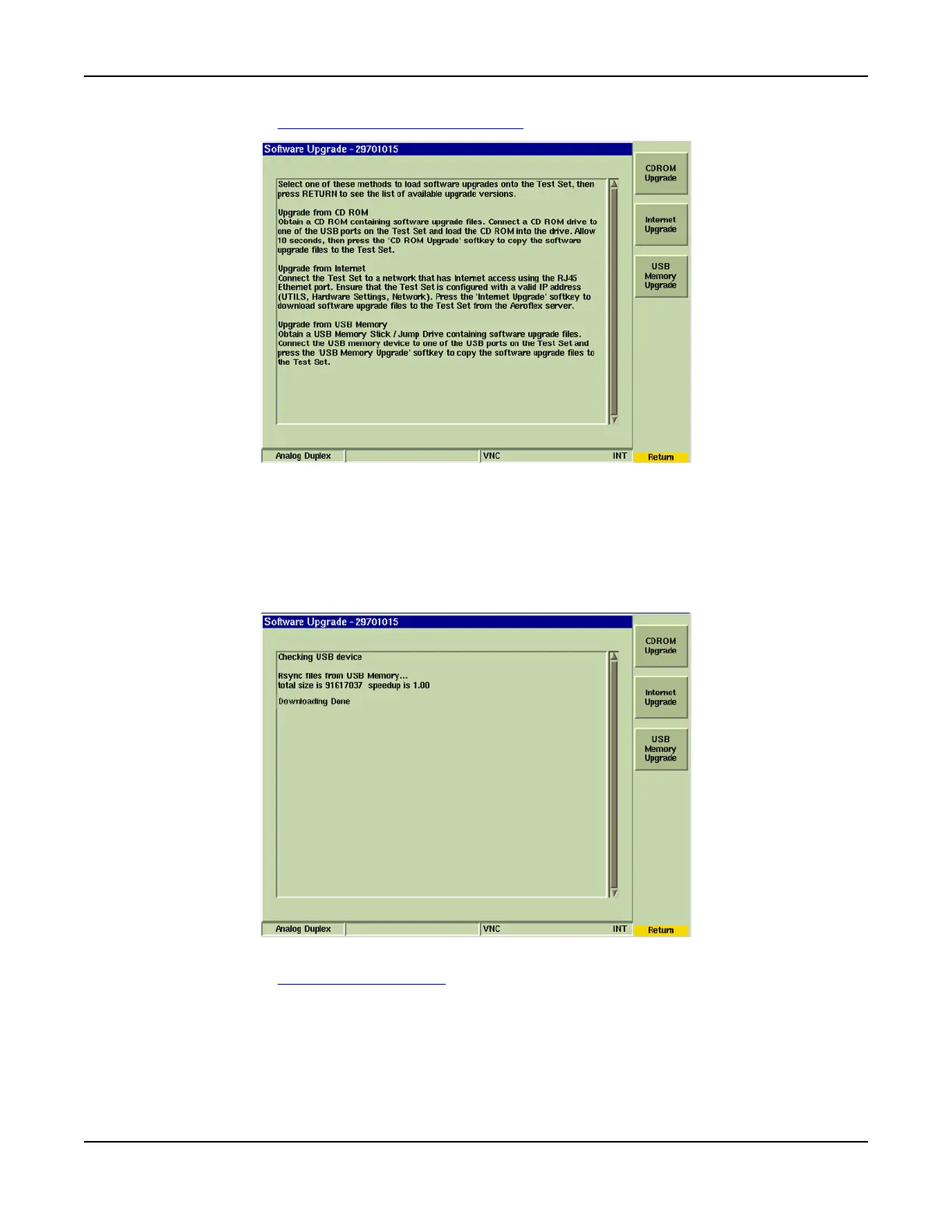
12. Select the [USB Memory Upgrade] Soft Key.
Fig. 3-51 Software Upgrade - Source Options Soft Keys
13. Wait while the Test Set auto-copies files from the USB memory stick to the Test Set. This
step takes a few minutes to complete.
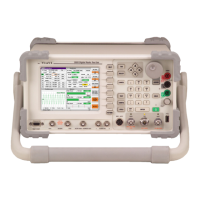
14. After the Test Set has copied all files from USB memory stick, “Downloading Done”
message appears on the screen. Select [RETURN] to go back to the Software Upgrade
Screen. The Software Upgrade Tile now lists upgrades versions that are available for the
installed option.
Fig. 3-52 Software Upgrade - ALL DONE Message
15. Select the [Upgrade All] Soft Key. The Test Set displays different status messages
during the upgrade process.
16. When the software upgrade is complete, a prompt appears requesting confirmation to
shut down the Test Set. Select OK to power down the Test Set and complete the upgrade
procedure. The Test Set can now be powered on for use.



 To Next Page