8AL90344ENAAed01 12
OmniTouch™ 8128 SE WLAN Handset
In idle mode, and number input mode
• A short press on a key enters the digits “0”–“9” and the characters and #.
• A long press on 0 enters the character + (used, for example, to enter an
international number), if the hot key function on key 0 is deactivated, see 7.4.2
Define Hot Keys on page 38.
• Enter a pause in number input mode by a long press on the *-key. A pause is
indicated by a “P” in the display.
In text input mode
• A short press on a key 0–9, displays the first available character on that specific key.
The marked character is selected after a timeout, or when another key is pressed.
• To change to upper/lower case, press the -key before entering the character.
A short press on the -key can also be used to display only the digits.
• To add space in the text, short press key 0.
• The first character entered when adding/editing a name in the Contacts menu, is an
upper level character followed by lower level characters, unless the *-key is pressed
before entering the character. To switch between “Abc”, “ABC”, “abc”, and “123”,
press the -key.
• A long press on the #-key displays special characters.
• A long press on the -key changes the language used while entering text. It is
possible to enter specific characters, like for example Å, Ä, Ö, during a Central
Phonebook search, or when writing a message, if “Writing lang.” is changed to
“Svenska”. Depending on the current writing language, other language characters
can be chosen.
3.1.2 Hot Keys
Any key “0”, “2”–“9” can be set to a Hot Key. A long press on any of these numbers in
idle mode is by default a shortcut to the Call contact list. The list is in alphabetic order,
and depending on which key that is pressed is dependent on where in the list the
contact appears.
A Hot Key can be programmed to give access to frequently used functions such as
dialing a specific number, or a shortcut on the menu. See 7.4.2 Define Hot Keys on
page 38.
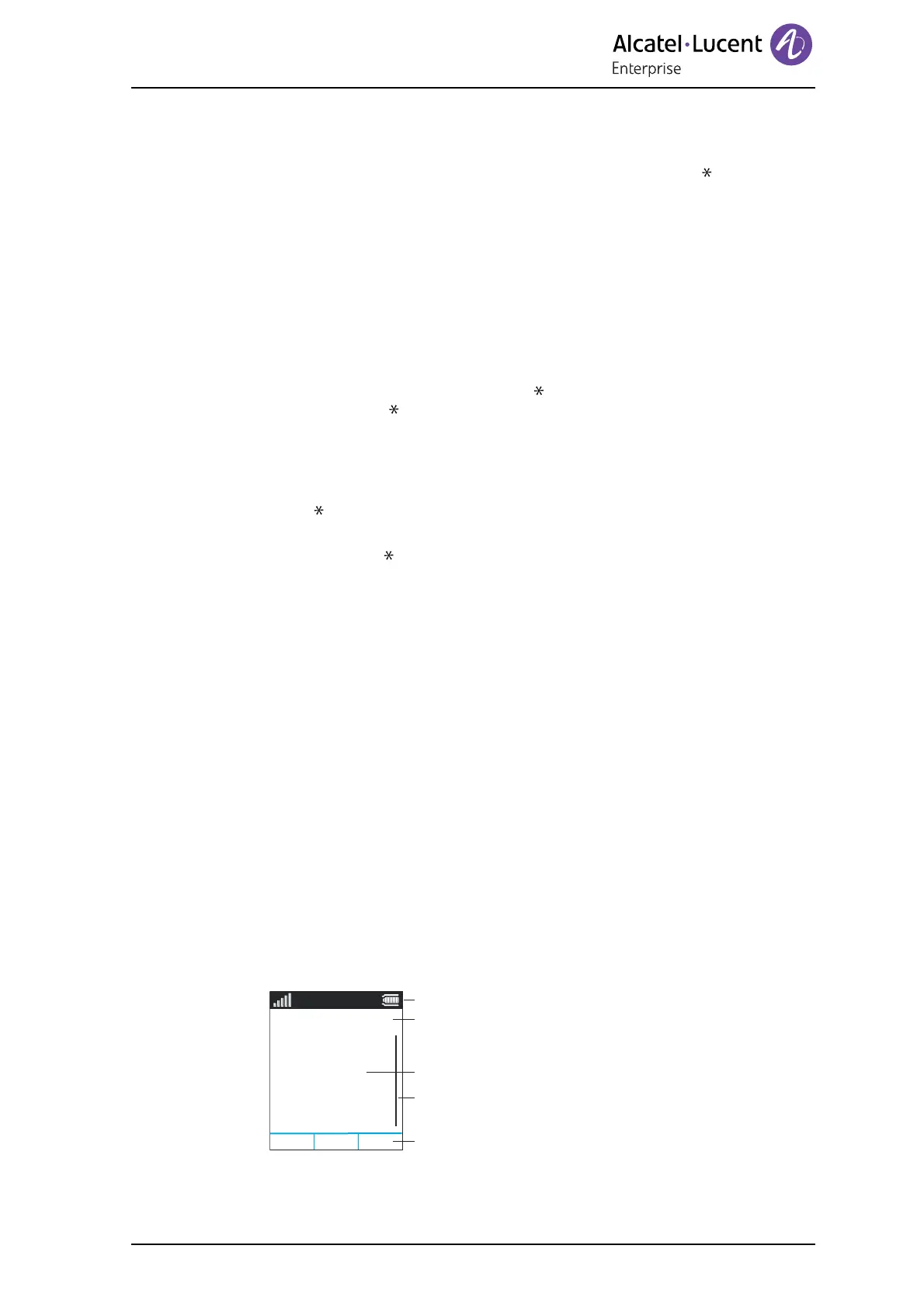
3.1.3 Icons and Text in the Display
The icons and text in the display indicate functions and settings that the user has
access to. The display shows the date and time, the Owner ID, and handset number.
The Owner ID can be set by the user manually.
Figure 3. Example of a display configuration in idle mode.
05/17/2011
1234
Marie Curie
Status bar
Header bar
Active area
Soft key bar
Scroll bar
Menu
11:00





 To Next Page