4
AP Configuration Using Locator
While entering the Locator utility, the Locator will automatically search the AP
available on the same network. Locator will show the Device Name, Device
Type, IP Address, Ethernet MAC Address and Firmware Version in first page.
Before start using Locator, make sure you disable personal firewall installed in
you PC. (Ex. Windows XP personal firewall)
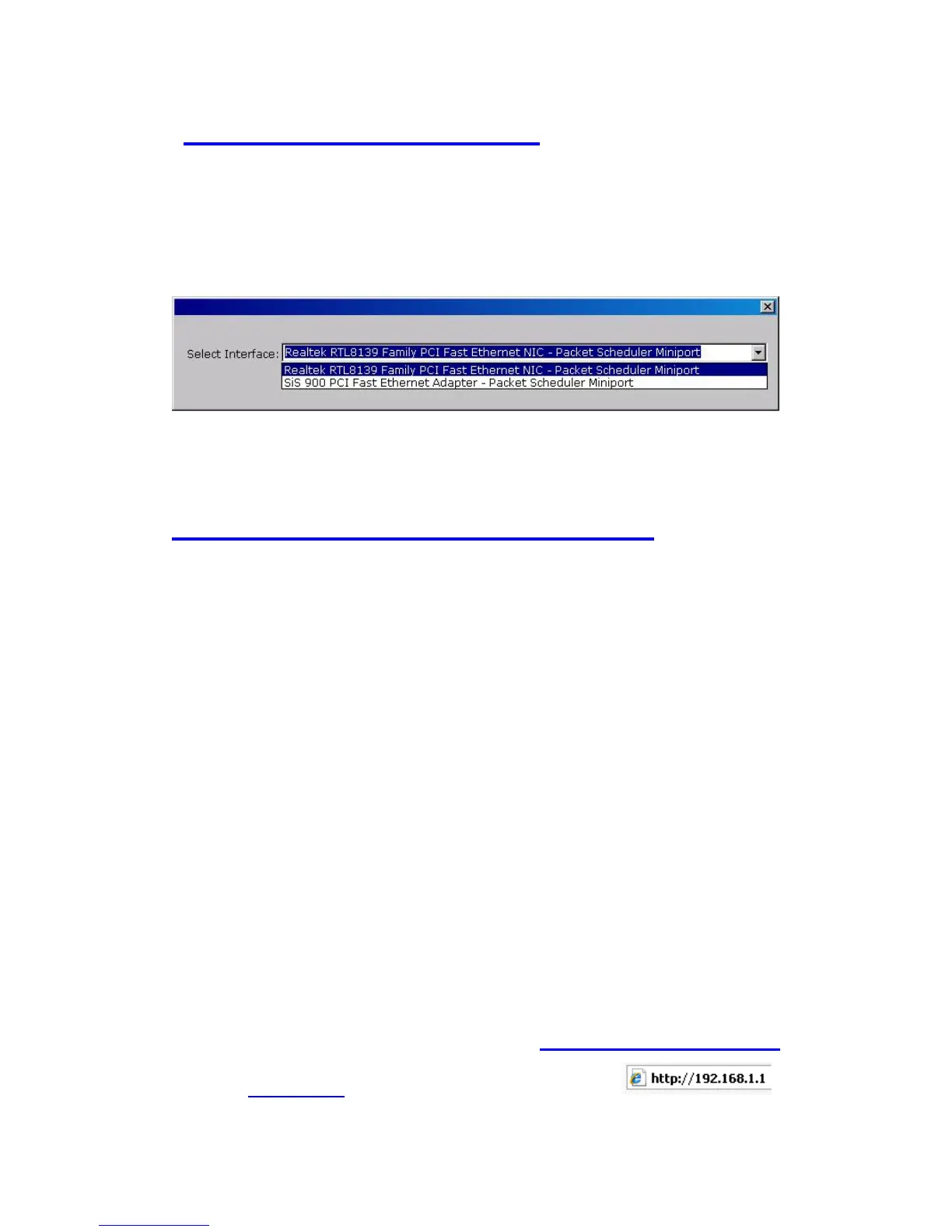
If you have 2 Fast Ethernet Adapter or more, you can choose enable one Fast
Ethernet Adapter for enter with Locator utility.
AP Configuration Using Web User Interface
Before Setup…
Verify the IP address setting
You need to configure your PC’s network settings to obtain an IP address.
Computers use IP addresses to communicate with each other across a
network, such as the Internet.
1. Click Start, select Control Panel. Double-click the Network
Connections.
2. Right click the Local Area Connection and click Properties; select
Internet Protocol (TCP/IP) for the applicable Ethernet adapter. Then
click Properties.
3. Select USE the following IP address, enter 192.168.254.254 (but,
192.168.x.x for the device use) in the IP Address field and
255.255.0.0 in the Subnet Mask field, then click OK.
Start Setup by Browser...
1. After getting the correct connection, start the web browser (make
sure you disable the proxy) and enter 192.168.x.x (x is outdoor unit
IP Address) in the Address field. Press Enter.


 To Next Page