25
Saving Samples
When you want to save the sample, you must select how you want to use it; you can save it as a loop—a
normal audio file that you can play back in Sample Playback Mode—or as an instrument—a sound that
you can assign to a voice in a kit.
Important: When you save a loop or instrument, it will be saved to your SD card only. You cannot save or
overwrite loops or instruments in your Strike module’s internal memory.
To save the sample:
1. Press Save.
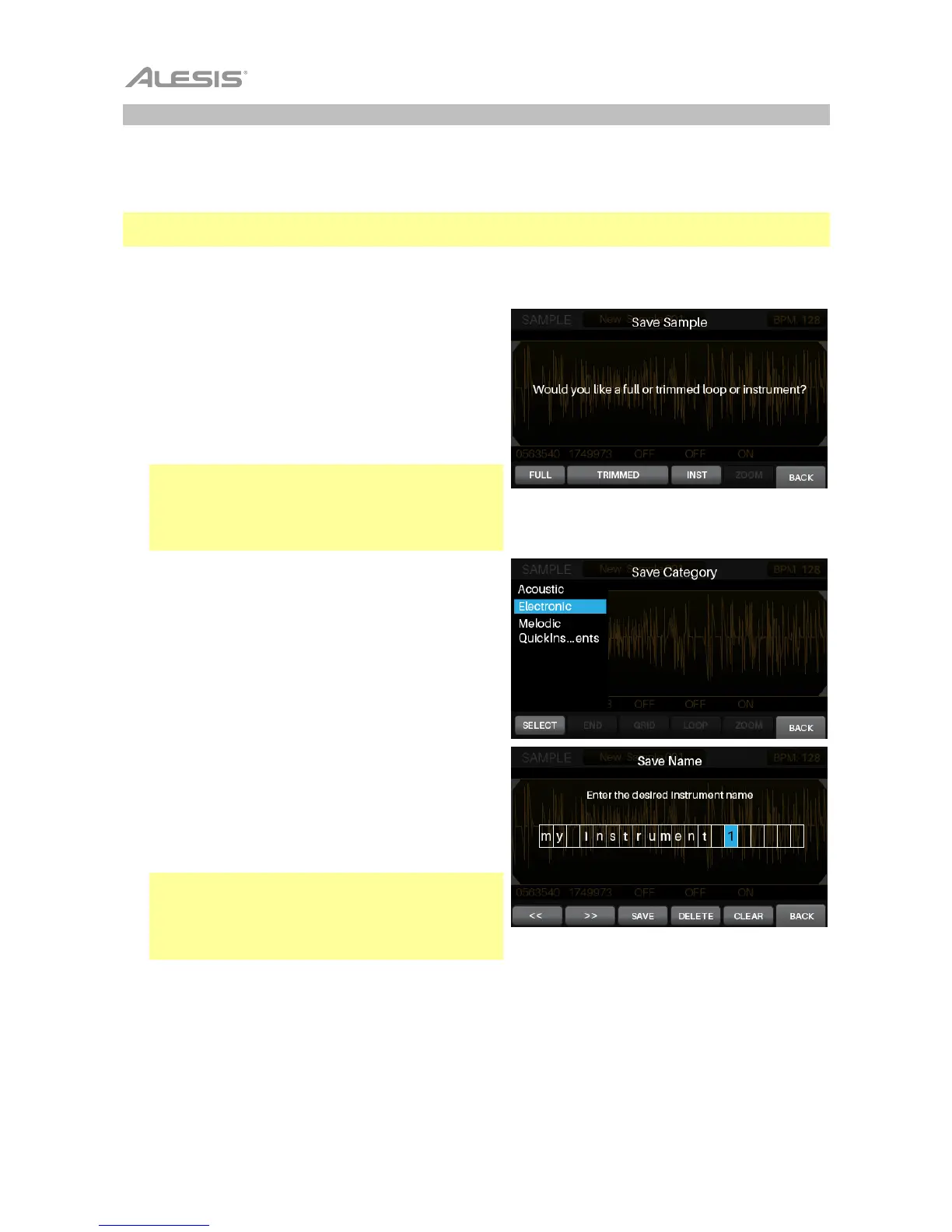
2. In the window that appears, press a function button
to determine how you save the sample:
To save the entire sample (without edits) as a loop,
press F1/Full.
To save the edited sample as a loop, press
F2/F3/Trimmed.
Note: We recommend saving samples immediately
as Full or Trimmed loops so you can name the file.
You can always reload, edit, or play a loop later—or
use it to create an instrument—while an instrument is
simply for assigning to a trigger.
To save the edited sample as an instrument, press
F4/Inst. In the page that appears, turn the data dial
to select the instrument category to which you want
to save it. Press Select to confirm your choice.
3. In the page that appears, enter the name of the loop
or instrument.
To move to the previous or next character, press
F1/<< or F2/>>.
To change the current character, turn the data dial.
To delete the current character, press F4/Delete.
To clear all characters, press F5/Clear.
4. To save the loop or instrument, press F3/Save.
To return to the previous screen without saving,
press F6/Back.
Important: If you try to save a loop or instrument
with a name that already exists, the module will ask if
you want to overwrite (replace) the existing one. To
overwrite the loop or instrument, press F1/Save.
To cancel, press F6/Back.



 To Next Page