26
Assigning Samples
Once you have saved your edited sample as an instrument, you can assign it to a kit.
To do this, see Kits > Editing Kits > Assigning Instruments. All samples saved as instruments are found
in the User tab.
Playing Loops
You can play your edited sample as a loop (e.g., as a backing track) in Sample Edit Mode.
Tip: You can also use Voice Mode to set a sample on a layer of a pad to loop. See Kits > Editing Kits >
Editing Voices to learn about this.
To play a loop:
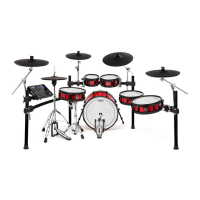
1. Press Sample to enter Sample Edit Mode.
2. Use the cursors to select the Sample field at the top
of the display.
3. Turn the data dial to select a sample, which will
appear in the waveform below.
4. Press Play () to start playback. When you’re
finished, press Stop () to stop playback.
Alternatively:
1. Press the Record () button to enter Sample Record
Mode.
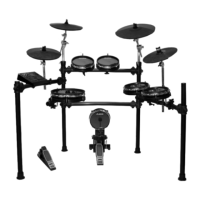
2. Press F1/List to show a list of samples on your SD
card.
3. Turn the data dial to select a sample.
4. Press Sample to enter Sample Edit Mode. The sample
you selected will appear in the waveform below.
5. Press Play () to start playback. When you’re
finished, press Stop () to stop playback.



 To Next Page