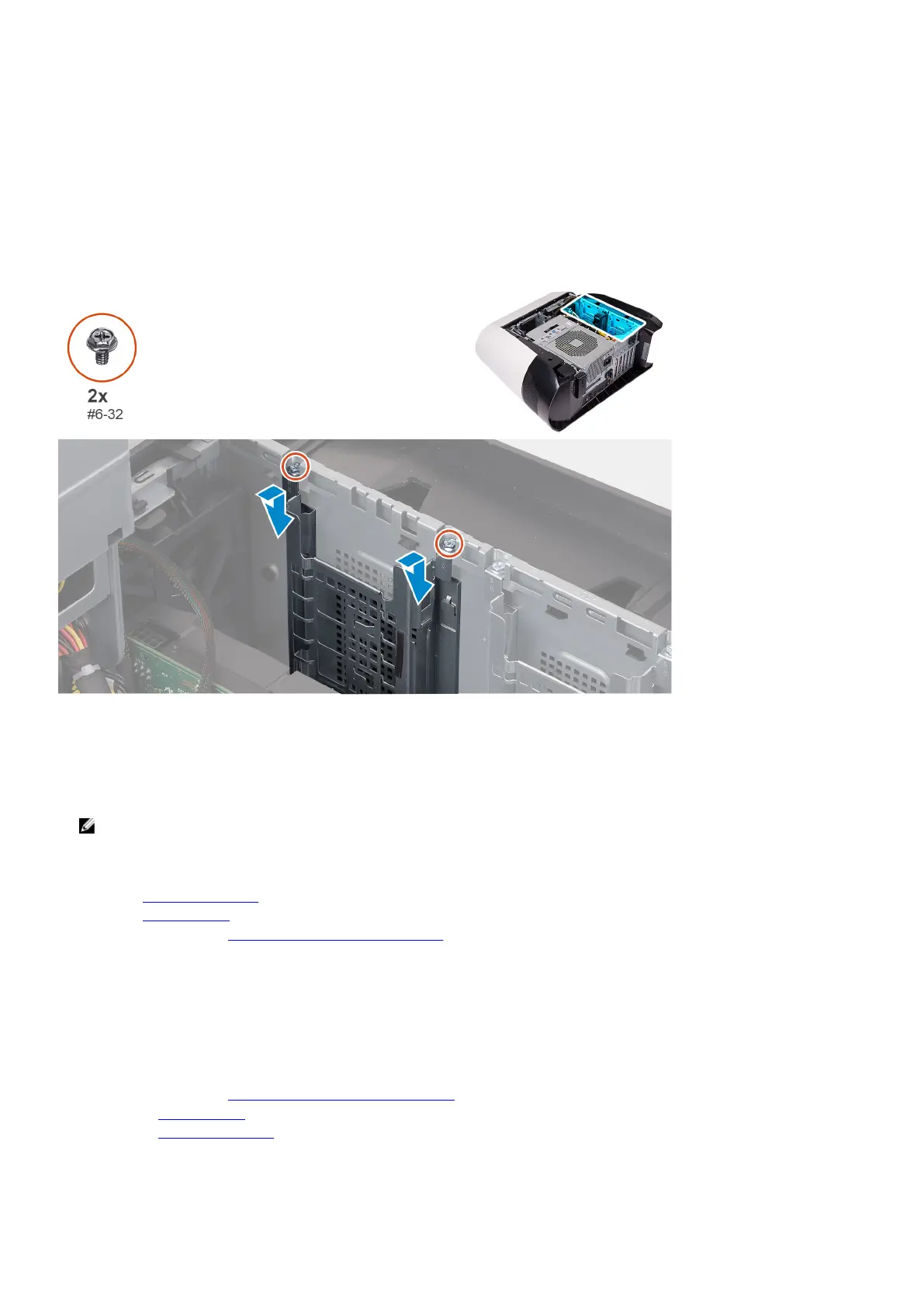
Installing the 2.5-inch hard-drive cage
Prerequisites
If you are replacing a component, remove the existing component before performing the installation procedure.
About this task
The following images indicate the location of the 2.5-inch hard-drive cage and provides a visual representation of the installation
procedure.
Steps
1. Insert the 2.5-inch hard-drive cage into its slot on the chassis.
2. Align the tabs on the cage with the tabs on the chassis.
3. Replace the two screws (#6-32) that secure the 2.5-inch hard-drive cage to the chassis.
NOTE: Repeat the procedure from step 1 to step 3 to install the other 2.5-inch hard-drive cage.
Next steps
1. Install the 2.5-inch hard drive, if required.
2. Install the left-side cover.
3. Follow the procedure in After working inside your computer.
3.5-inch hard-drive cage
Removing the 3.5-inch hard-drive cage
Prerequisites
1. Follow the procedure in Before working inside your computer.
2. Remove the left-side cover.
3. Remove the 3.5-inch hard drive, if installed.
25












 To Next Page