Using AlienFX application | 65
Creating a theme
To create a theme with your preferred lighting settings:
1. La
unch AWCC.
2. Cl
ick FX in the top menu bar to access the home screen of AlienFX.
3. In the
top-left corner of the window, click to create a new theme.
4. In the
CREATE NEW THEME text box, type the theme name.
5. Sp
ecify the lighting zone(s) for which you want to make lighting
adjustments by:
• selecting the zone check box(es) above t
he live preview area, or
• clicking the numbered callout on the image of monitor
6. In the LIGHTING panel, select your preferred lighting effects from the
drop-down list, including Morph, Pulse, Color, Spectrum, and Breathing.
See Setting lighting effects for details.
NOTE: The Spectrum option is only available when you select All Zones to
make lighting adjustments.
7. Repeat step 5 and step 6 to make more configuration options available to
your preference.
8. Wh
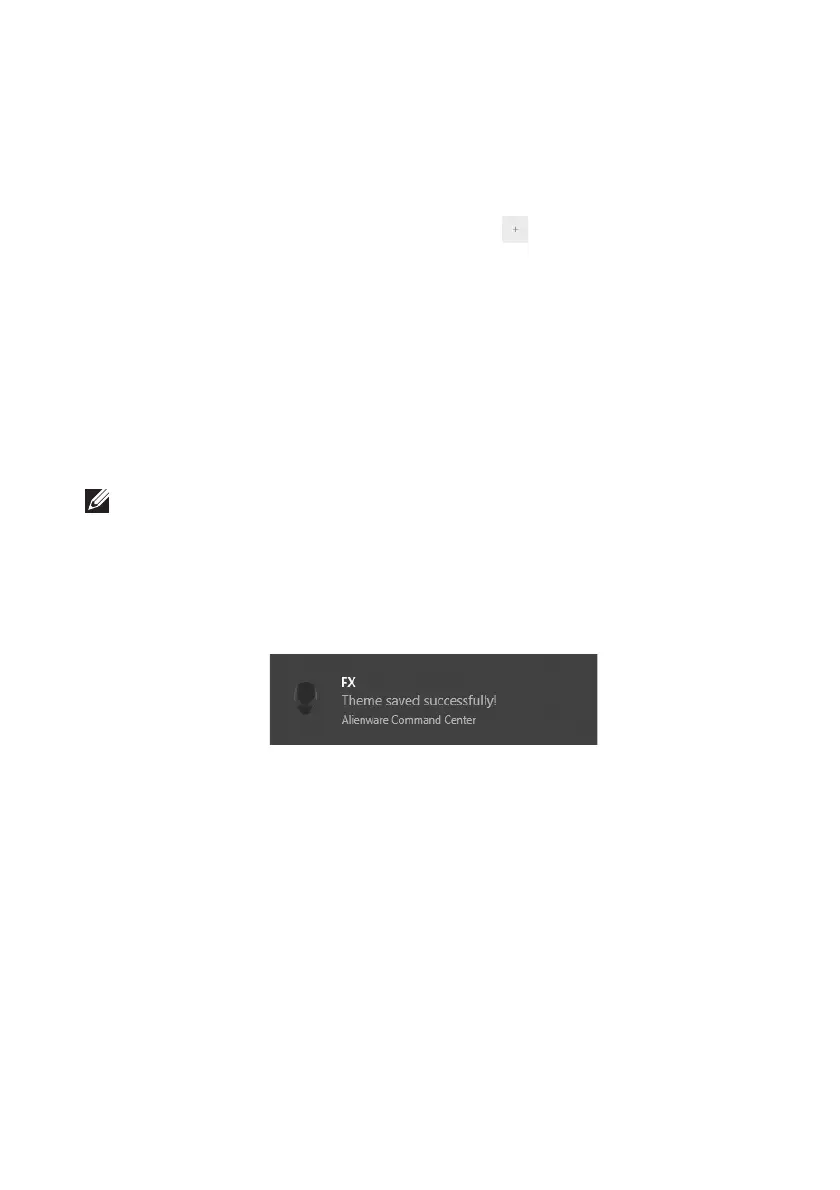
en done, click SAVE THEME. A toast notification appears in the right-
bottom corner of the screen.











 To Next Page