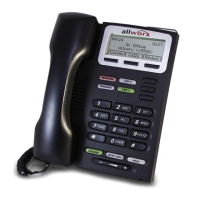
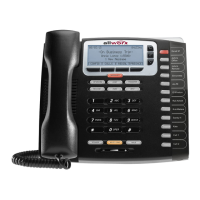
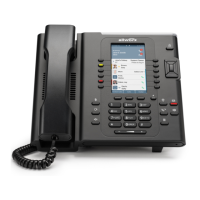
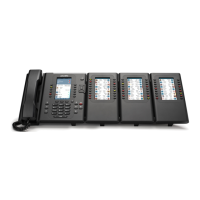
Allworx Phone Model 9224 User Guide
+1 866 ALLWORX * +1 585 421 3850 Page 33
www.allworx.com
Version: L Revised: October 11, 2018
4. Press the Select button ( ) to start/stop the message and the up/down arrow keys to forward/
rewind the message, respectively. Use the soft keys to choose different options such as mark as
new, delete, or forward the message.
To access the Audio Message Center:
1. Do one of the following:
• Press the phone Messages function button twice.
• Dial 6 + the primary extension from any phone or the company Auto Attendant.
• Dial 404. When calling from an outside line or phone not assigned to a user, the system
prompts users for a primary extension.
• (from an outside line dialing directly to your office) While the greeting is playing, dial
*6 + <extension> before the greeting finishes playing.
The Audio Message Center announces the number of new and saved voicemail messages and
the current Presence setting.
2. Press one the following keypad buttons and follow the audio prompts.
Key Option
1 Listen to voicemail messages. See “To manage voicemail messages:” on page 34 for more options.
2 Listen to saved voicemail messages. See “
To manage voicemail messages:” on page 34 for more
options.
3 Send a message.
• Enter the extension or alias to forward the message. The Allworx system plays the selected user’s
number and name, and then prompts for another extension.
• Select one of the options:
• Record a message, and then press the # key when complete.
• Select one of the following options:
4 Change your Message Center system settings. See “
To update the Audio Message Center settings:” on
page 35 for more options.
• Outgoing message is playing The Allworx system places the call immediately.
• During or after leaving a
message
The Allworx system delivers the message, and then
transfers the caller to the dialed extension.
Key Option Key Option
1 or hang up Send the message # Cancel the message
2 Review the message * Hear these options again
3 Change the message


 To Next Page