Mode 10: Touch panel checking & calibration mode
! (We recommend you check this mode using a thin touch pen.)
! This mode is to check accuracy of the Touch panel.
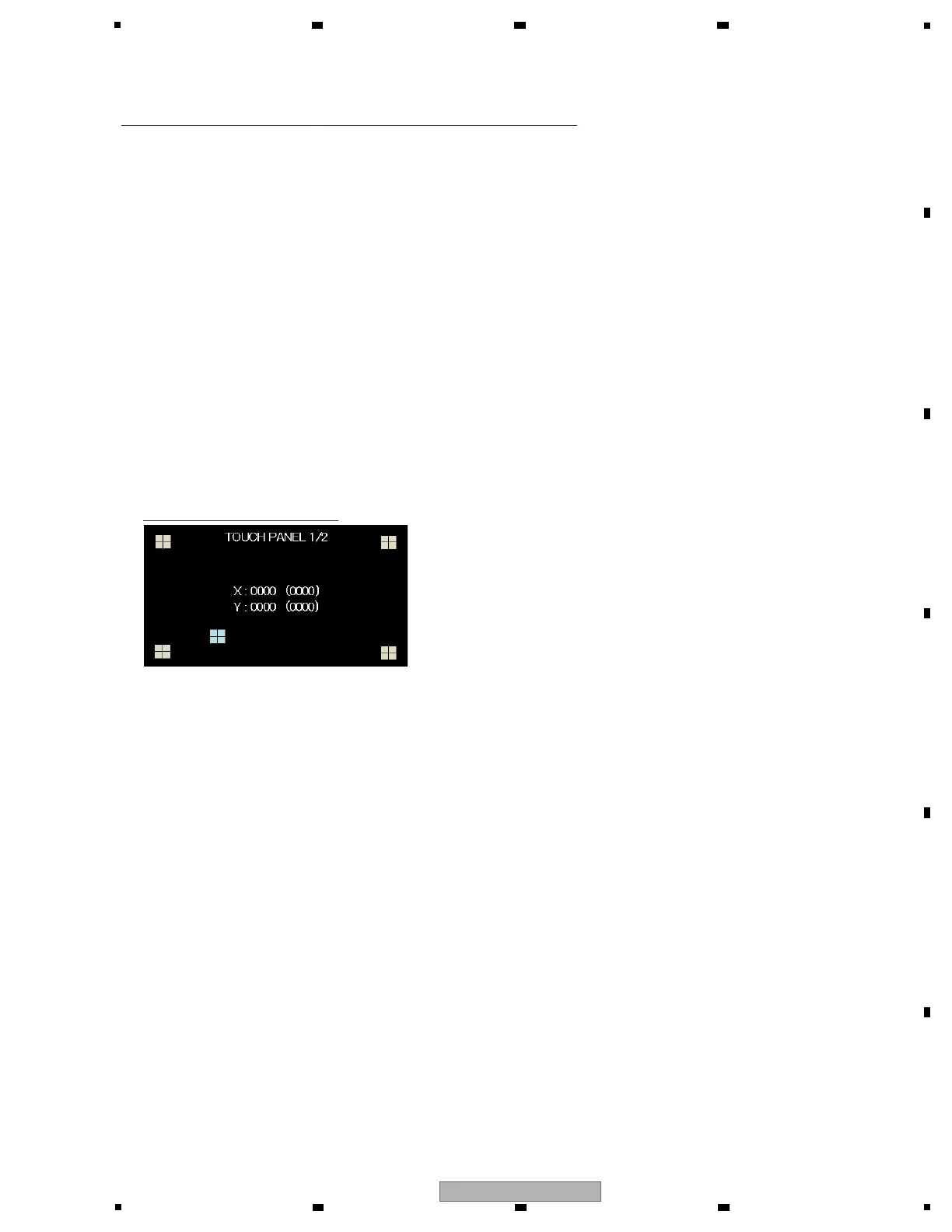
! Touch the squares at the four corners to turn them blue.
! When all the squares are touched, the check is completed. (OK is displayed.)
! The touched point is displayed. (Example: light blue square)
! The AD value of the Touch panel is displayed. Coordinate value converted to 320 x 240 are displayed in (xxxx).
(The upper left corner is (0, 0))
! This is the mode for check and calibration of Touch panel.
! The first page is to check whether the Touch panel on the unit work normally or not.
! Press the [FX FREQUENCY (MID) button] to enter calibration mode.
Note: It is not necessary to execute calibration of the Touch panel.
[Functional overview]
TOUCH PANEL
+ At the mode start, this title will be displayed about 1 second.
[Mode Title Display]
[BEAT c / d button] : Page switch
[TAP button] (Lighting) : Mode change (to next mode)
[BEAT FX ON/OFF button] (Lighting) : Mode change (to previous mode)
[Element]
All LED light off, and Touch display shows CHECK MODE.
[Default]
Press [BEAT c / d button] to select Page.
[Procedure]
Page to check touch panel


 To Next Page