21
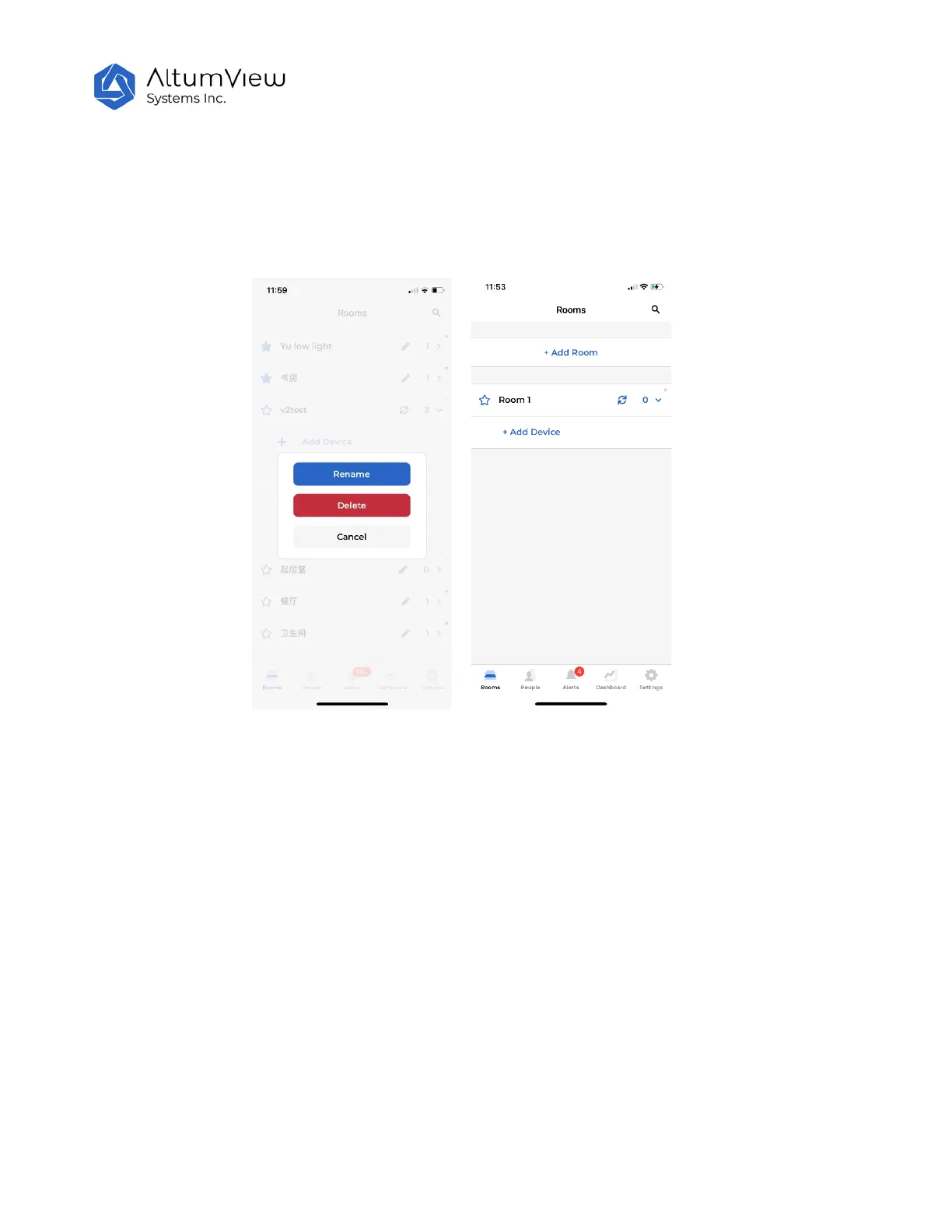
If there are many rooms, users can search a room in the Rooms page by tapping the magnifier icon in the
upper right corner, and input a part of a room name to search it.
Tap the pencil icon next to the room name, a pop-up window will show up, where user can rename a room
or delete a room.
The number of devices in each room is displayed to the right of the pencil icon. The initial value is 0. Tap the
room name or the arrow next to the number of device will expand this room, and list the devices in the
room under the room name. More details will be explained in the next chapter.
After a room is expanded, the pencil icon will become a refresh icon, which can be used to update the latest
online/offline status of the sensors in this room.
The expanded room can be collapsed by tapping the room name or the number of devices.
In the expanded room section, users can tap “+ Add Device” to add a new device to the room, which will be
detailed in the next chapter.



 To Next Page