34
4.2.1 Rename Device
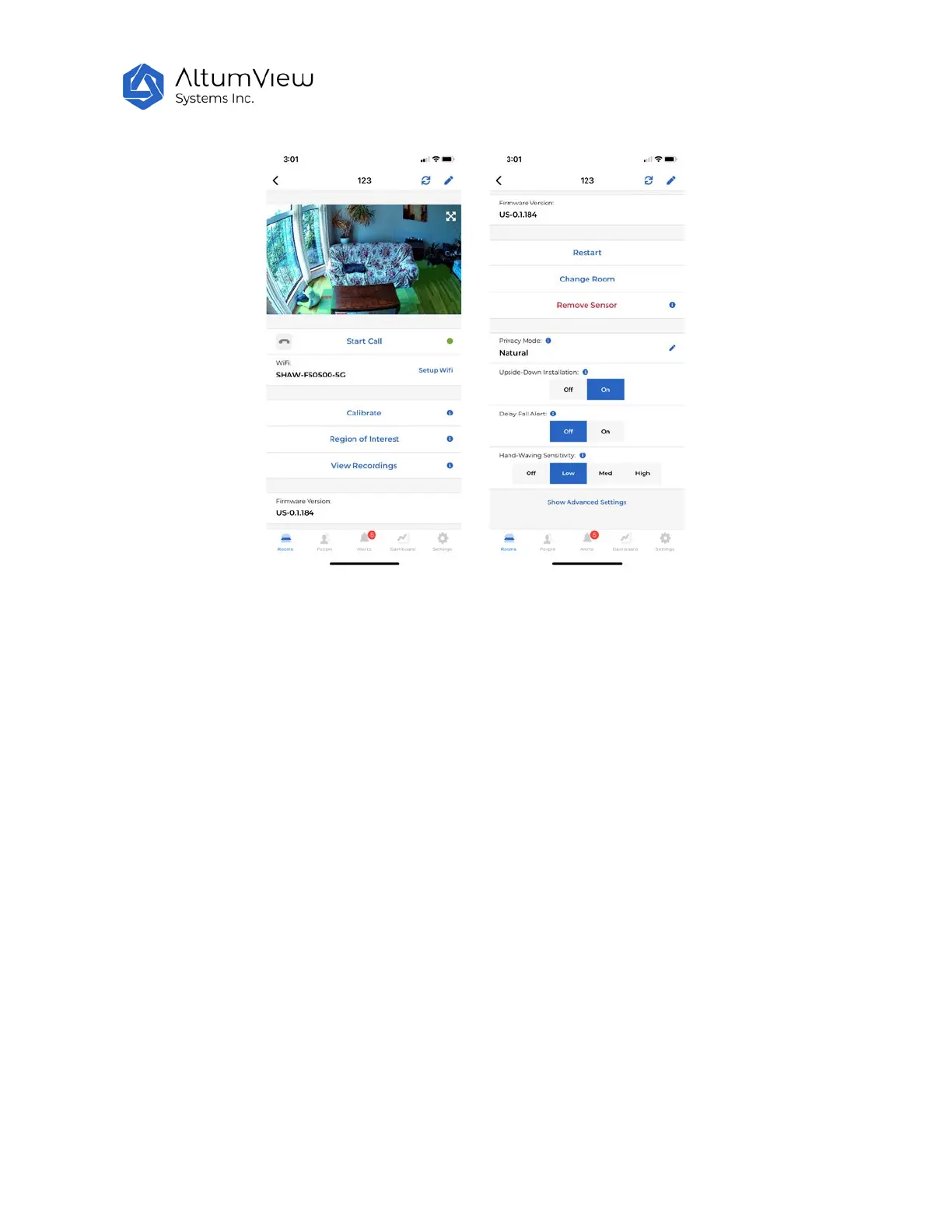
To rename the activity sensor, tap the pen icon in the upper right corner of the sensor settings page, and
change the name of the sensor in the pop-up "Change Name" window.
4.2.2 Refresh Display
This button is on the upper right corner, next to the pen icon. It is used to refresh the streaming window
in the sensor page, if the stick figures are not displayed automatically.
4.2.3 Voice Call
Users can call a sensor via the "Start Call" button in the device page, or in an alert page (explained later).
After starting a call, users can start two-way voice communications via mobile APP and the sensor. In
Cypress sensor, during the two-way call, the LED of the sensor will blink cyan to indicate a voice call
session is going on. Sentinare 2 will have this LED feature in the future.
4.2.4 Setup WiFi
Users can set up the WiFi by tapping the “Setup WiFi” command in the sensor page. When a sensor is
first added to an account, the app will automatically bring the user to the WiFi setup page. The usage is
already given in Sec. 4.1.2.


 To Next Page