22
4.Device Management
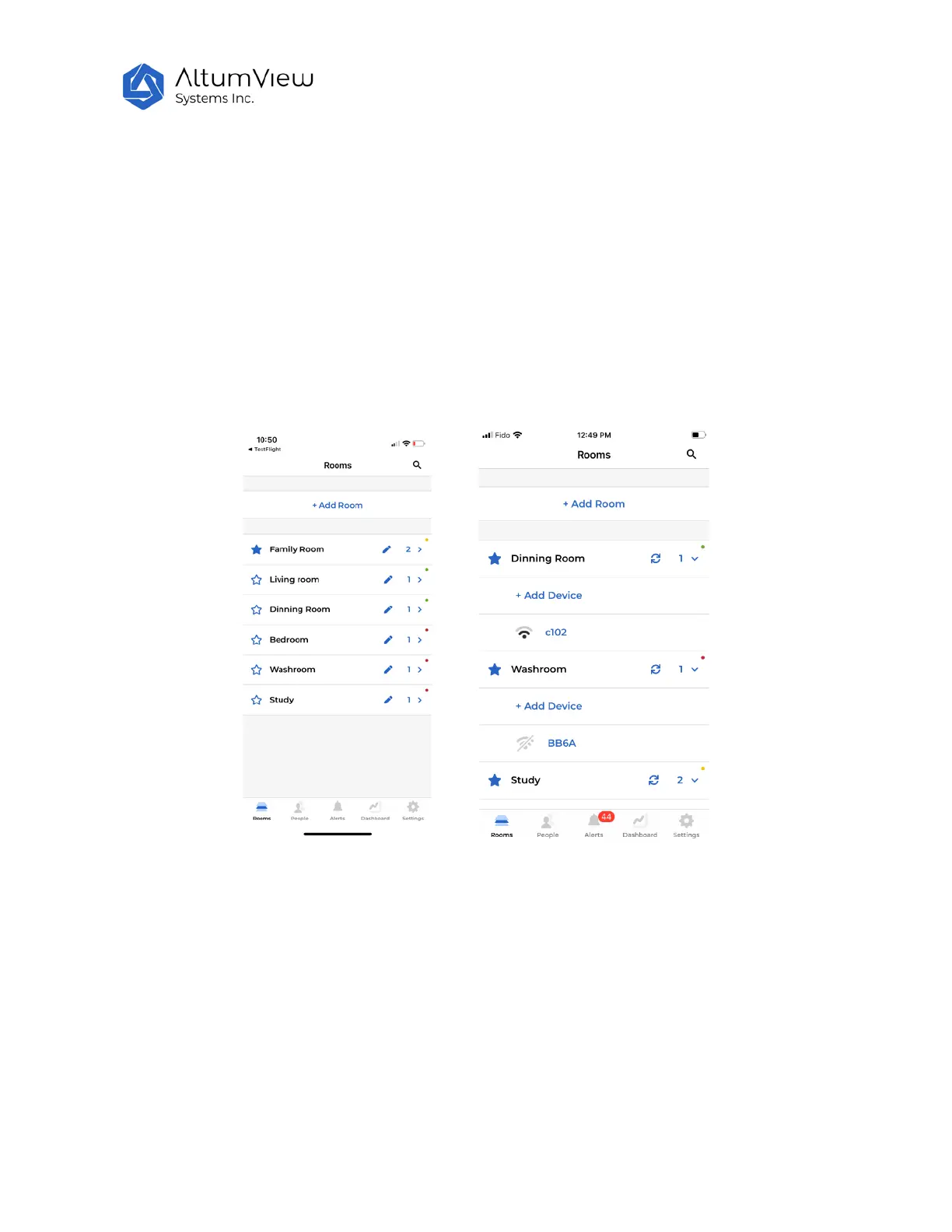
There can be up to 10 activity sensors in each room. In the Room page, users can see all the sensors in a
selected room by tapping the room name, or tapping the right arrow next to the room name, as shown
below. If the WiFi icon to the left of a sensor is black, it means the sensor is online. If the icon is gray
with a crossed line, the sensor is offline. To refresh the sensor status, users can tap the refresh icon in
each room.
Only the administrator can manage the sensors, and other users can only view them.
In the Room page, a colorful dot is also displayed at the end of each room name, which indicates the
online/offline status of the devices in each room. This feature allows users to know the operating
conditions of devices in each room by a quick glance.
The dot can have 4 possible colors:
• Gray: There is no device in the room. This is the initial color for each room.
• Green: All devices in the room are currently online.
• Red: All devices in the room are currently offline.
• Yellow: Some devices in the room are online, and some are offline.



 To Next Page