20
3.Room Management
Sentinare sensors can be added to the account and managed by tapping the Rooms icon at the lower left
corner of the screen. Each sensor must be added to a Room, and a Room can have up to 10 sensors. The
default maximum number of sensors in an account is 50. Please contact us if you need to increase the
maximum number of sensors.
Only the main user can change the setting of the room, such as adding, deleting, and renaming.
3.1 List of Rooms
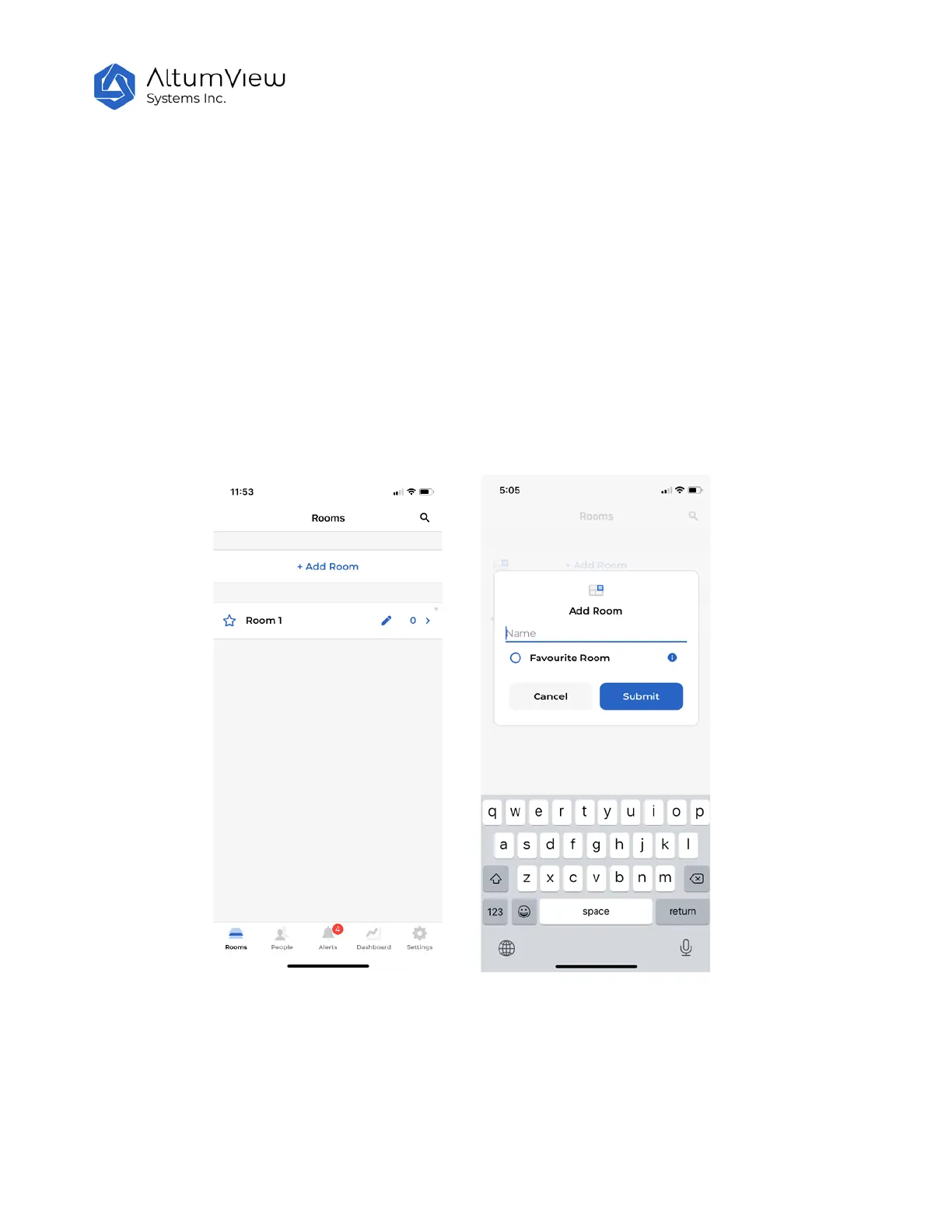
Tap on “Rooms” in the lower left corner of the screen to enter the Rooms page. This page lists all the rooms
managed by this account. For a new account, a default Room called “Room 1” is created by the system.
Users can create a new Room in the Rooms page by tapping the “+ Add Room” command in the Rooms
page. In the Add Room page, user can input the name of the new room, or check the “Favourite Room” flag
to label a room as favourite, which will keep it at the top of the room list in the Rooms page. Favorite rooms
are indicated by solid stars to the left of the room names. Other rooms are indicated by unfilled stars. Tap
Submit will create the new room.


 To Next Page