Enrolment
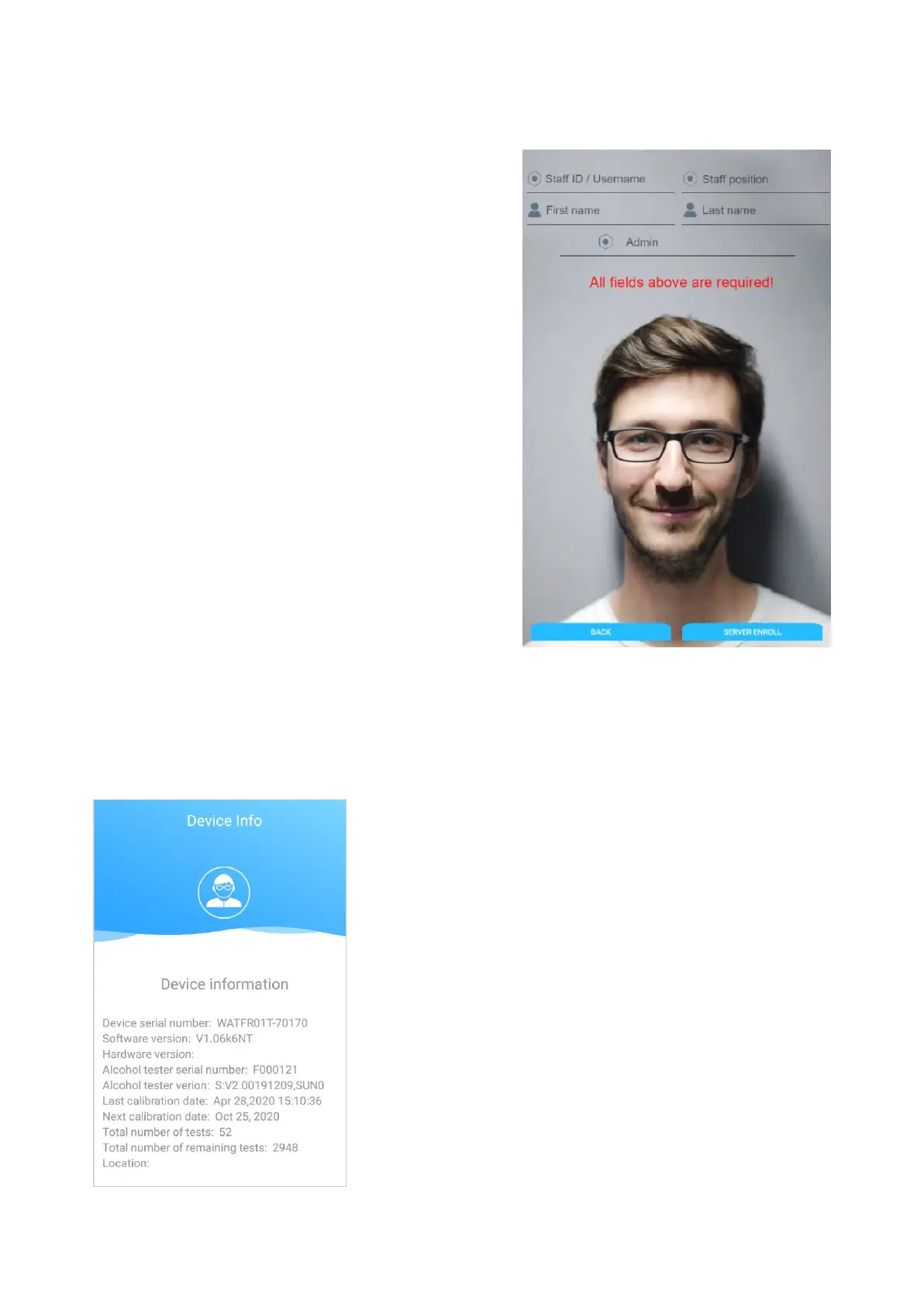
Use this step to enrol anyone, including admin role users
for temperature calibration, into the device or Andalink.
● Connect an external keyboard to the device
● Enter the staff’s details into the system. All fields
are required (Staff ID or Username, Position,
First and Last Names, and Role).
● Click on the ‘Server Enroll’ button to submit the
enrolment details.
● Position the registered staff’s face in the device
camera so that it fills the green frame on the
screen. Please follow the Facial Recognition
Guidelines mentioned in this manual.
● Once successfully enrolled, the device will
display ‘Enrolment successful’.
● The device will sync the new user’s details to
Andalink during the next sync (about 10 minutes).
Alternatively, force sync the device to Andalink by
long clicking the version number (displayed on
the bottom right of the device screen).
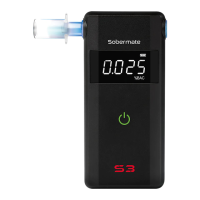
Device Info
Shows the Device Information, including software version
number, serial numbers, last and next calibration dates, total
numbers of tests, total number of remaining tests and location.
19


 To Next Page