English - 43 -
Using Side USB Input
USB Connection
• You can connect a USB hard disk drive or USB
memory stick to your TV by using the USB input of
the TV. This feature allows you to play fi les stored in
a USB drive or record programmes.
• 2.5” and 3.5” inch (hdd with external power supply)
external hard disk drives are supported.
• Note that recording feature is available only through
the USB input located on the left - hand side (from
front view) of the TV. To record a programme, you
should fi rst connect a USB disk to your TV while the
TV is switched off. You should then switch on the TV
to enable recording feature. Otherwise, recording
feature will not be available.
IMPORTANT !
• You may back up your fi les before making any
connections to the TV set in order to avoid any
possible data loss. Note that manufacturer will not be
responsible for any fi le damage or dataloss.
• It is possible that certain types of USB devices (e.g.
MP3 Players) or USB hard disk drives/memory sticks
may not be compatible with this TV.
IMPORTANT: The TV supports only FAT32 disk formatting.
NTFS format is not supported. If you connect a USB disk with
NTFS format, the TV will ask you to format the content. See
the section, “Format Disk” in the following pages for more
information on disk formatting.
Note that ALL the data stored on the USB disk will be lost
and then the disk format will be converted to FAT32 in such
a case.
USB Disk Connection
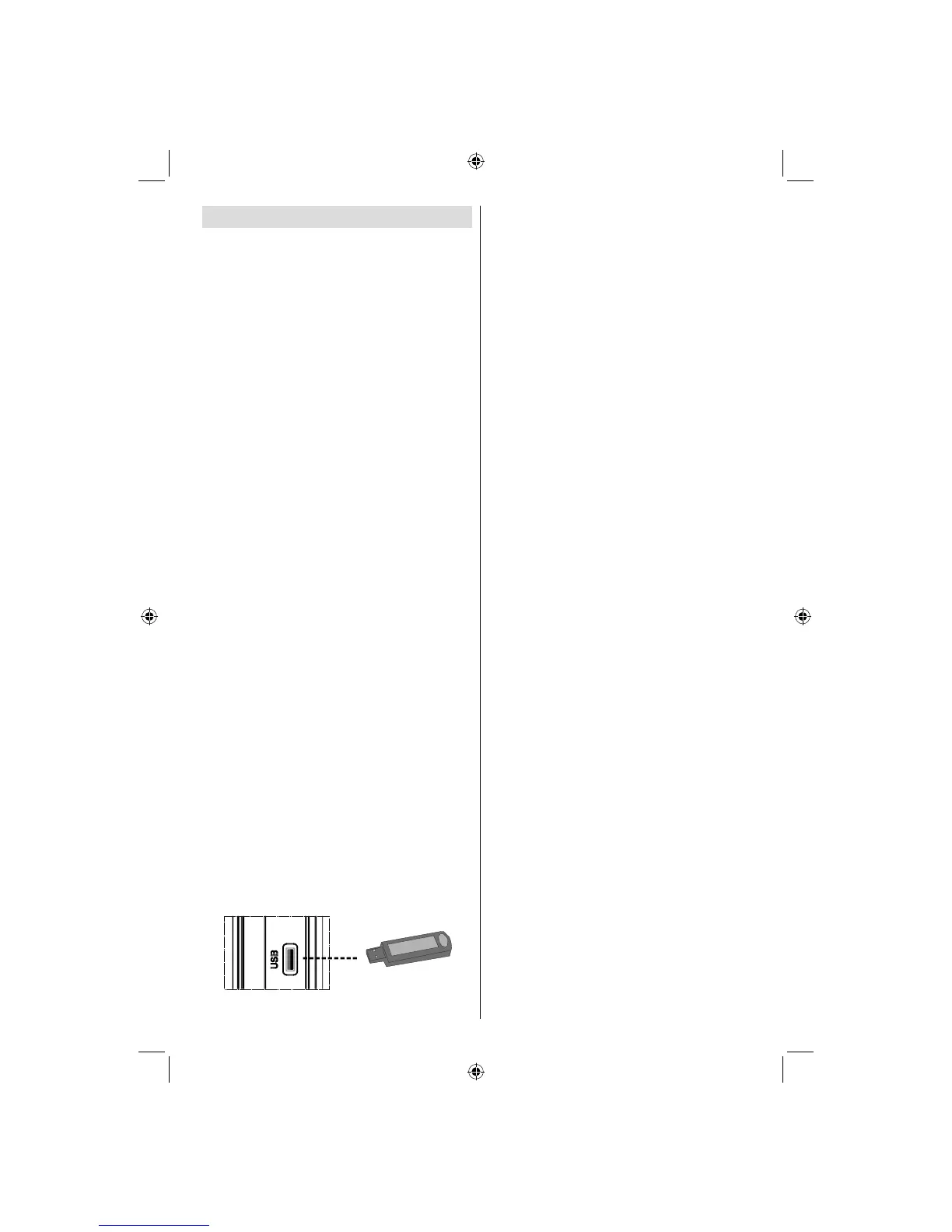
• Plug your USB device to the USB input of the TV.
Note: Plug or unplug your USB disk while the TV is switched
off.
Note: If you are going to connect a USB hard disk drive to
the TV set, USB connection cable used between the disk
drive and the TV should have a USB logo and should be as
short as possible.
Note: While formatting a USB hard disk that has 1TB (Tera
Byte) or more fi le capacity, you can experience problems with
the formatting process. In such a case, you should format
the disk with your personal computer and the formatted disk
type should be FAT32.
SIDE VIEW USB MEMORY
CAUTION !
• Quickly plugging and unplugging USB devices,
is a very hazardous operation. Especially, do not
repeatedly quickly plug and unplug the drive. This
may cause physical damage to the USB player and
especially the USB device itself.
• Do not pull out USB module while playing or
recording a fi le.
Programme Recording
• Programme recording is available in digital TV
mode.
• To record a programme, you should fi rst connect
a USB disk to your TV while the TV is switched off.
You should then switch on the TV to enable recording
feature.
IMPORTANT: When using a new USB hard disk drive, it is
recommended that you fi rst format the disk using your TV’s
“Format Disk” option.
• For using recording function, you should connect
a USB disk or an external hard disk drive to the TV
and connected USB disk should have at least 1 GB
capacity and should have 2.0 speed compatibility.
If the connected USB device does not support 2.0
speed, an error message will be displayed.
• Recorded programmes are saved into the connected
USB disk in .TS format (MPEG-2 transport stream).
If desirable, you can back up / copy these saved
recordings into a personal computer.
Note: It is possible that recorded broadcasts in .TS format
may not be supported by your media playback software. In
such a case, you should install an appropriate media playback
software to your computer.
• An hour of the recordings stored occupies
approximately 2 GB of space.
• For more information on recording programmes,
see sections “Instant Recording”, “Timeshifting”,
“Electronic Programme Guide”, “Recordings Library”
or “Recording Timers” in the following parts.
Recorded programmes are split into 1GB
(approximately an hour) partitions. Names of the
stored recordings’ last three digits indicates this: Such
as 4801-000.ts , 4801-001.ts.
Recorded programmes are stored in the following
directory of the connected USB disk: \DVR\RECS. All
recordings are indicated with a number (such as 4801-
000.ts). A text (txt) fi le is created for each recording.
This text fi le includes information such as broadcaster,
programme, and recording time.
02_MB45M_[GB]_5110UK_PVR_IDTV_SILVER8_(psm)_32843W_10071150_50180023.indd 802_MB45M_[GB]_5110UK_PVR_IDTV_SILVER8_(psm)_32843W_10071150_50180023.indd 8 25.11.2010 13:11:0525.11.2010 13:11:05



 To Next Page