English - 58 -
Note: If the USB stick is not recognized after power off/on
or First Time Installation, fi rst, plug the USB device out and
power off/on the TV set. Plug the USB device in again.
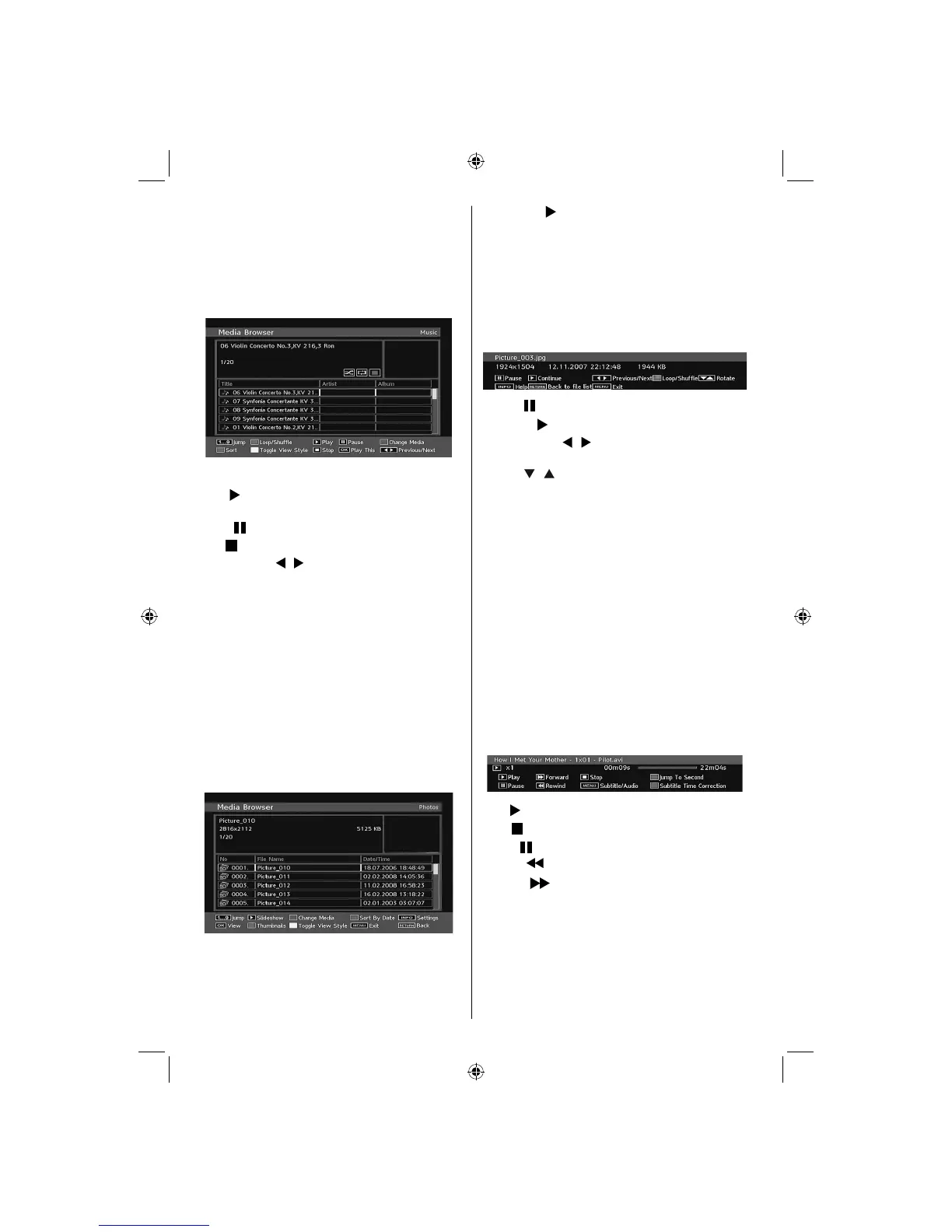
Playing MP3 Files
Select MUSIC option from the main media browser
window and all available music files will be
displayed:
Play This (OK button) : Plays the selected fi le.
Play (
button) : Plays all media fi les in the folder
starting with the selected one.
Pause (
button) : Pause playing fi le.
Stop (
button) : Stop the playing fi le.
Previous/Next (
/ buttons) : Jumps to previous or
next fi le to play.
Loop/Shuffl e (GREEN button): Press once and the
selected file is played repeatedly. / Press again
and fi les will be played randomly. If shuffl e mode is
enabled, previous/next function will also jump to the
tracks randomly.
BLUE: Changes media type.
RED: Displays sorting options.
YELLOW: Toggles media browser viewing style.
Viewing JPG Files
Select PHOTOS option from the main media
browser window and all available photo fi les will be
displayed:
JJump (1...9 buttons) : jump to selected fi le using the
numeric buttons.
OK : (OK button) views the selected picture in full
screen.
Slideshow (
button): starts the slideshow with all
pictures in the folder.
BLUE: Changes media type.
RED: Sorts fi les by date.
YELLOW: Toggles media browser viewing style.
MENU: Exits media browser.
RETURN: Returns to the previous menu.
Slideshow Options
Pause ( button) : Pause the slideshow.
Continue (
button) : Continue with the slideshow.
Previous/Next (
/ buttons) : Jump to previous or
next file of slideshow.
Rotate (
/ buttons) : Rotate the picture using up/
down buttons.
Return/Back : Back to fi le list.
Loop/Shuffl e (GREEN button): Slideshow goes on
continuously and icon turns the highlighted icon when
pressed once. When pressed second time, shuffl e
mode will be activated. This, shows the fi les randomly
and continuous in current folder and icon turns the
highlighted icon. If during a slideshow the shuffl e mode
is enabled, next pictures will be choosen randomly
(If the loop function is not enabled, the slideshow will
stop at the end. If the loop function is enabled, after
the slideshow ends, it will start again and again).
Info : Activates the operations bar.
Video Playback
Select VIDEOS option from the main media
browser window and all available video fi les will be
displayed:
Play ( button) : Starts the video playback.
Stop (
button) : Stops the video playback.
Pause (
button) : Pause the video playback.
Rewind (
button) : Goes backward.
Forward (
button) : Goes forward.
GREEN: Jumps to the selected time.
RED: Sets subtitle time correction.
Menu (MENU button) : Sets subtitle/Audio.
• You can set subtitles by using “OK” button before
starting the playback or by using MENU button during
the playback.
Note:
02_MB45M_[GB]_5110UK_PVR_IDTV_SILVER8_(psm)_32843W_10071150_50180023.indd 2302_MB45M_[GB]_5110UK_PVR_IDTV_SILVER8_(psm)_32843W_10071150_50180023.indd 23 25.11.2010 13:11:1425.11.2010 13:11:14


 To Next Page