English - 59 -
• Selected subtitles may not be displayed correctly in some
cases.
• In order to display movie subtitles correctly, you should set a
“Movie Subtitle” language. See the section, “Movie Subtitle” in
“Language Settings” for selecting Movie Subtitle language.
Press “STOP” button to switch back to previous
menu.
Recordings
Use “ ” or “ ” button and press OK to select
Recordings option.
This section is same with the instructions given in
the Recordings Library page. Please see Recordings
Library section in the previous pages.
Media Browser Settings
Use “ ” or “ ” button and press OK to select Settings
option
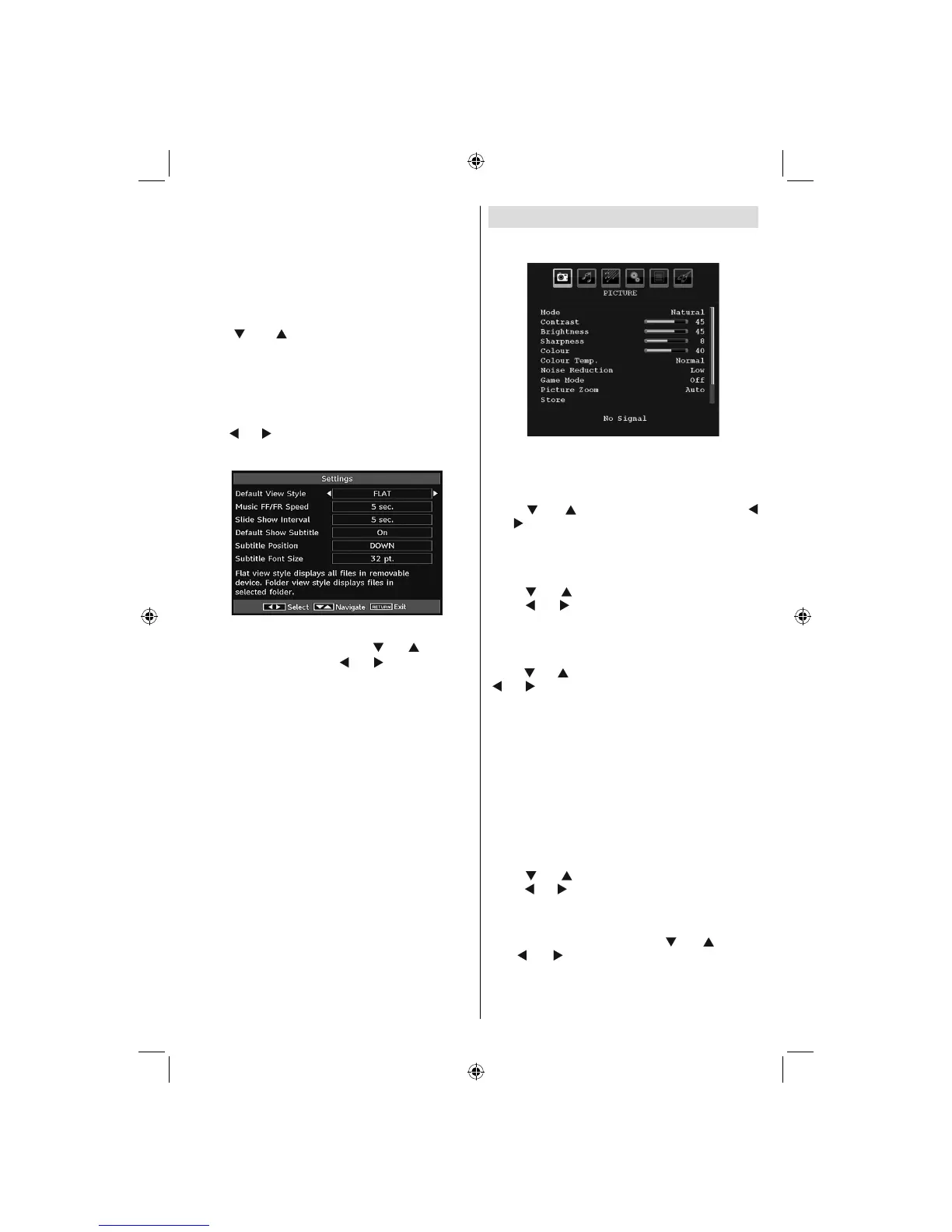
You can set your Media Browser preferences by
using the Settings dialog. Press “ ” or “ ” button to
highlight an item and use “ ” or “ ” button to set.,
Default View Style: Sets default browsing mode.
Music FF/FR Speed: Defi nes music rapid advance/
reverse speed.
Slide Show Interval: Sets slide show interval time.
Default Show Subtitle: Sets subtitle enabling
preference.
Subtitle Position: Sets subtitle position as up or
down.
Subtitle Font Size: Sets subtitle font size.
AV Synchronization: Sets audio/video synch rate.
Analogue TV Menu System
Picture Menu
Mode
For your viewing requirements, you can set the related
mode option.
Press “
” or “ ” button to select Mode. Press “
” or “ ” button to choose from one of these options:
Cinema, Dynamic and Natural.
Brightness/Contrast/Colour/Sharpness/
Hue
Press “ ” or “ ” button to select the desired option.
Press “ ” or “ ” button to set the level.
Note: Hue option can only be visible when the TV receives
an NTSC signal.
Colour Temp
Press “ ” or “ ” button to select Colour Temp. Press
“ ” or “ ” to choose from one of these options: Cool,
Normal and Warm.
Note:
• Setting Cool option gives white colours a slight blue
stress.
• Setting Warm option gives white colours a slight red
stress.
• For normal colours, select Normal option.
Noise Reduction
If the broadcast signal is weak and the picture is
noisy, use Noise Reduction setting to reduce the
noise amount.
Press “
” or “ ” button to select Noise Reduction.
Press “ ” or “ ” to choose from one of these options:
Low, Medium, High or Off.
Game Mode (optional)
Select Game Mode by pressing “ ” or “ ” button.
Use “ ” or “ ” button to set Game Mode as On or
Off. When Game Mode is set to On, specifi c game
mode settings, which are optimized for better video
quality, will be loaded.
02_MB45M_[GB]_5110UK_PVR_IDTV_SILVER8_(psm)_32843W_10071150_50180023.indd 2402_MB45M_[GB]_5110UK_PVR_IDTV_SILVER8_(psm)_32843W_10071150_50180023.indd 24 25.11.2010 13:11:1425.11.2010 13:11:14



 To Next Page