© Ikonix USA
29
4.4.3 Create Test File – List Mode
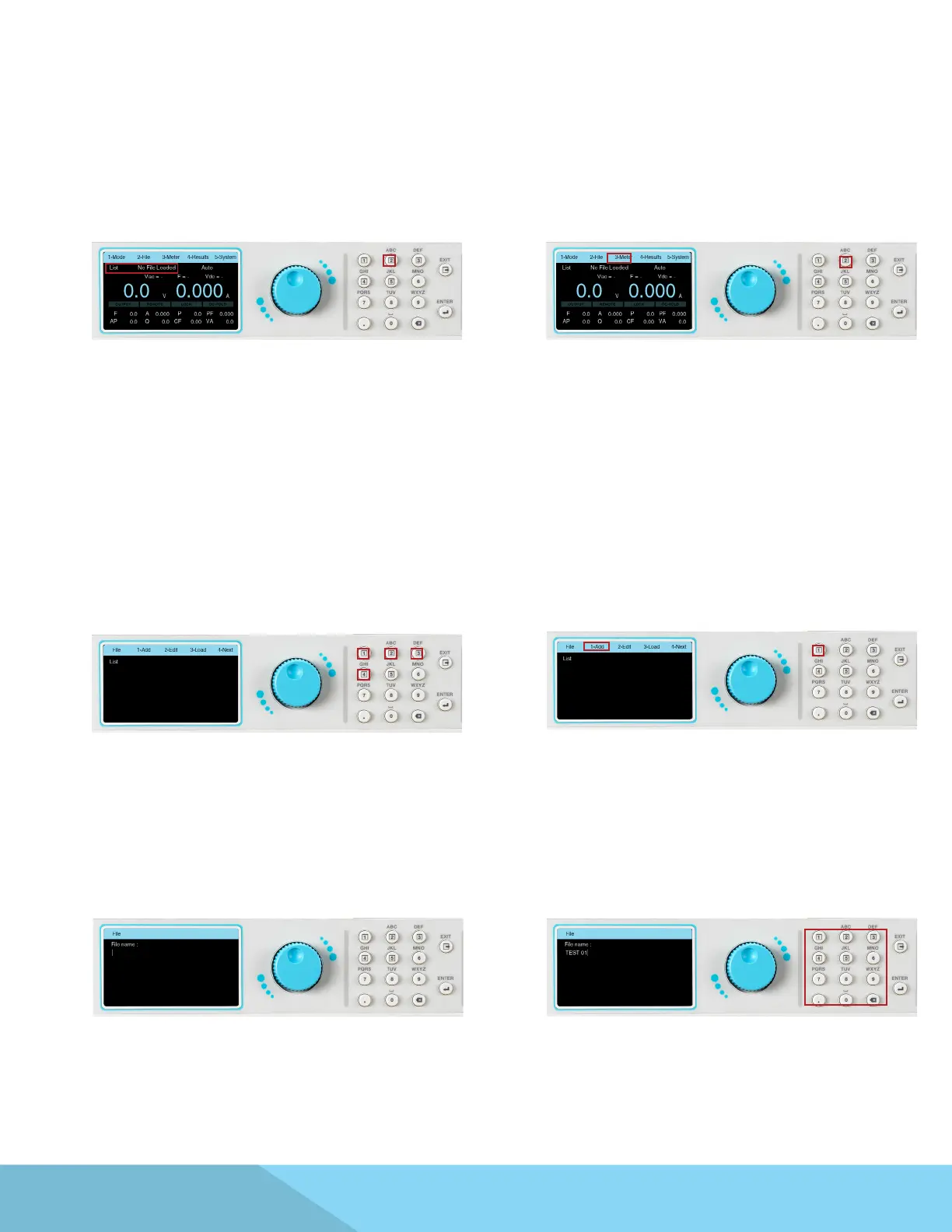
1. From the Mode menu press the number 2
key on the keypad to change the mode to List.
The next screen displayed will reect the mode
as List, along with a test le name or a “No File
Loaded” message if no test le has been loaded
in the List Mode:
2. Once the mode has been set to List press any
key to drop down the menu bar and press the
number 2 key on the keypad to enter the File
menu:
3. The File screen will be displayed and the
selections on the menu bar will change. If there
are no previously saved test les for List Mode
the screen of the File menu will display the
selections to Add, Edit or Load a test le on the
menu bar. The Next selection on the menu bar
will not do anything:
4. To start adding a test le press the number 1
key on the keypad to select Add:
5. The next screen will display a eld with a
blinking cursor to enter a name for the le:
6. Use the keypad to enter a name for the test
le (23 character limit):



 To Next Page