Chapter 3: Accessing CloudVision Appliance iDRAC
Quick Start Guide: CloudVision Appliance 11
3.1.3 Changing the iDRAC Password
Two options are available to change the iDRAC password:
• Changing the Password through the iDRAC Web Interface
• Changing the Password through the CLI
3.1.3.1 Changing the Password through the iDRAC Web Interface
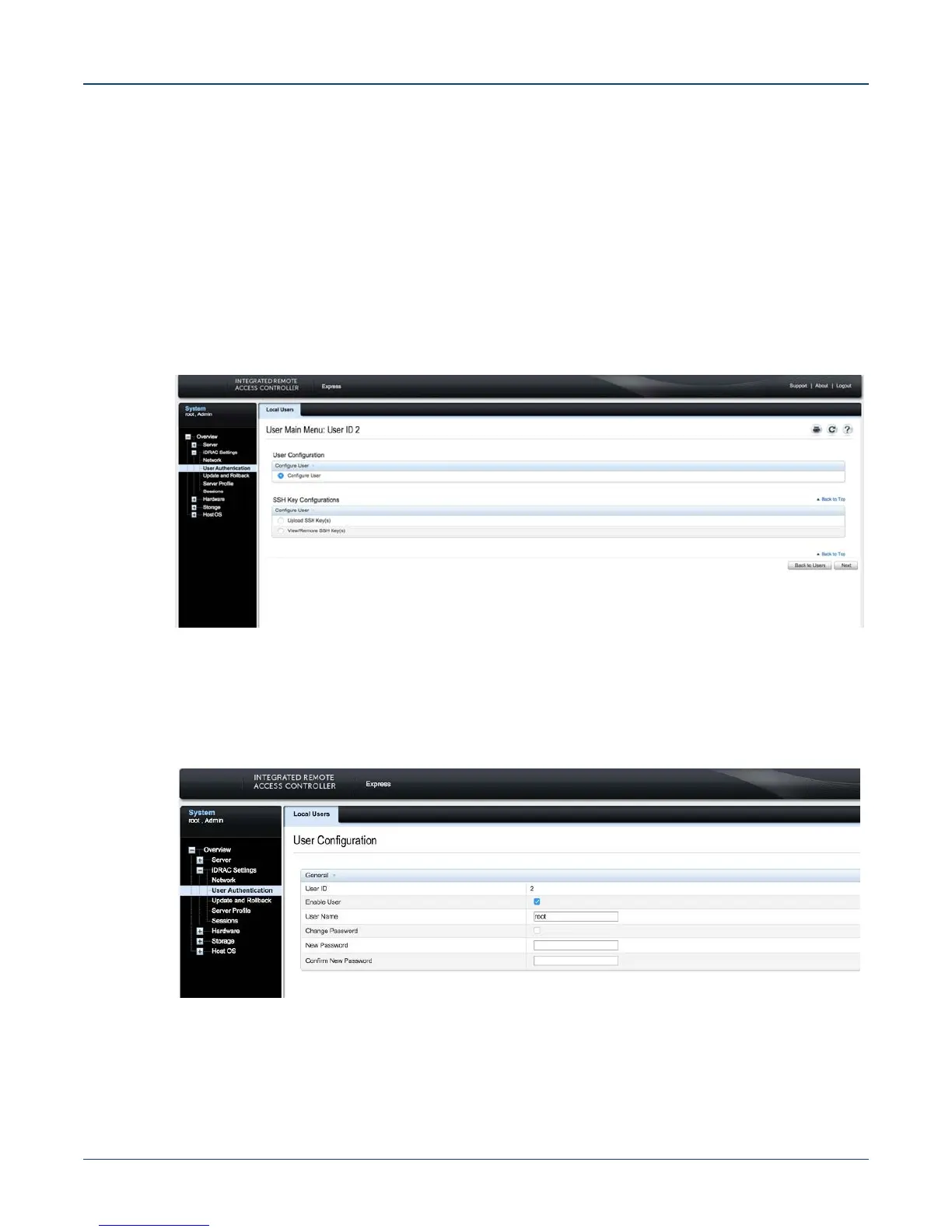
Step 1 Under "iDRAC Settings", go to User Authentication.
The User Authentication page appears (Figure 3-2).
Figure 3-2: User Authentication page
Step 2 Click the User ID number of the root account. The Configure User radio button should a lready
be checked,
Step 3 Click Next. The page appears, showing options for changing passwords (Figure 3-3).
Figure 3-3: Changing the password
Step 4 Select the Change Password checkbox.
Step 5 Enter the new password in the New Password and Confirm New Password boxes.
Step 6 Click Apply to apply the password change (Figure 3-4 on page 12).


 To Next Page