Chapter 4: SURFboard Central mobile app features
Home
Tap the Home icon at the bottom of the SURFboard Central mobile app to return to the
Home screen from anywhere in the SURFboard Central mobile app.
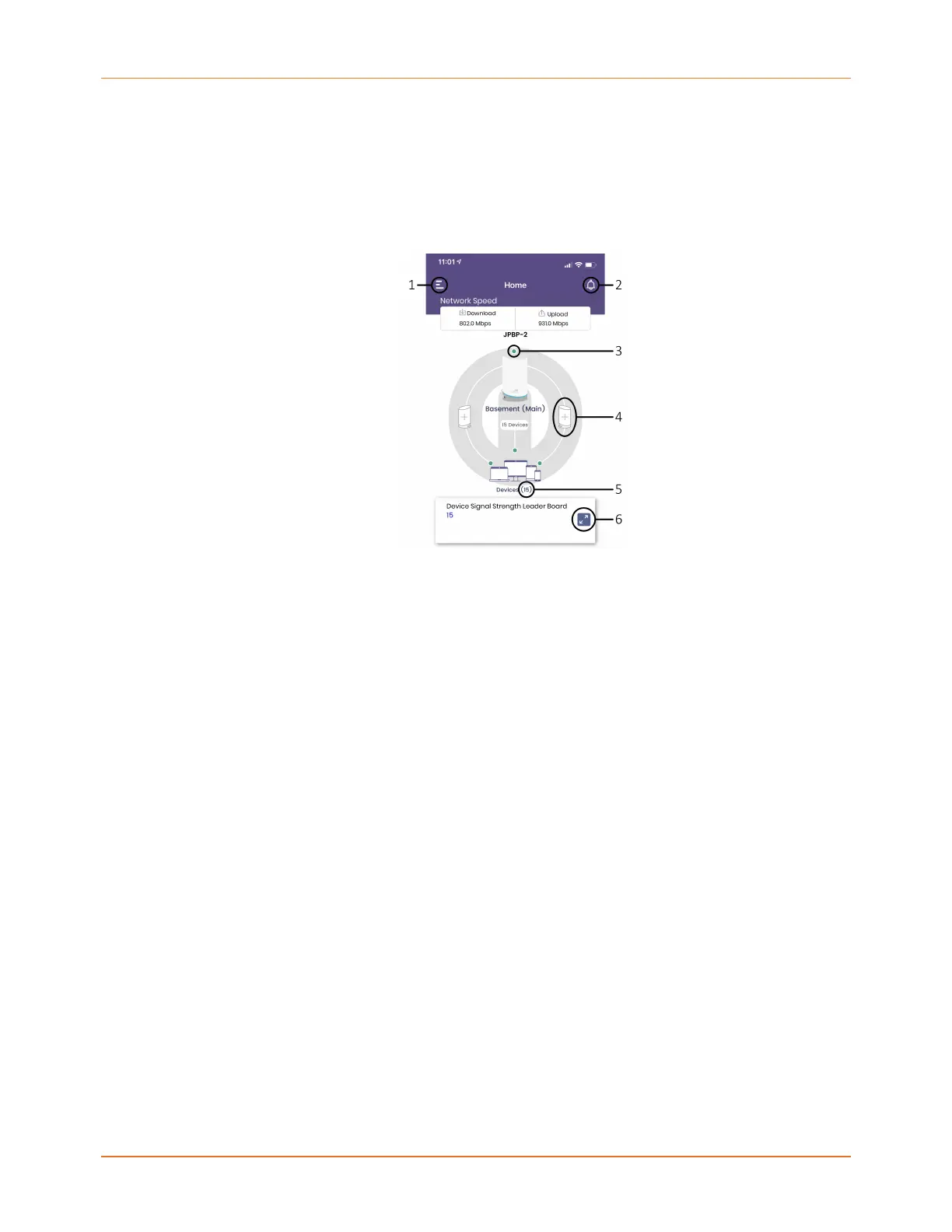
These are the main features on the Home screen.
1 Collapsed menu icon. Tap to access the Side menu.
2 Notifications. Tap the Notification bell to display firmware updates, incidents of new
devices connecting to your network, unsuccessful router responses, and more.
3 Information. Indicates an issue. Tap the error banner that displays for more
information.
4 Add satellite. Tap either the left or the right satellite image to add a new satellite to
your home Wi-Fi network. A maximum of 2 satellites can be added.
5 Devices. Lists the number of devices online.
6 Expand card. Tap to expand the section for more information.
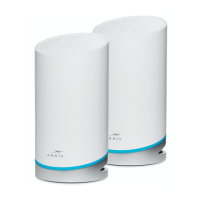
You can tap on the image of your mAX router or satellite to access its details including online
and offline devices, device connection details, and LED settings.
The Home screen also provides Statistics about the top 5 connected devices' signal strength
that you can choose to view strongest to weakest or weakest to strongest, a history of speed
tests, and a list of blocked devices. Swipe left or right to move through the various Statistics
screens.
mAX router and satellite details
To access information about your mAX router or satellite(s), tap Home at the bottom of the
SURFboard Central mobile app and then tap the image of the router or satellite to display
details about it.
SURFboard mAX User Guide Standard Revision x.1 27



 To Next Page